File Storage
Overview
File Storage provides file-level data storage and sharing capabilities across your network. This guide walks you through setting up and managing NAS volumes in the Vayu Cloud portal.
Accessing File Storage
-
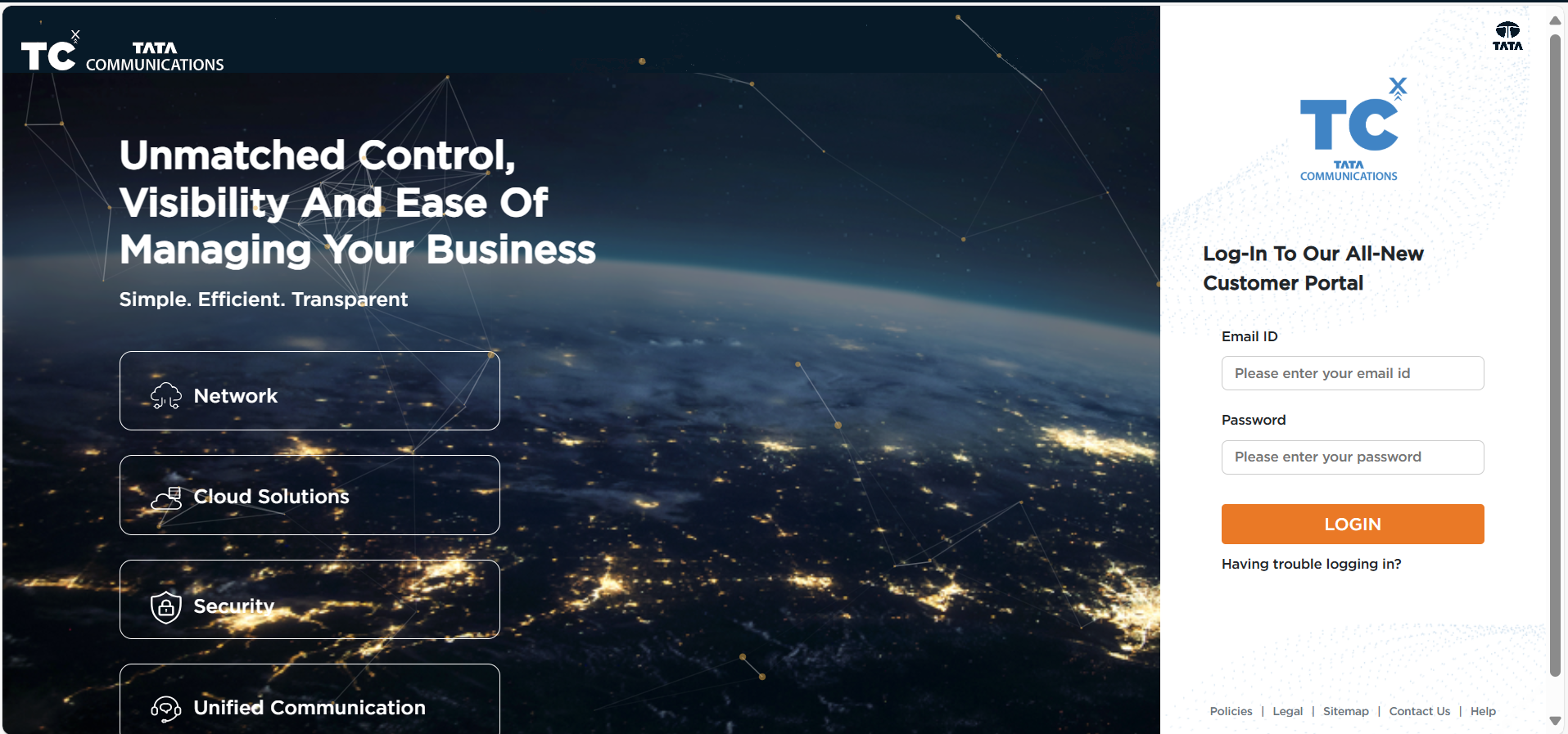
Customer logs into the portal with their credentials.
-
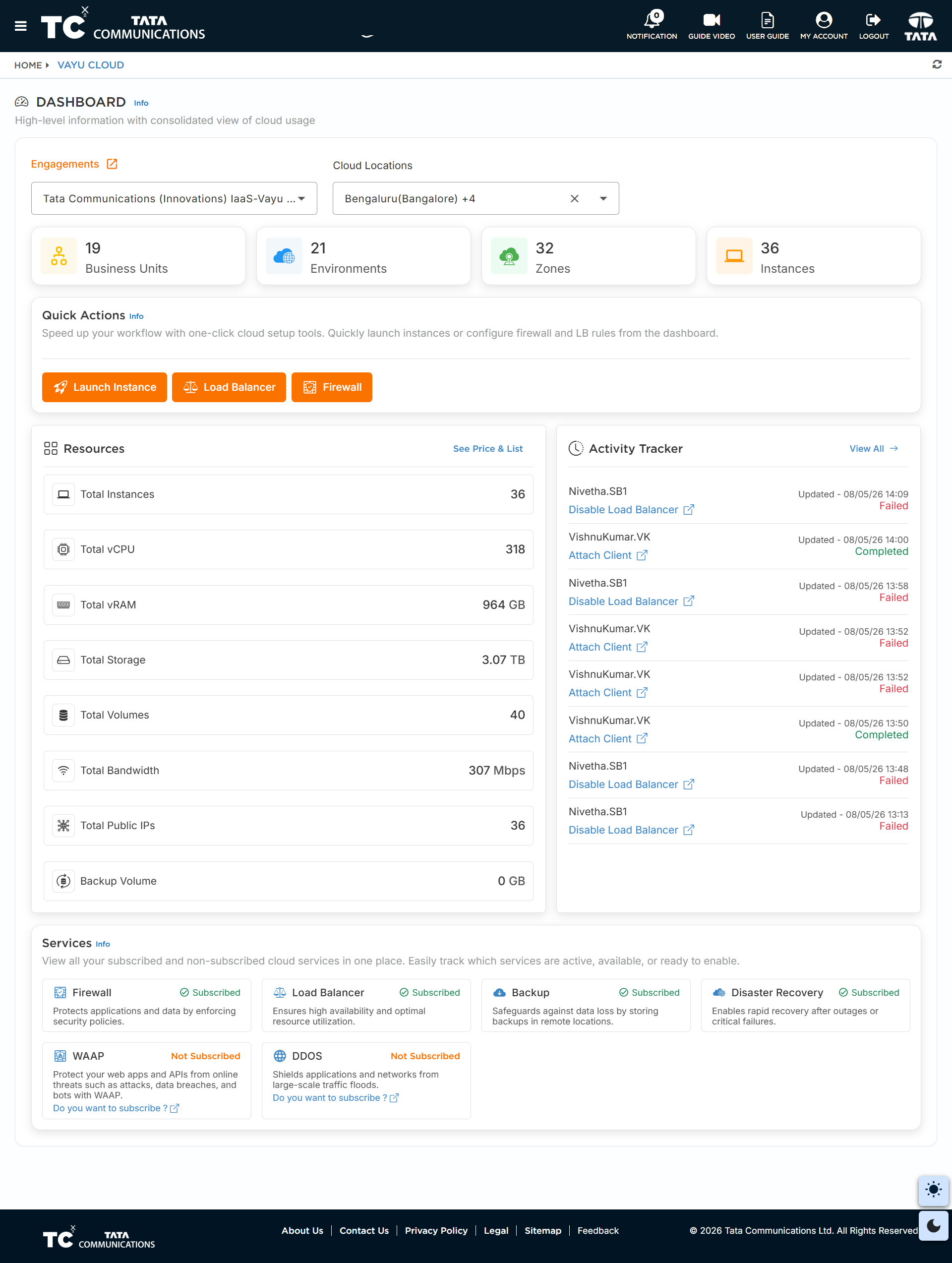
The Vayu Cloud dashboard is the landing page, providing consolidated information.
-
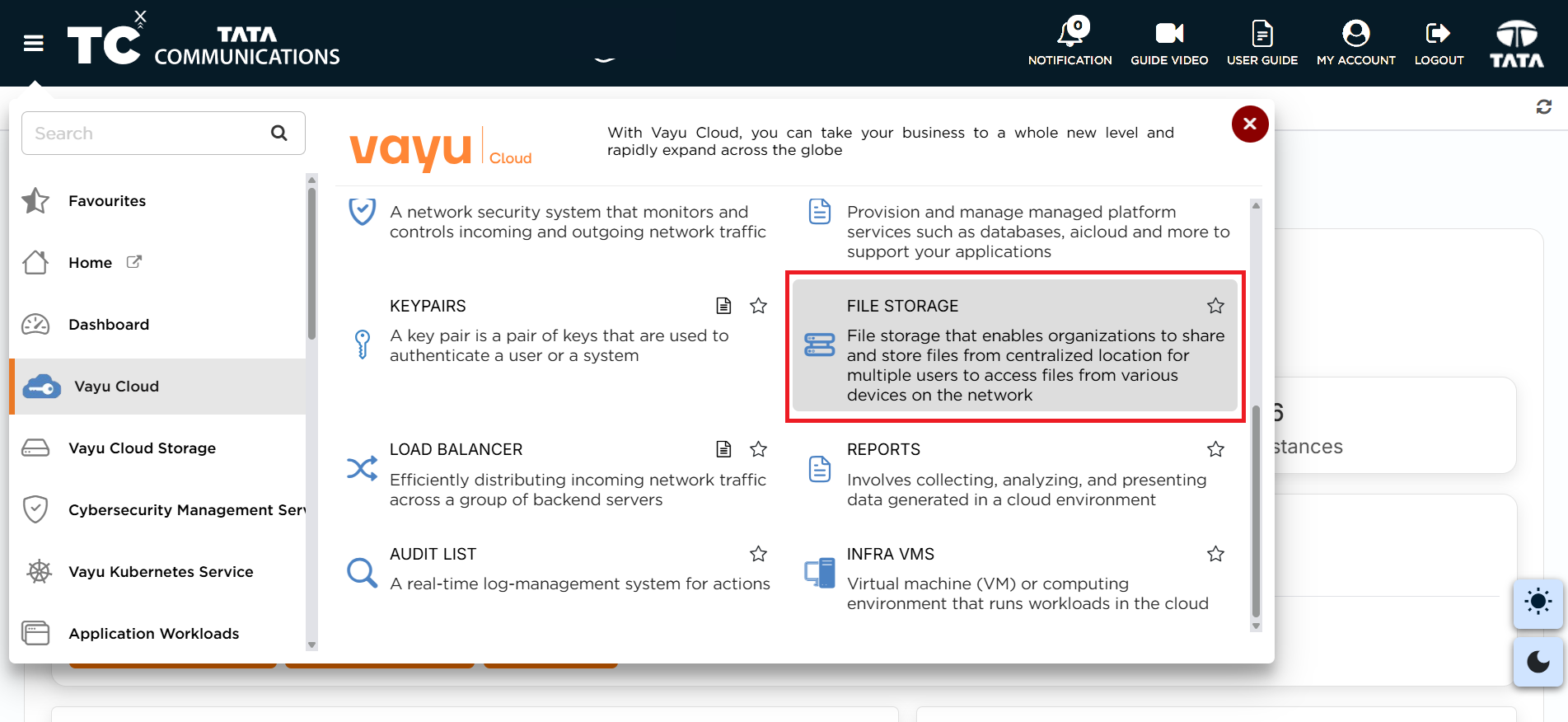
Click on the Hamburger menu on the top left of the portal.
-
Under Vayu Cloud, select File Storage from the sub-menu.
-
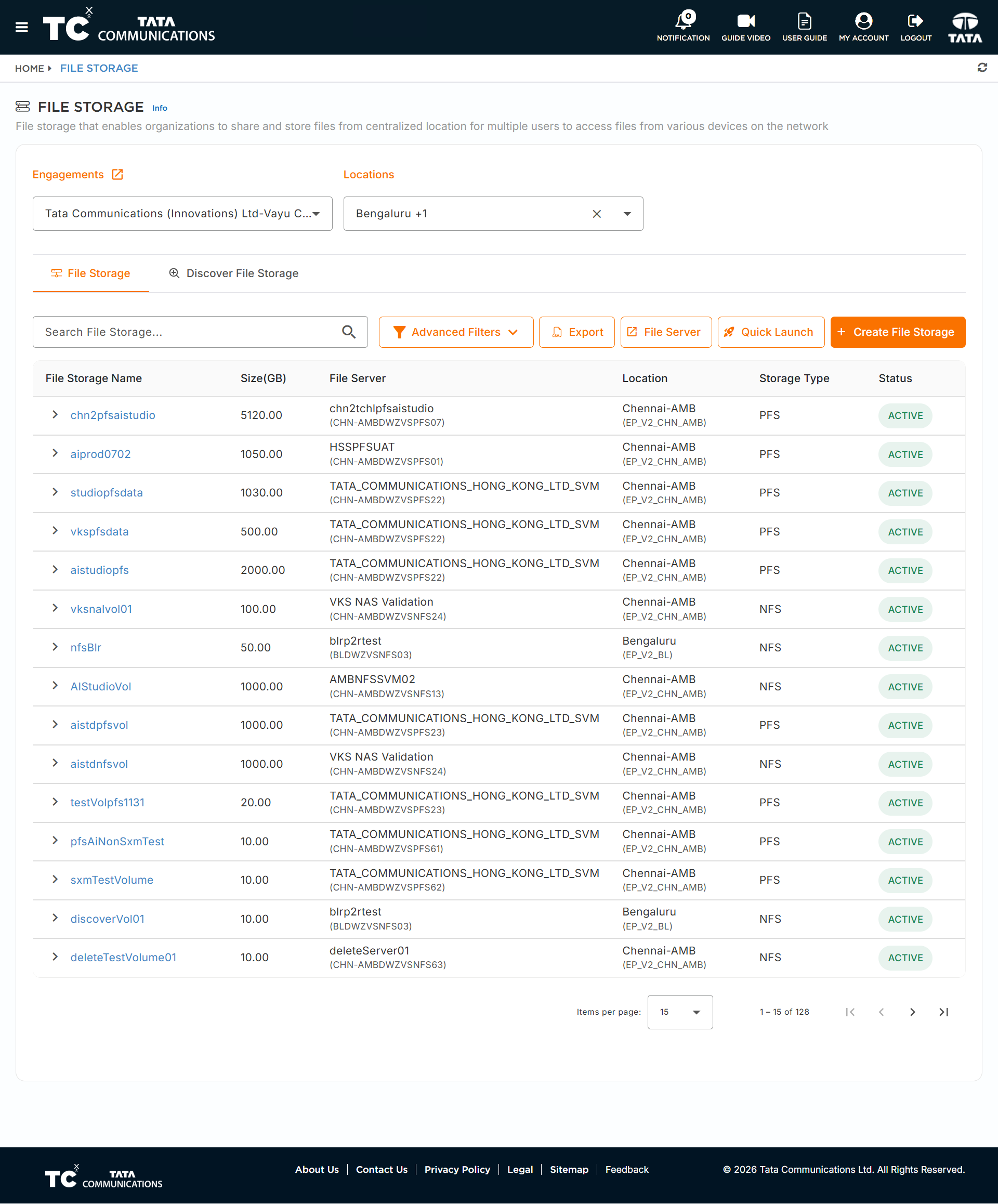
This will redirect you to the File Storage List page.
Storage Virtual Manager (SVM) Creation
The Storage Virtual Manager (SVM) is a logical storage entity that manages your NAS volumes.
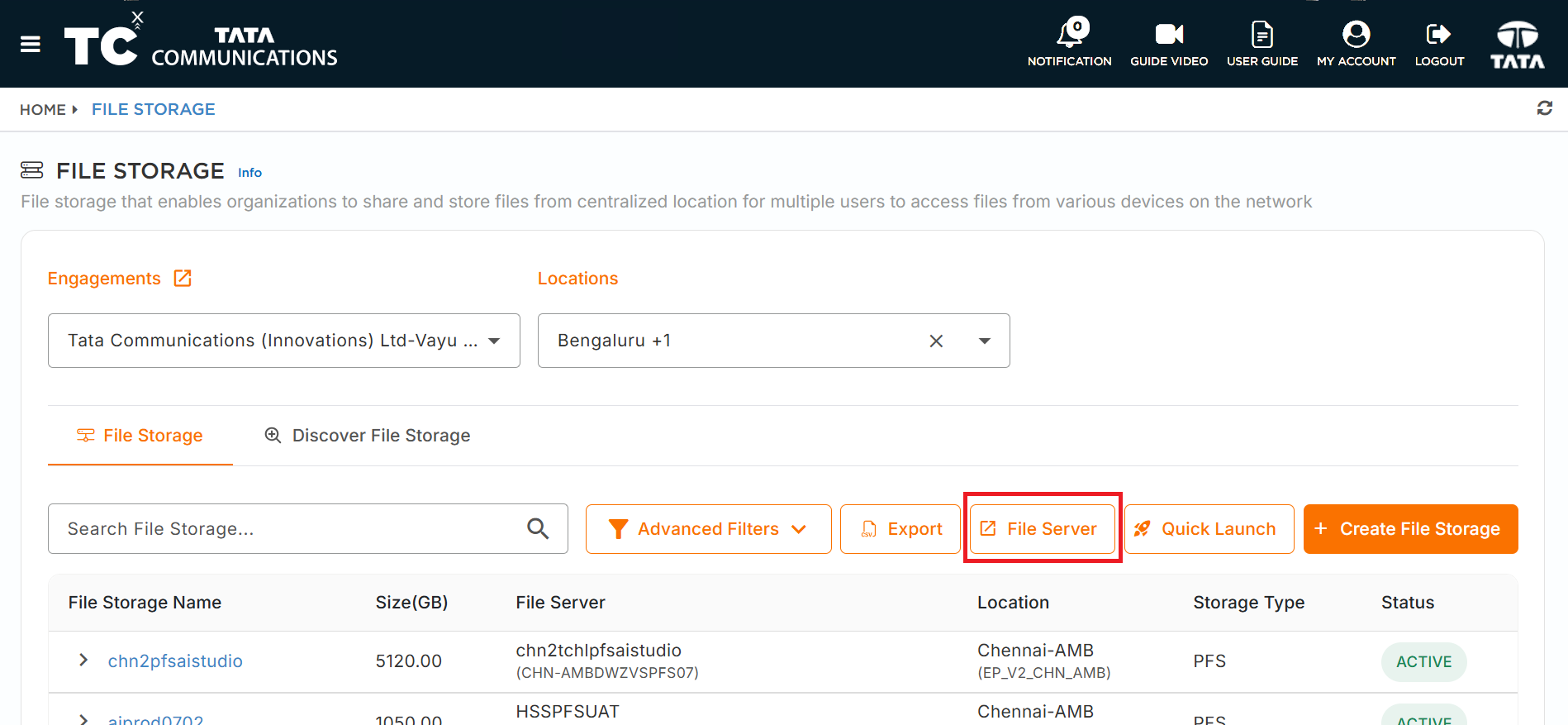
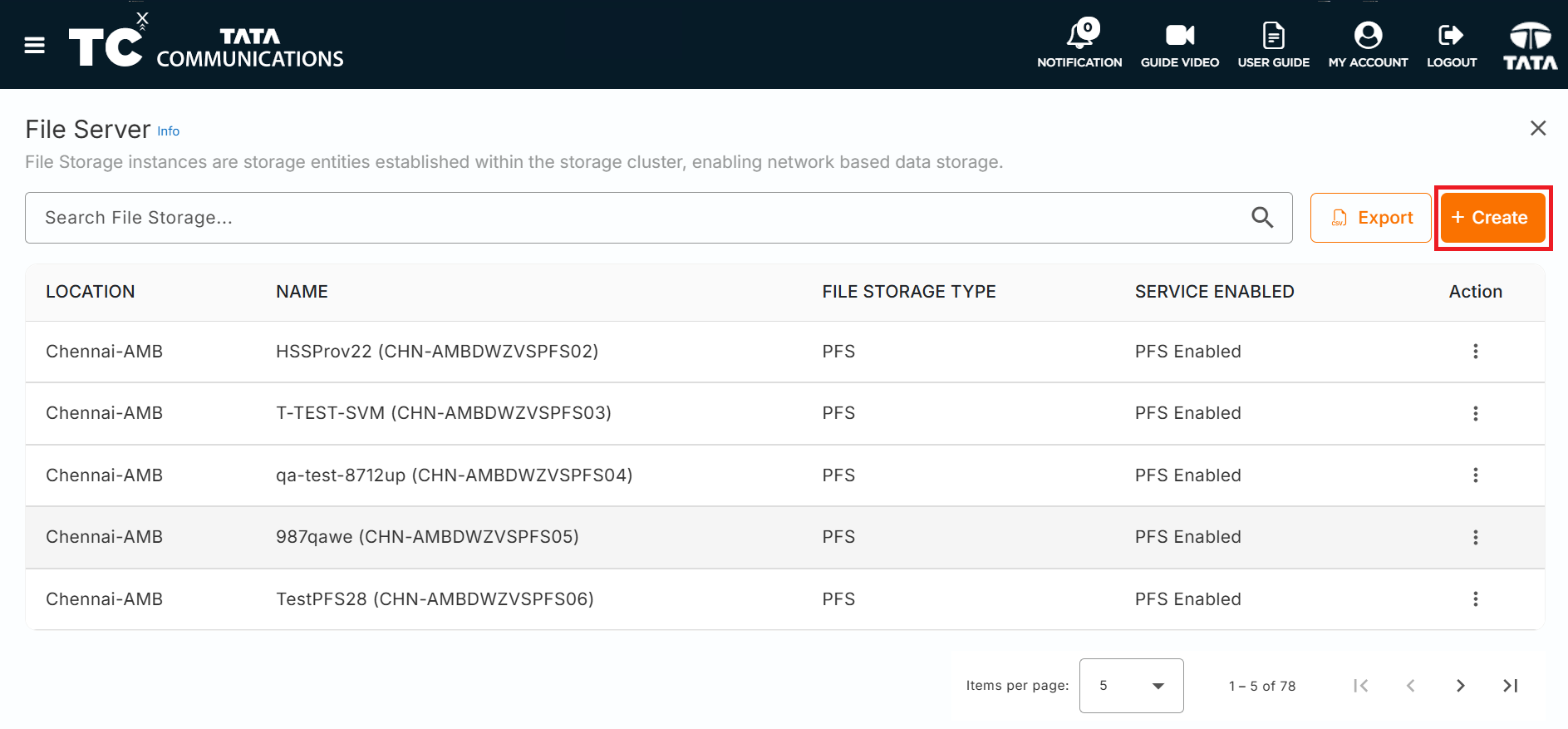
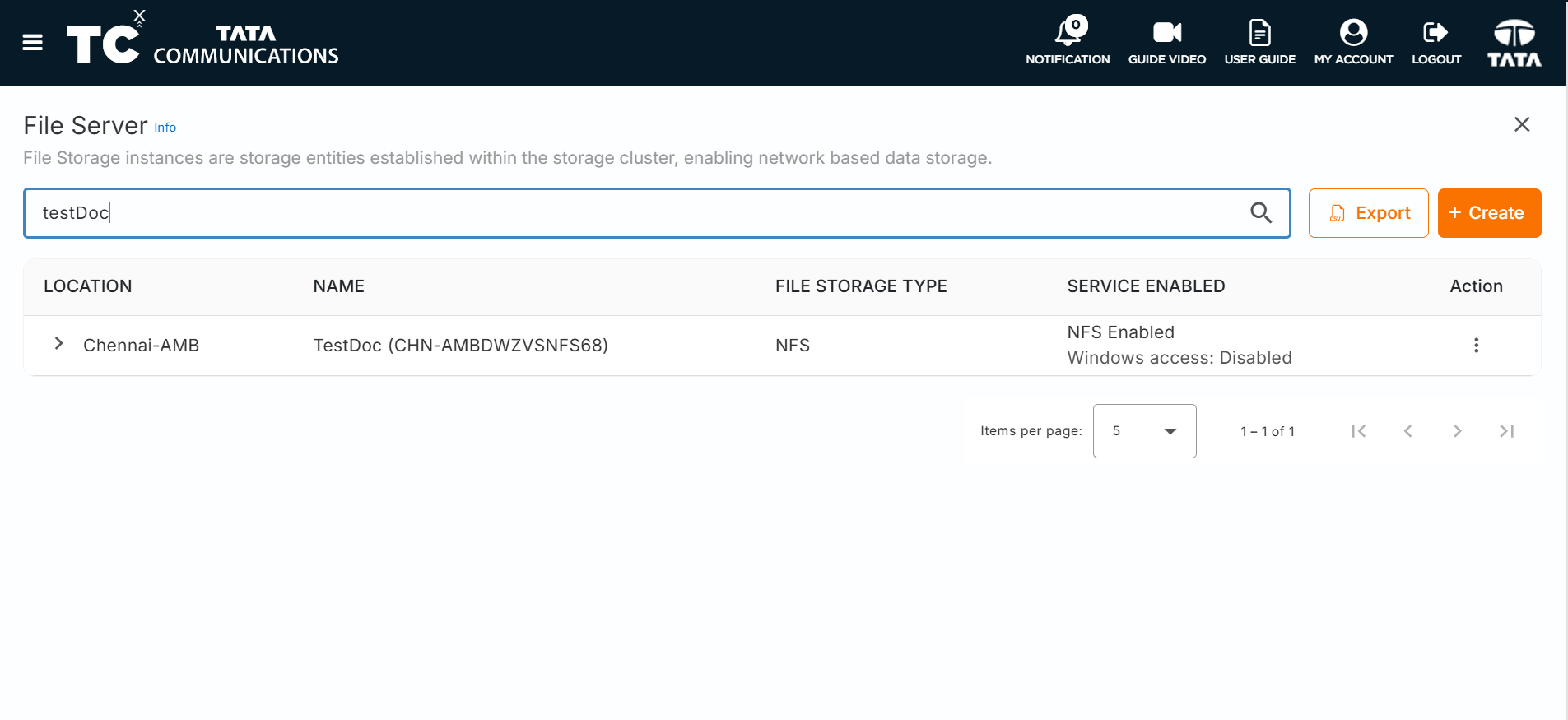
- From the File Storage List page, click on File Server button.It will redirect to File Server List Page. Click on Create button.
-
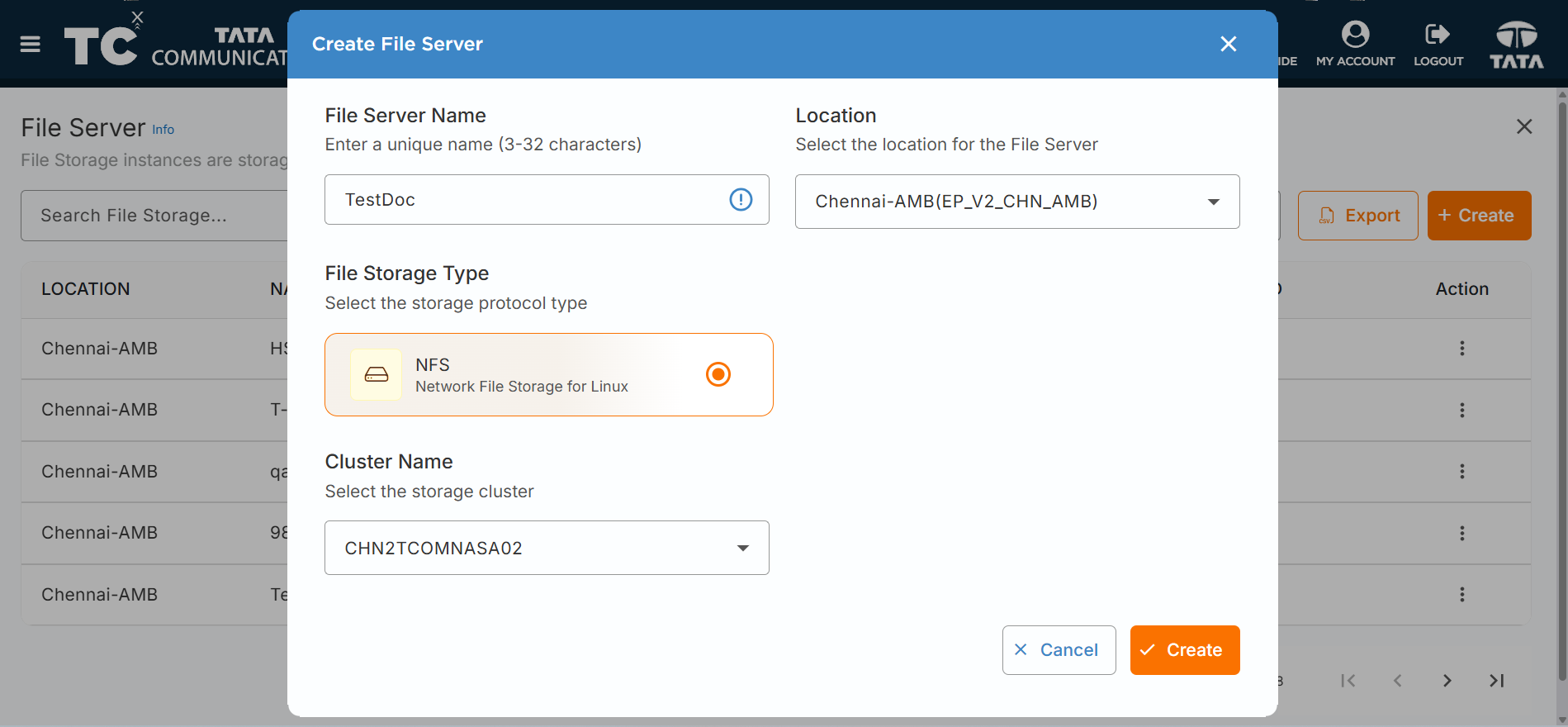
Fill in the required details in the SVM creation form:
i. File Server Name - Enter a meaningful name for your Storage Virtual Manager.
ii. Location - Select the location from the drop-down list.
iii. File Storage Type - Choose the appropriate storage type.
-
Review the details and click SUBMIT.
-
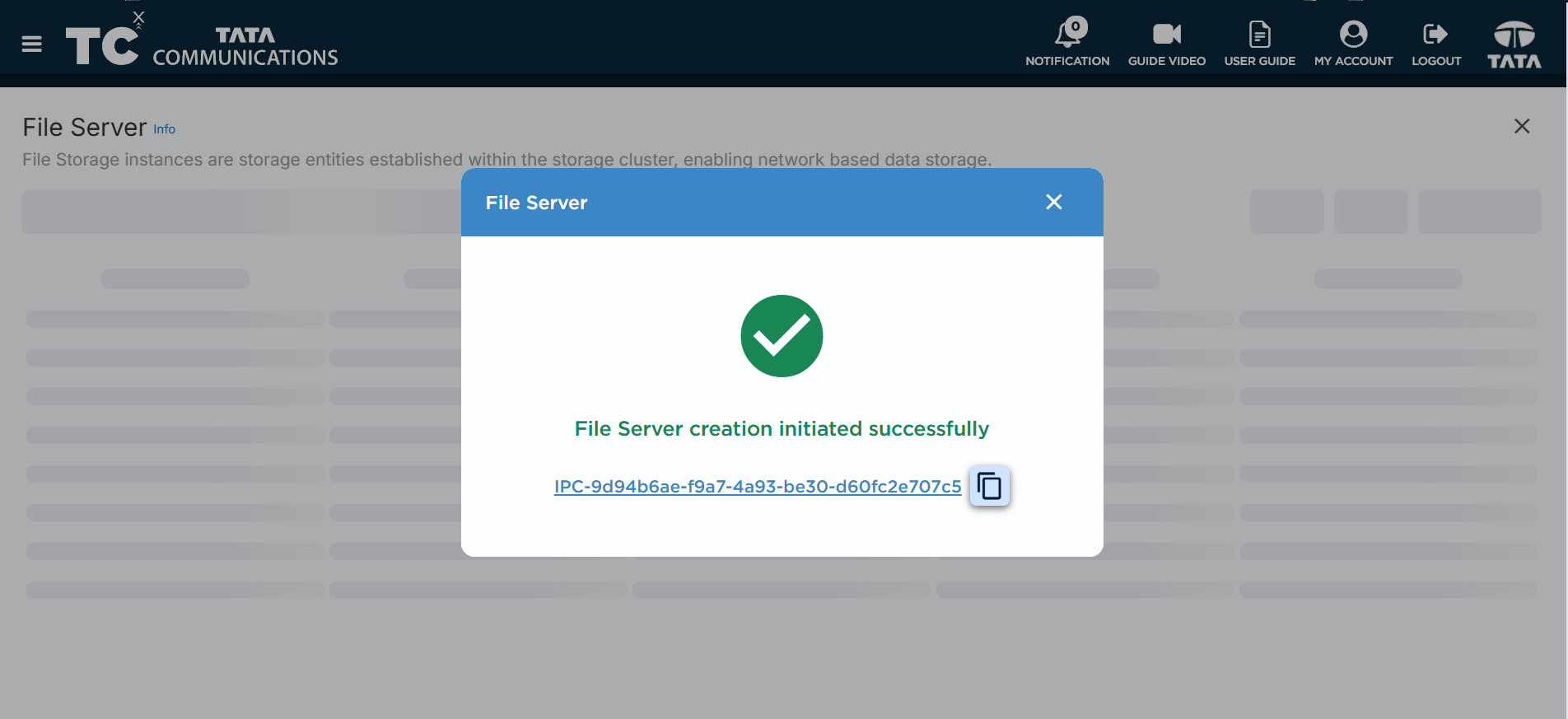
Once the audit is successfully completed, the created SVM will be listed in the table.
Volume Creation
After creating an file server , you need to create File Storage that will be used for storage.
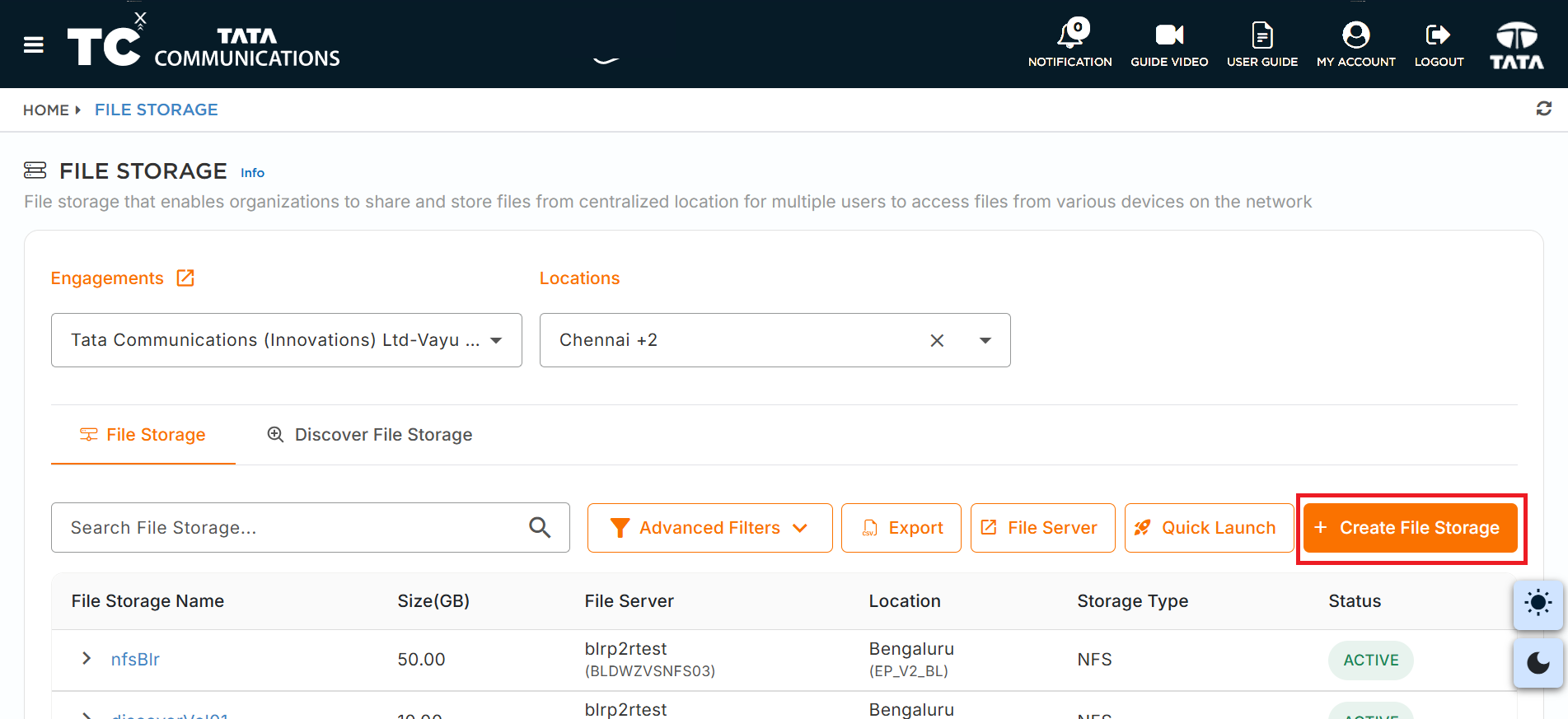
- In File Storage list page Click on the Create File Storage button.
-
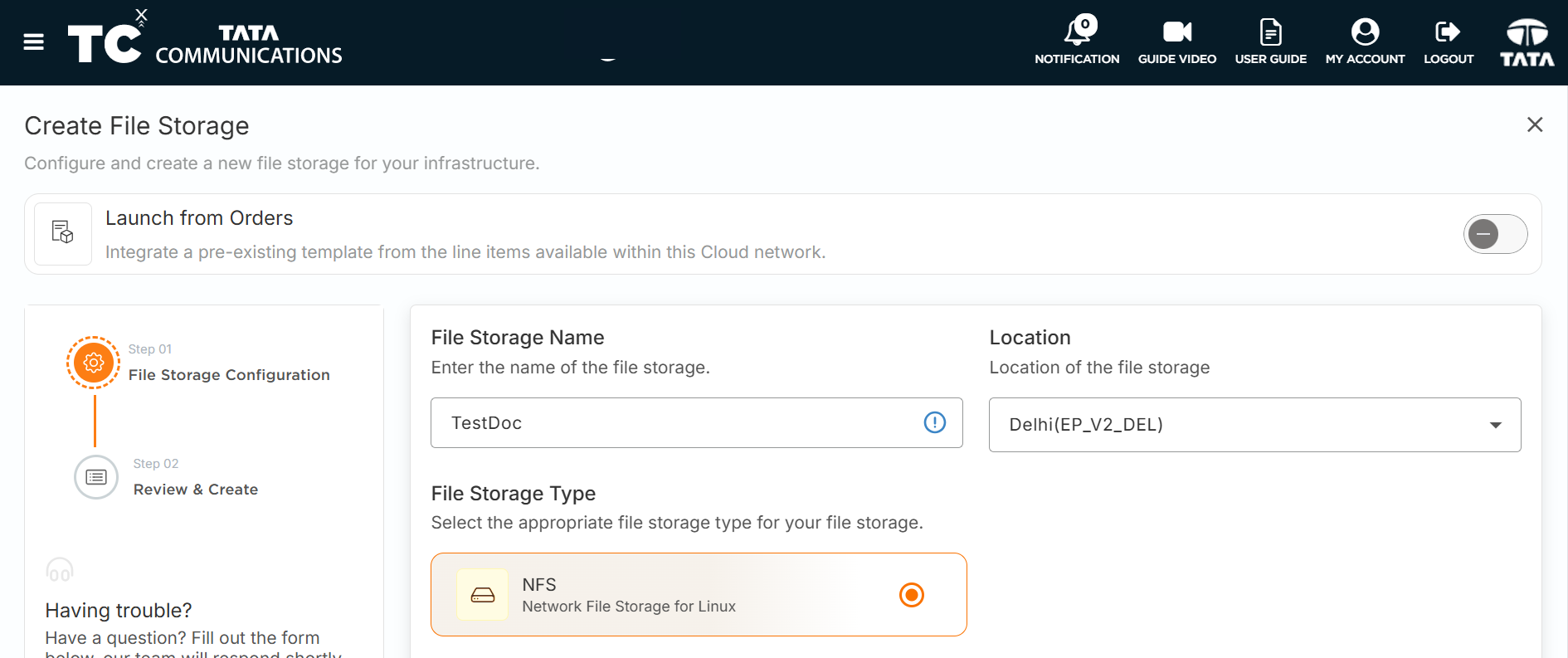
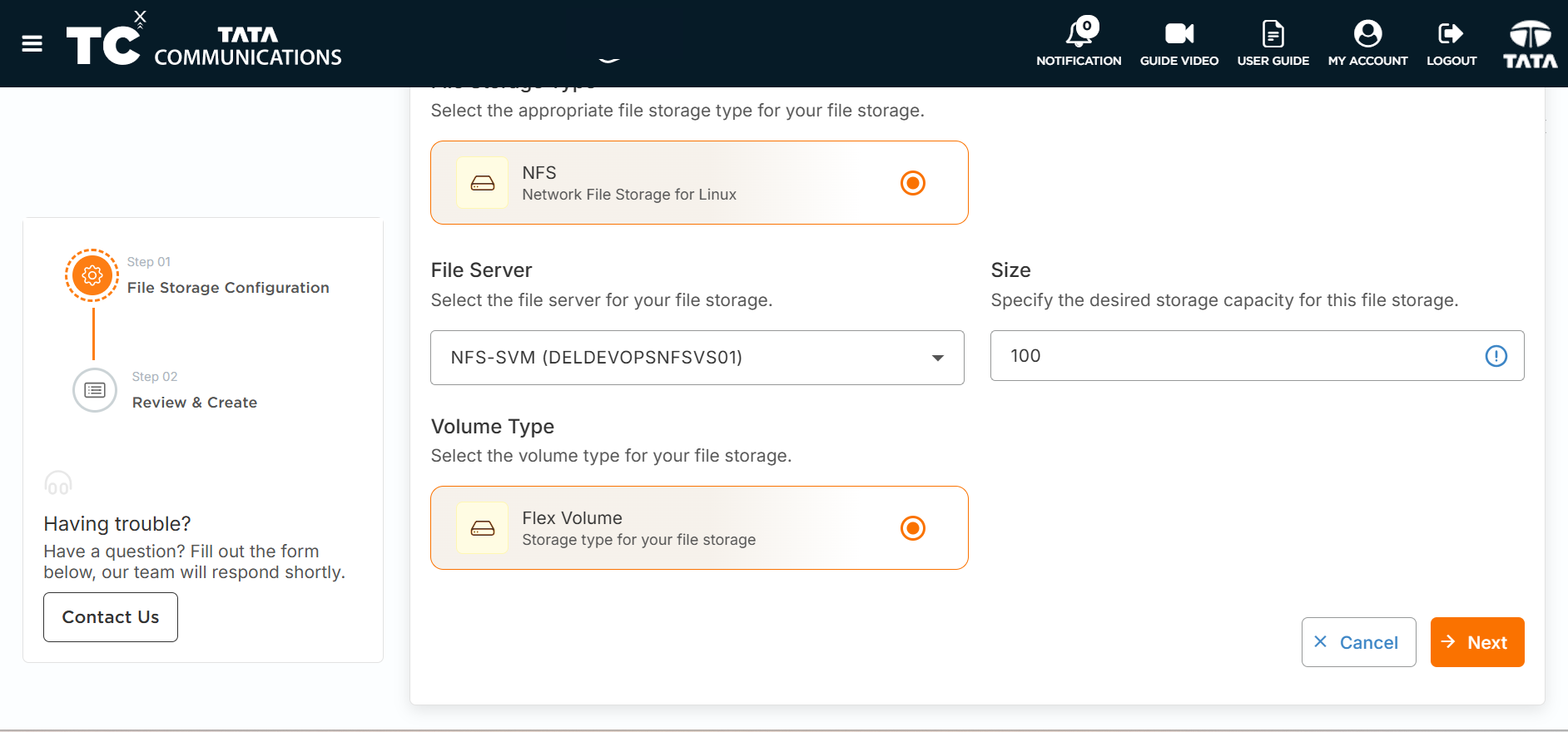
Fill in the volume details:
i. File Storage Name - Enter a unique name for your volume.
ii. Size (GB) - Specify the size of the volume in gigabytes.
iii. Volume Type - Select the appropriate volume type from the drop-down.
iv. Storage Virtual Manager - Select the SVM created in the previous step.
v. File Storage Type - Select the appropriate File Storage type from the drop-down.
-
Review the information and click SUBMIT.
-
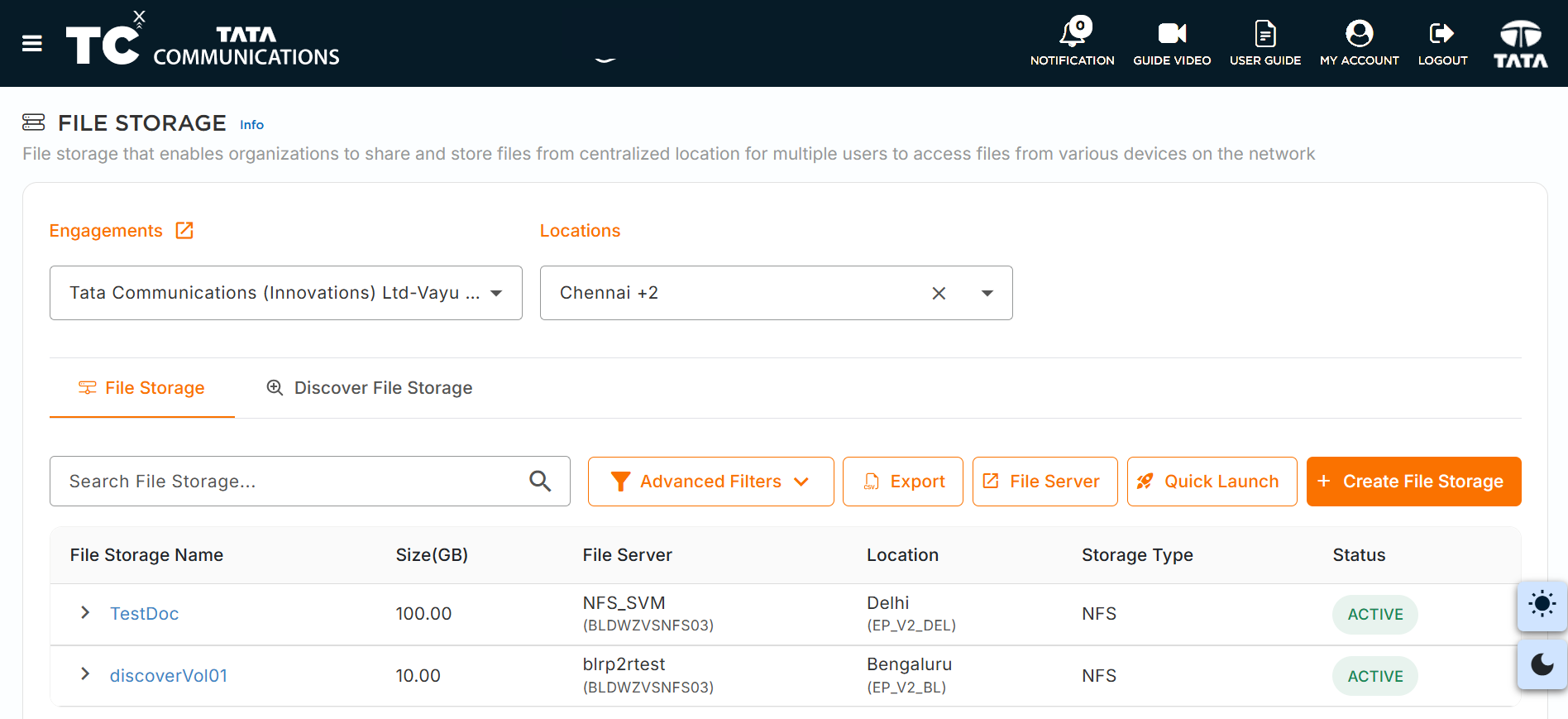
Once the audit is successful, the volume gets created and listed in the volumes table.
Attaching Clients/VMs to Volume
After creating a File Storage , you need to attach clients or VMs to it to enable access.
-
Click on the File Storage you created from the list to view its details.
-
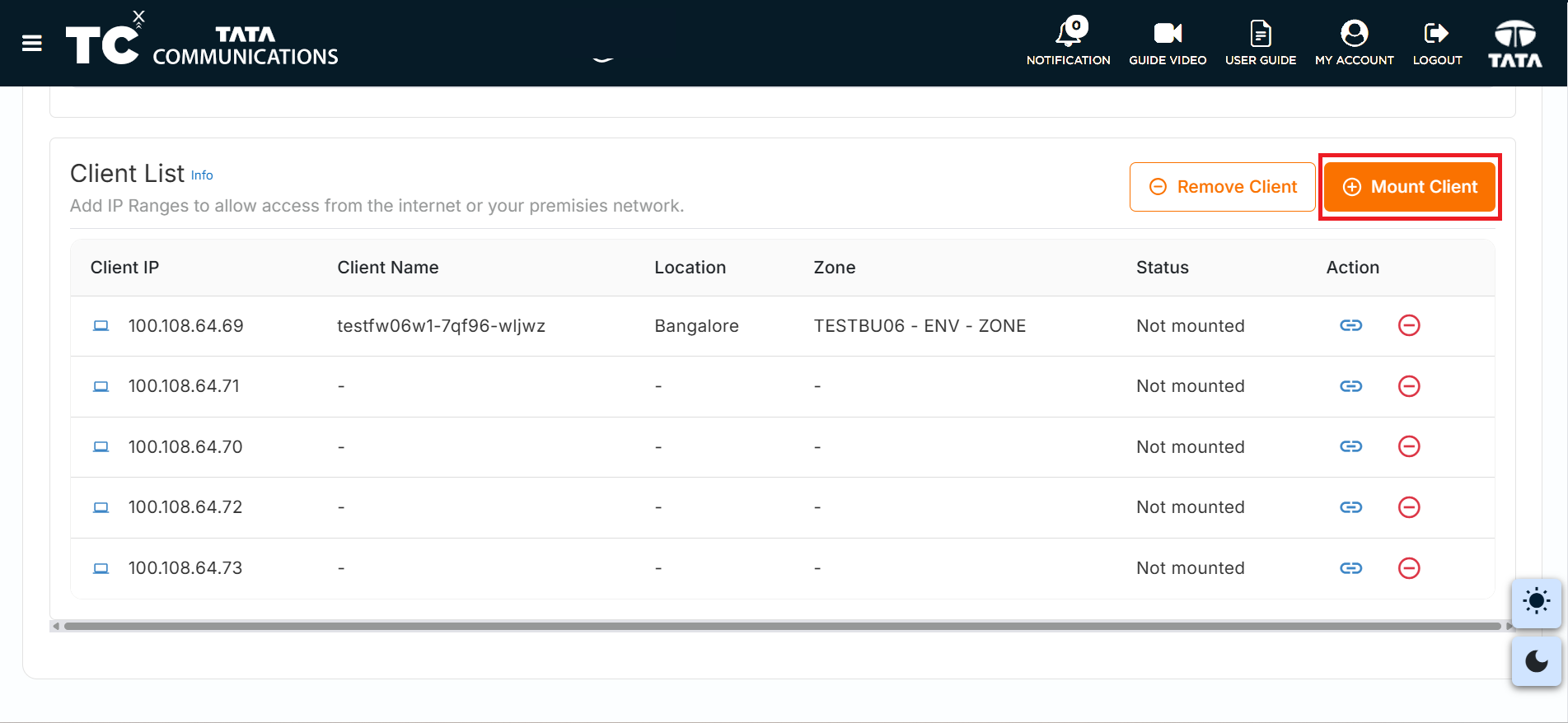
Scroll Down to the Client List Section.
-
Click on Mount Client button.
-
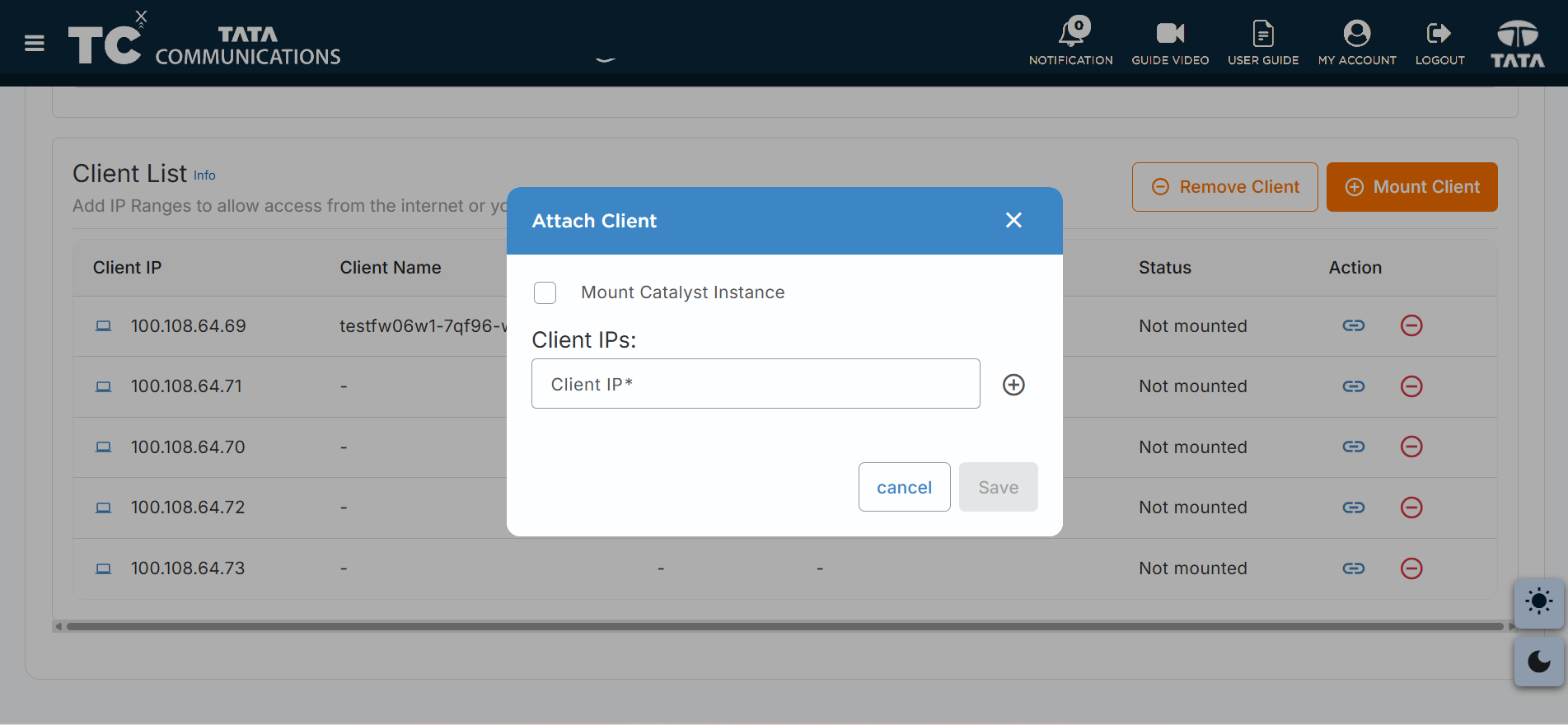
The ATTACH CLIENT dialogue window appears with two options:
-
Mount Catalyst Instance - Select existing VMs from your infrastructure.
-
Manual Entry - Enter client/VM IPs manually.
-
-
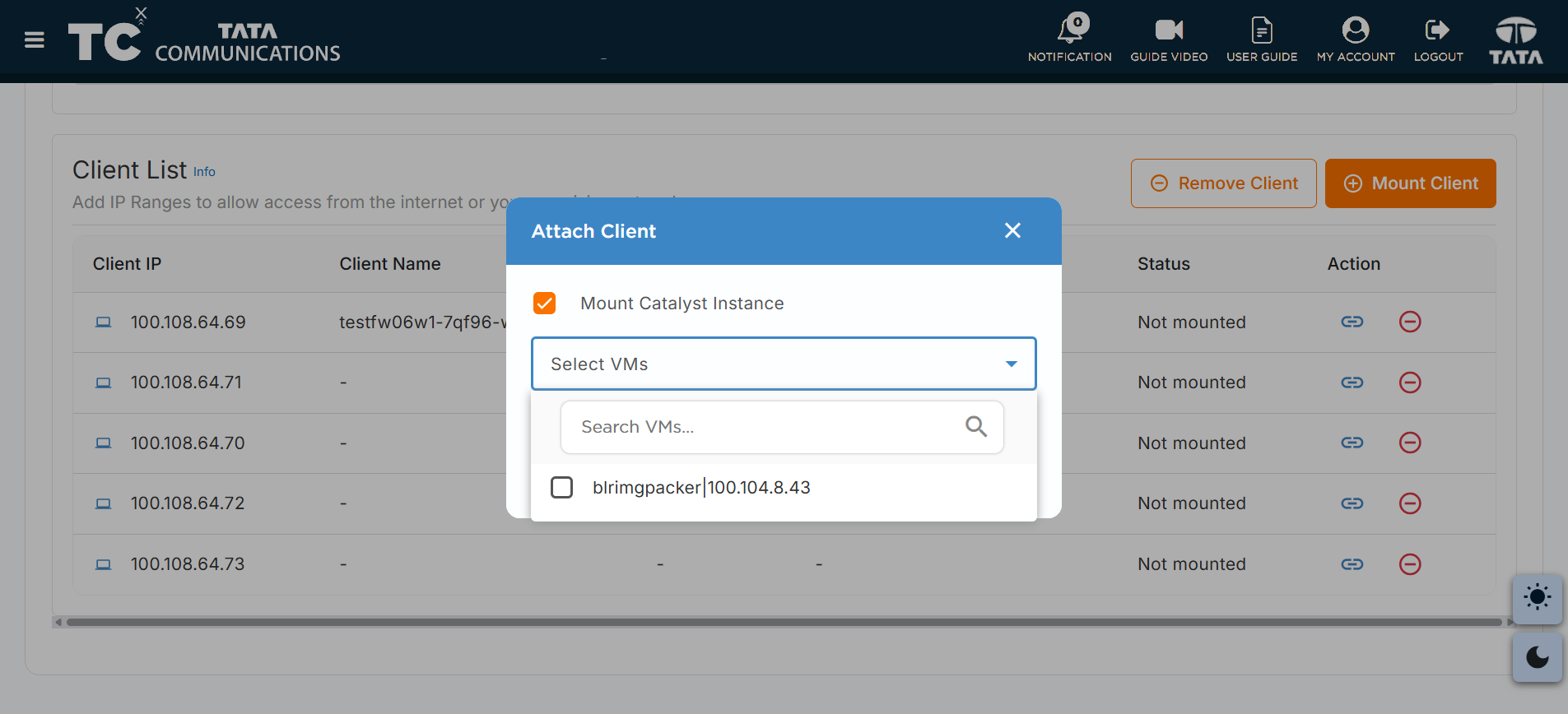
To mount existing VMs, select the Mount Catalyst Instance checkbox.
-
From the drop-down list, choose the VMs you wish to attach to the volume.
-
Once you have selected the required VMs, click +SAVE.
-
After the audit is successfully completed, the selected VMs will be listed under the CLIENTS tab.
Understanding Client Status and Actions
Once clients are listed in the CLIENTS LIST, you can view their mount status and perform actions:
Client Status:
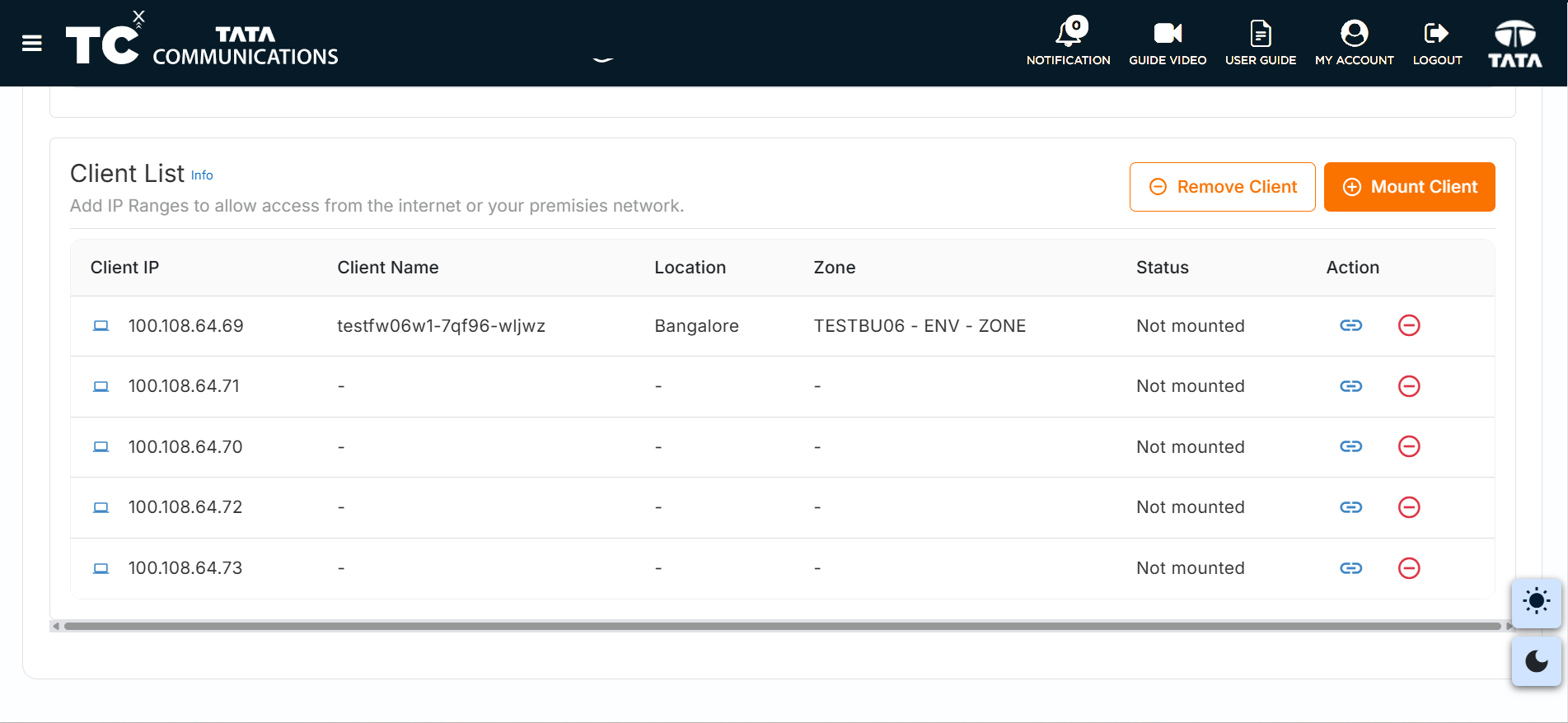
- MOUNTED - Indicates that the volume is successfully mounted to the client/VM.
- NOT MOUNTED - Indicates that the volume is not currently mounted to the client/VM.
Available Actions:
-
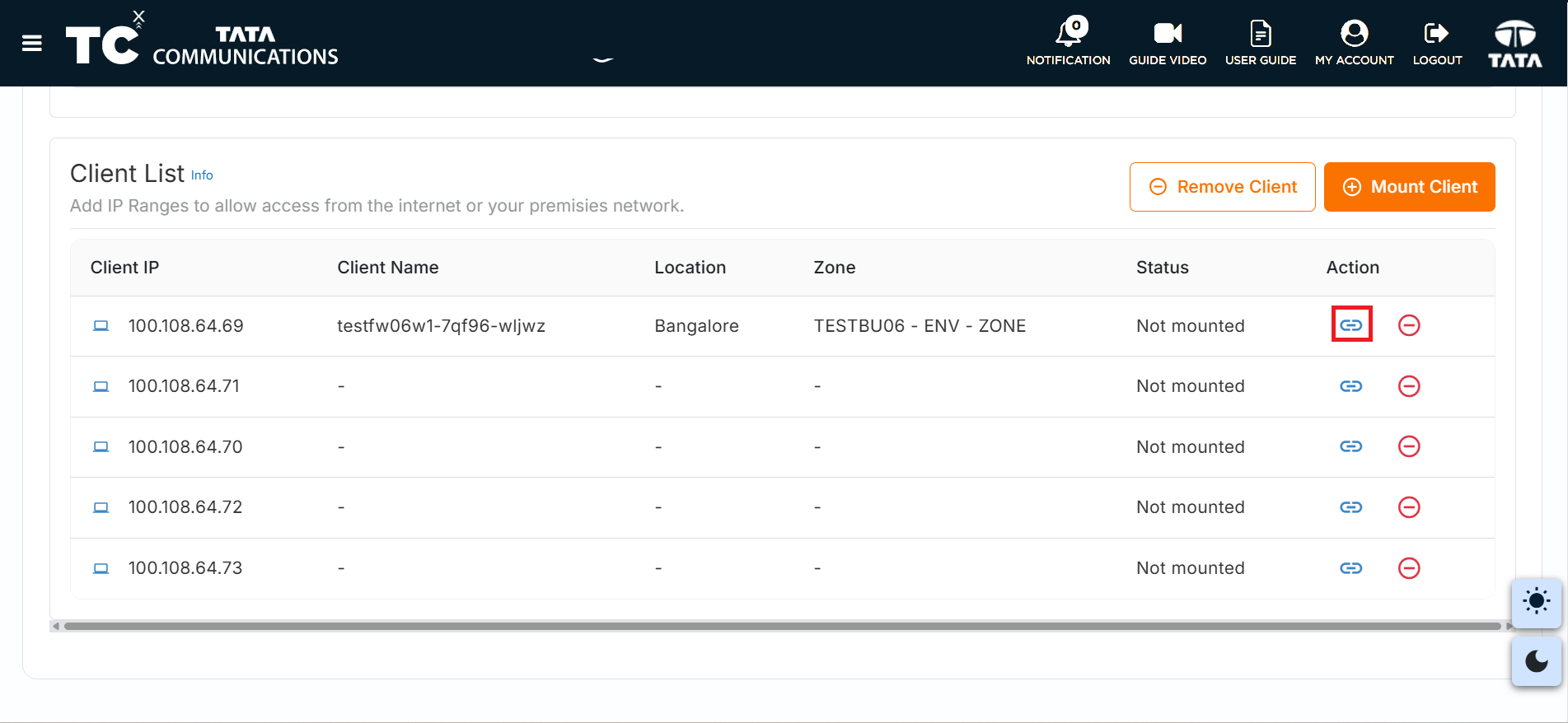
Mount Client - Available for clients with "NOT MOUNTED" status. This option allows you to mount the client to the volume.
-
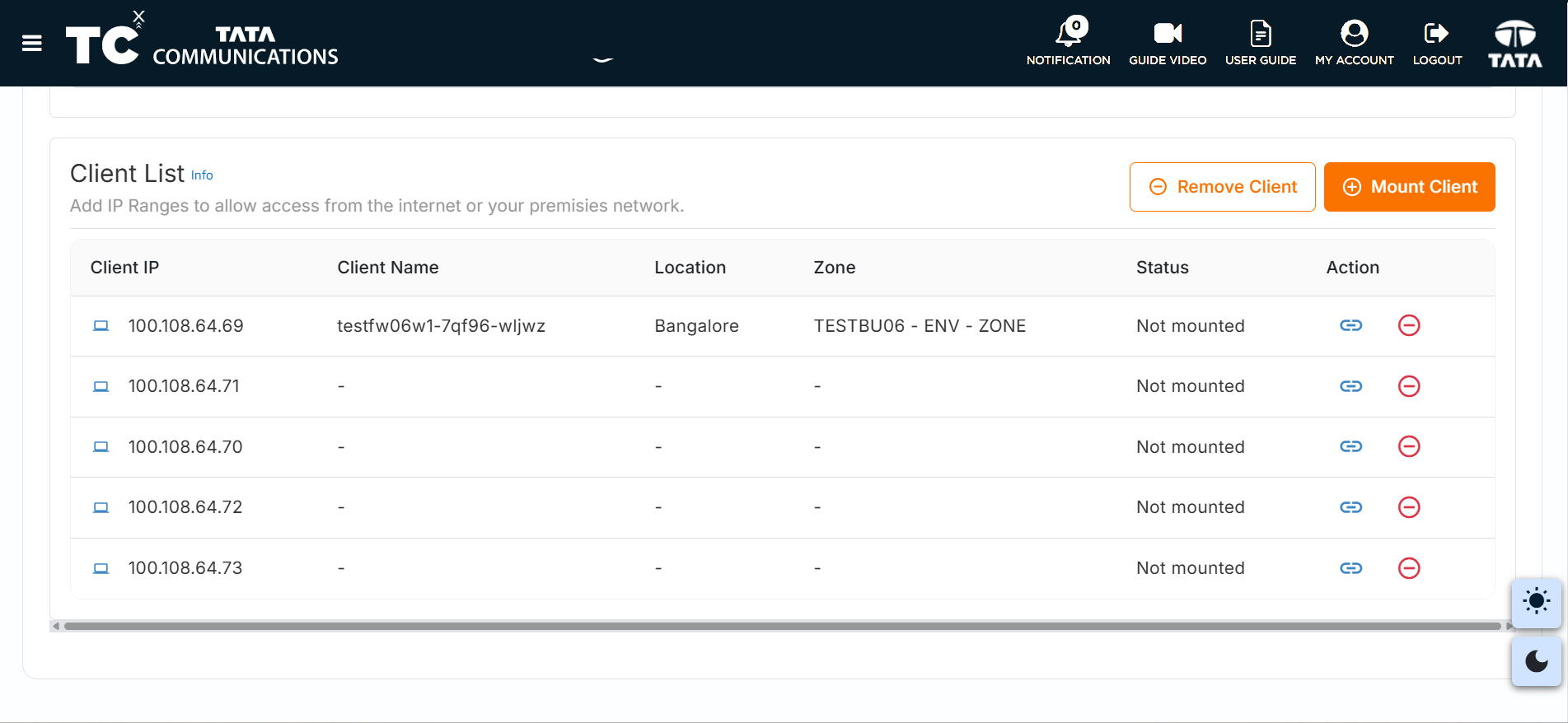
Remove Client - Available for all clients (both mounted and unmounted). This removes the client from the volume.
Mounting a Client to the Volume
To mount a client/VM that has "NOT MOUNTED" status:
-
Click on the Mount Client icon in the action column for the respective client.
-
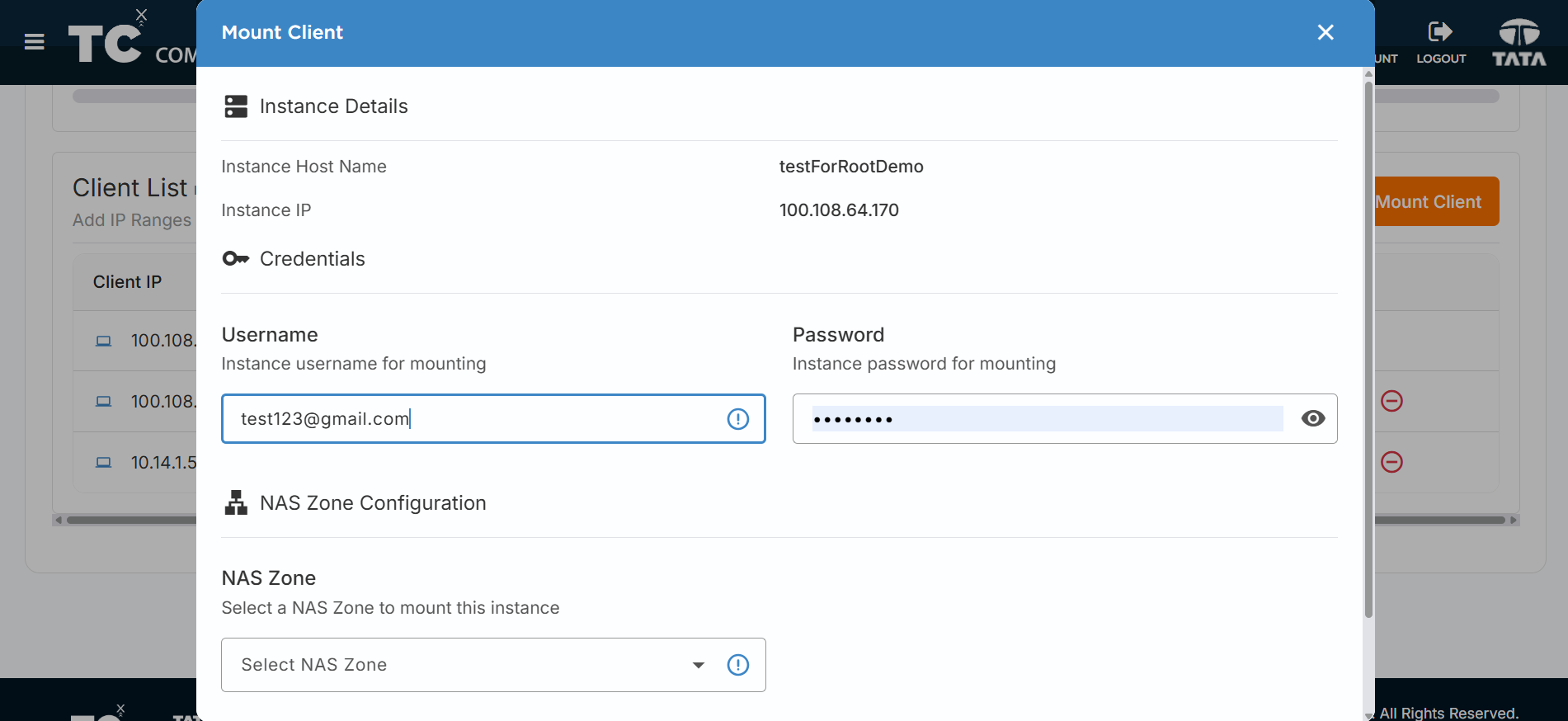
The MOUNT CLIENT dialog window will appear.
-
Fill in the required details:
i. Username - Enter the instance username for authentication.
ii. Password - Enter the instance password.
iii. NAS Zone - Select the NAS Zone from the drop-down menu where you want to mount this instance.
iv. NAS Zone IP - The system will automatically select the appropriate IP from the selected NAS zone.
Each NAS Zone has 2 IP addresses. The system automatically selects the appropriate IP based on the client IP address:
-
If the client IP ends with an odd number, the 1st IP from the NAS zone will be selected.
-
If the client IP ends with an even number, the 2nd IP from the NAS zone will be selected.
This load balancing ensures optimal distribution of client connections across the available NAS IPs.
-
Once all details are filled, click MOUNT to proceed.
-
After successful completion of the audit, the client status will change to MOUNTED.
Additional Notes
- If a client is MOUNTED, only the Detach Client option will be available in the action button.
- If a client is NOT MOUNTED, both Mount Client and Detach Client options will be available in the action button.
- The Mount Client option in the action tab is only applicable for volumes with NFS file storage type.
Zone Creation for NAS
To use NAS, you need to create two types of zones:
- NAS Zone - A VLAN zone with a Firewall but no VMs launched in the zone.
- Non-NAS Zone - An OVERLAY (VxLAN) zone with Firewall and VMs in place.
We are proceeding with Zone creation assuming that Business Unit & Environment under the Firewall are already in place.
Creating Non-NAS Zone (OVERLAY/VxLAN Zone)
-
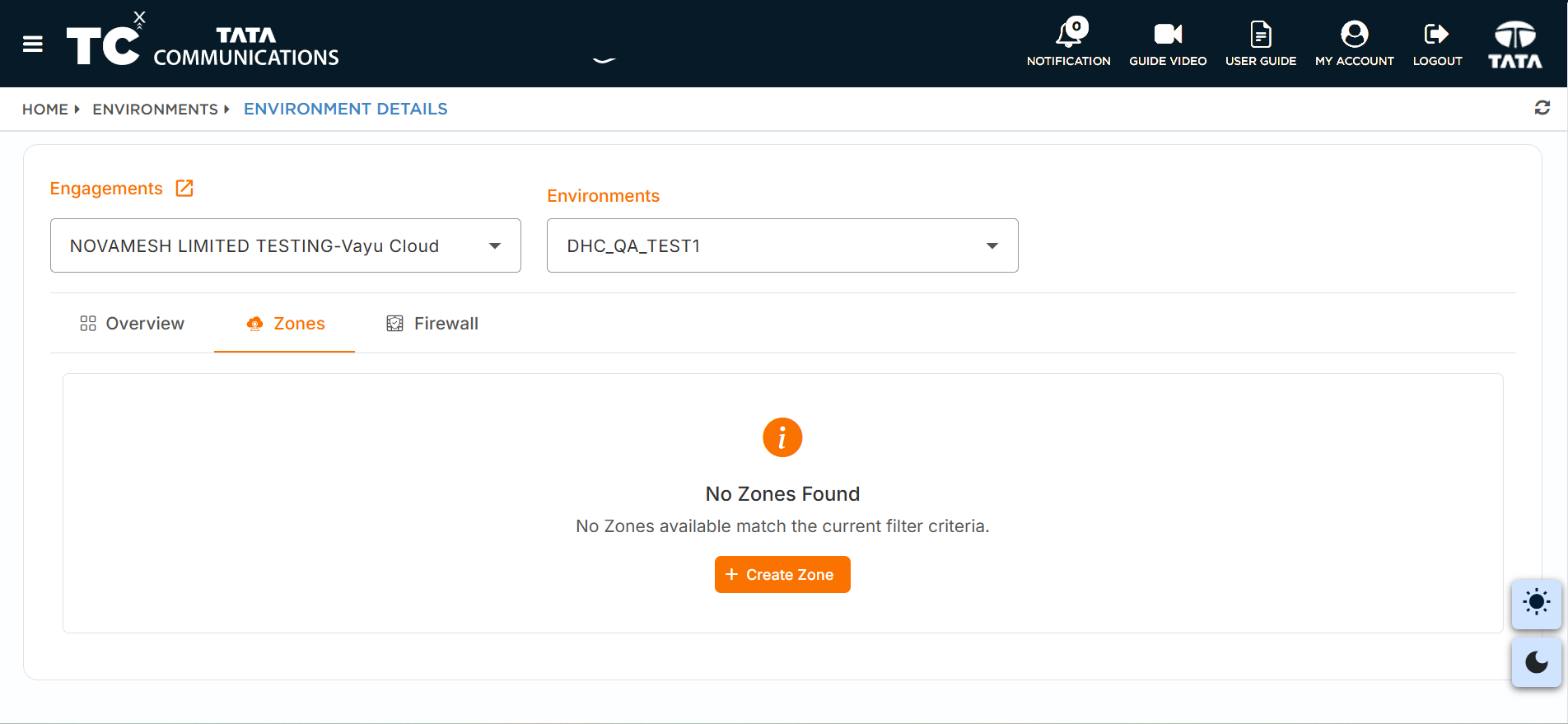
Within the Environment Details page, In Zone Tab click on the CREATE ZONE button.
-
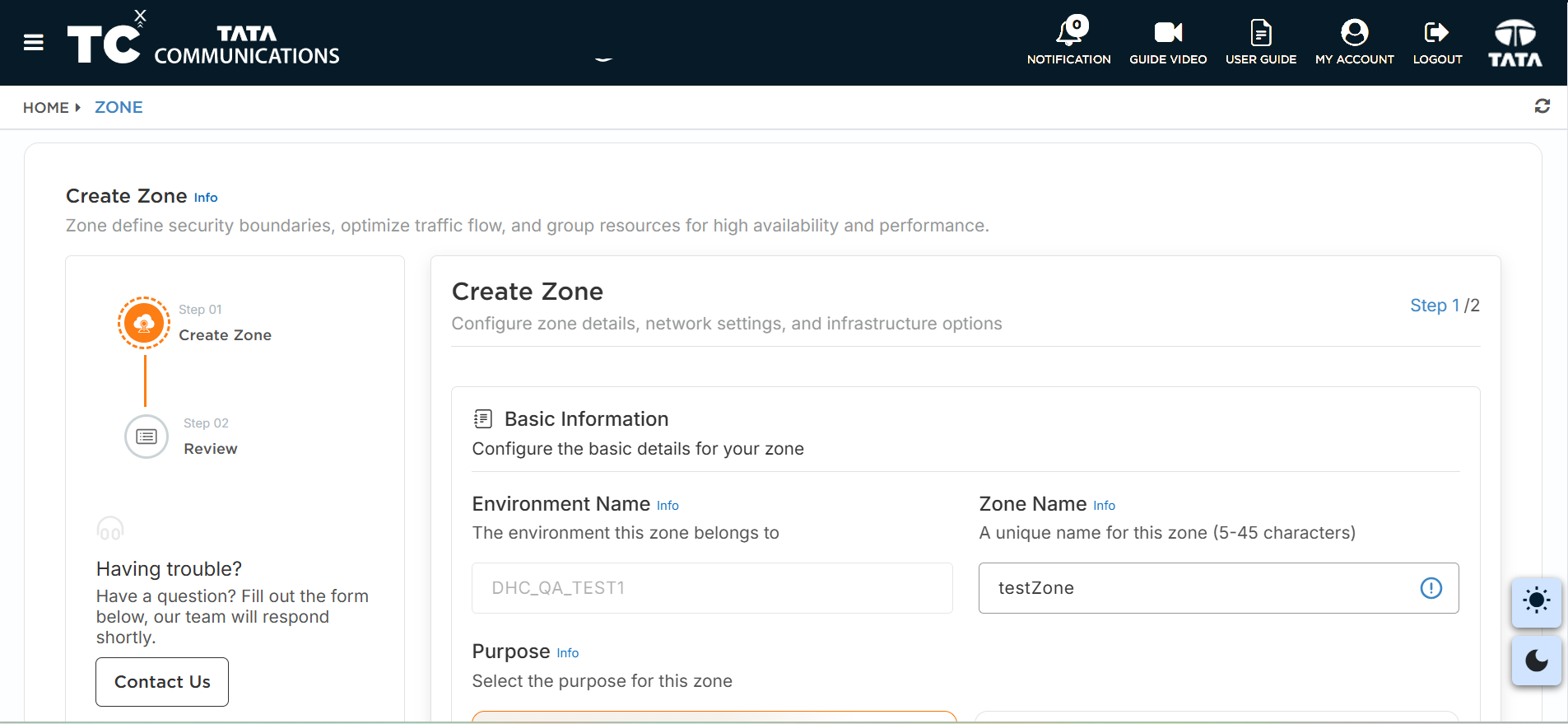
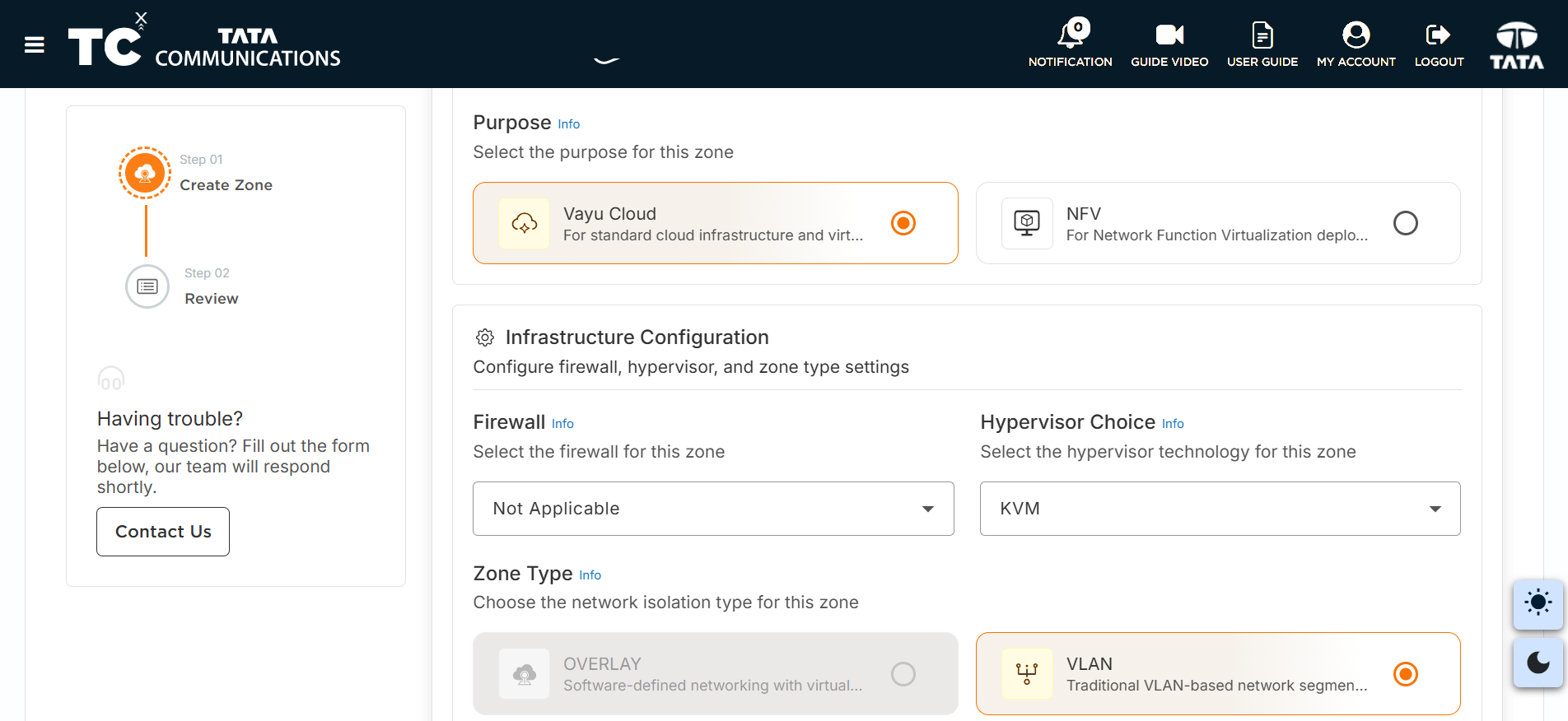
Fill in the form to create an OVERLAY (VxLAN) zone where VMs will reside with a Firewall in place:
i. Zone Name - Enter a meaningful name.
ii. Zone Type - Select OVERLAY or VxLAN.
iii. Firewall - Select the appropriate firewall.
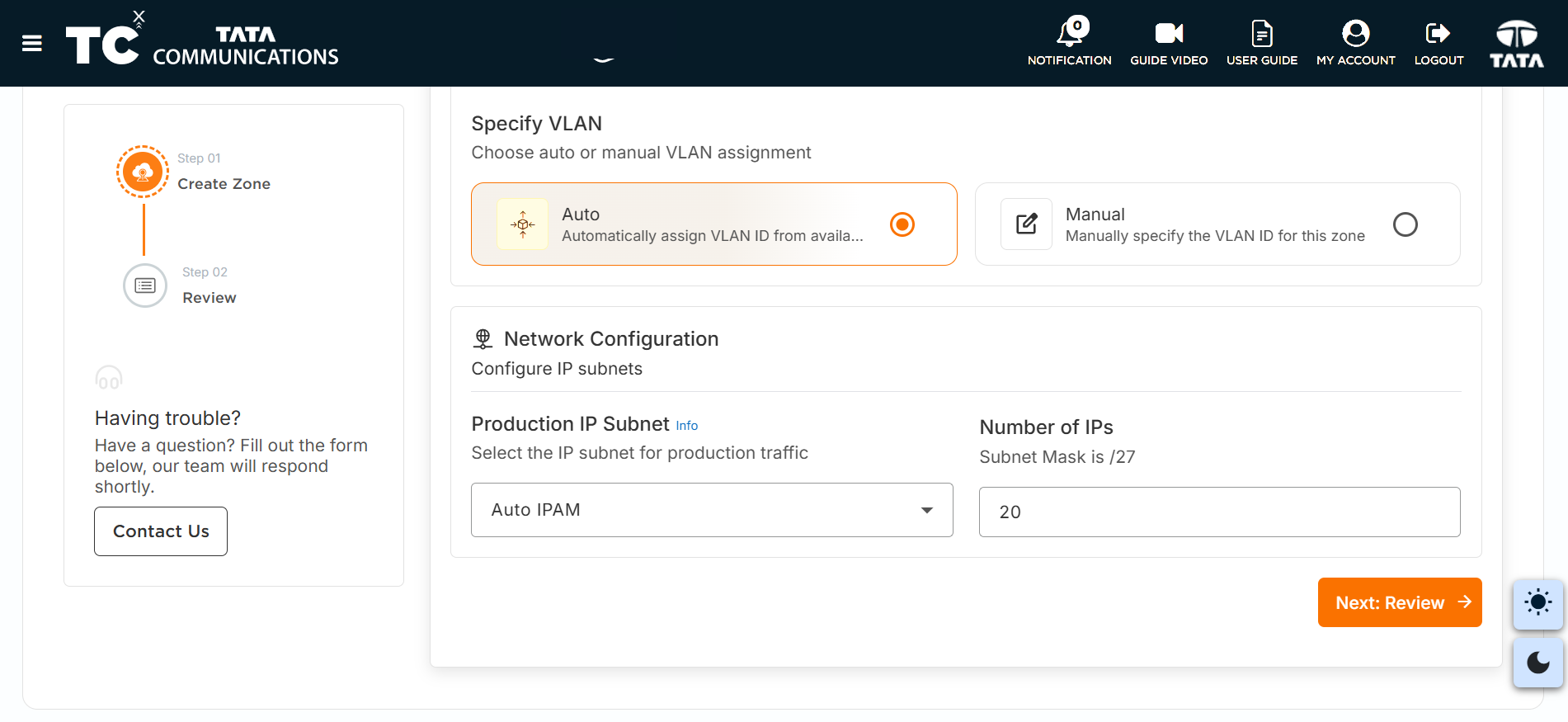
iv. Configure other required networking details.
-
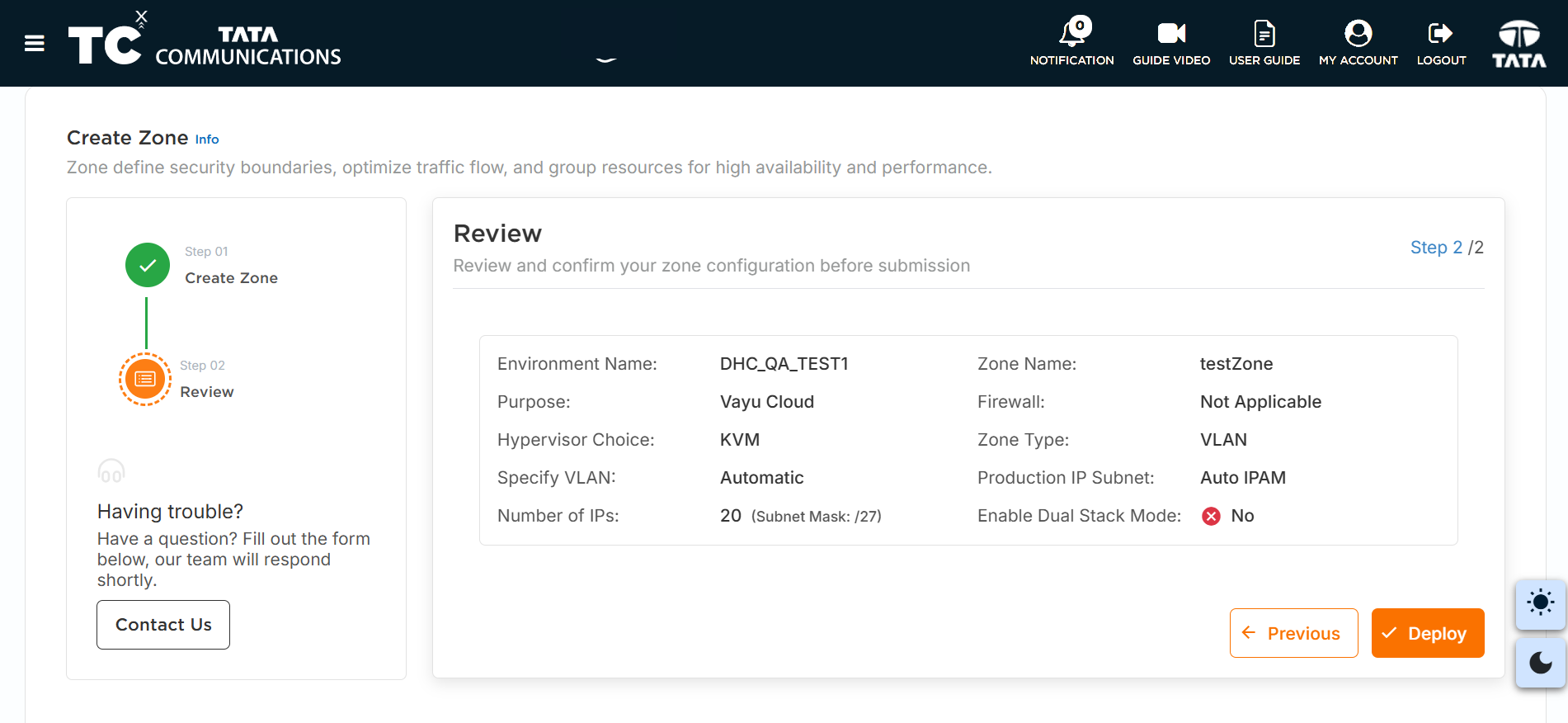
Click REVIEW to review the details filled out.
-
Finally, click DEPLOY to create the zone.
-
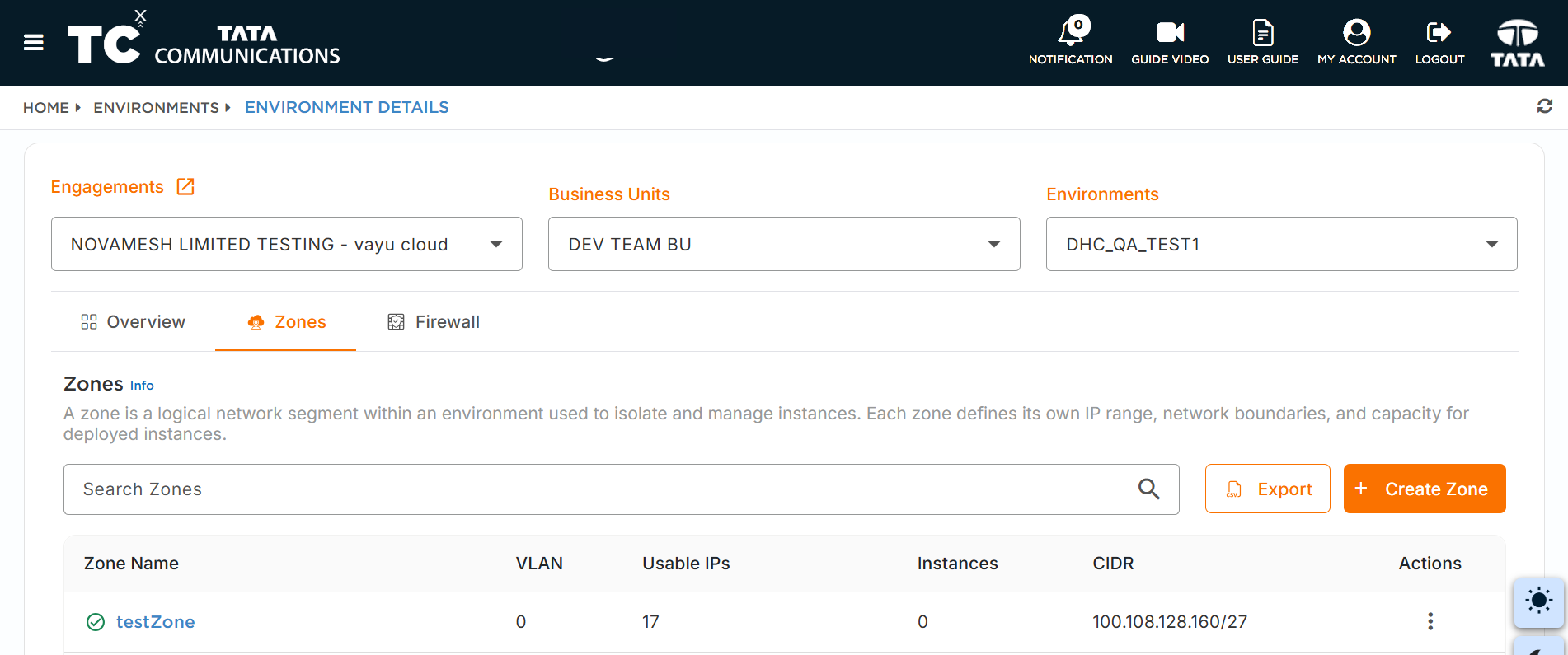
Once the audit is successfully completed, the zone will be listed on the Environment Details page.
Creating NAS Zone (VLAN Zone)
-
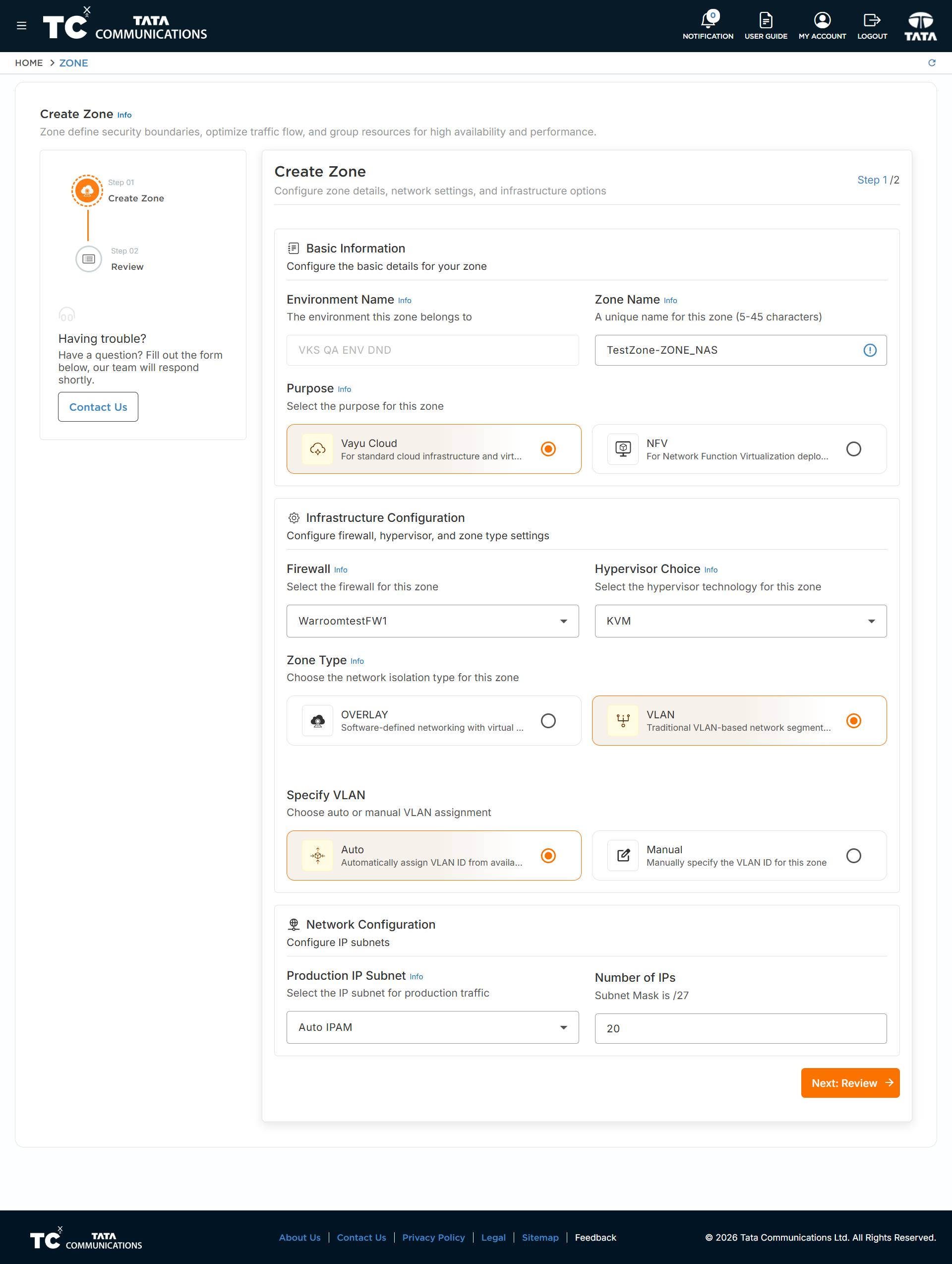
Click on +CREATE ZONE again to create the VLAN zone for NAS.
-
Fill in the required details:
i. Zone Name - Enter a name (e.g., "ZONE_NAS").
ii. Zone Type - Select VLAN.
iii. Firewall - Select the same Firewall as used for the VxLAN zone.
-
Review the form and click DEPLOY to launch the zone successfully.
Ensure that you do not launch any VMs in this VLAN zone. This zone is exclusively for NAS configuration.
- Once the audit is completed, the zone gets listed in the Environment Details page.
Configuring NAS for the VLAN Zone
Before customers can configure NAS for a zone, SD must enable NAS at the Endpoint location:
- Navigate to CONFIG → IPC - SERVICE SUBSCRIPTION LIST.
- Select the customer from the list to open IPC - SERVICE SUBSCRIPTION DETAILS.
- Navigate to the ENDPOINT CONFIGURATION section.
- Choose the location from the sidebar.
- Enable the NAS toggle button.
Once NAS is enabled at the endpoint, customers can proceed with zone configuration.
Steps to Configure NAS
-
Click on the VLAN zone previously created (e.g., "ZONE_NAS").
-
This redirects to the Zone Details screen.
-
Click on the CONFIG NAS option from actions.
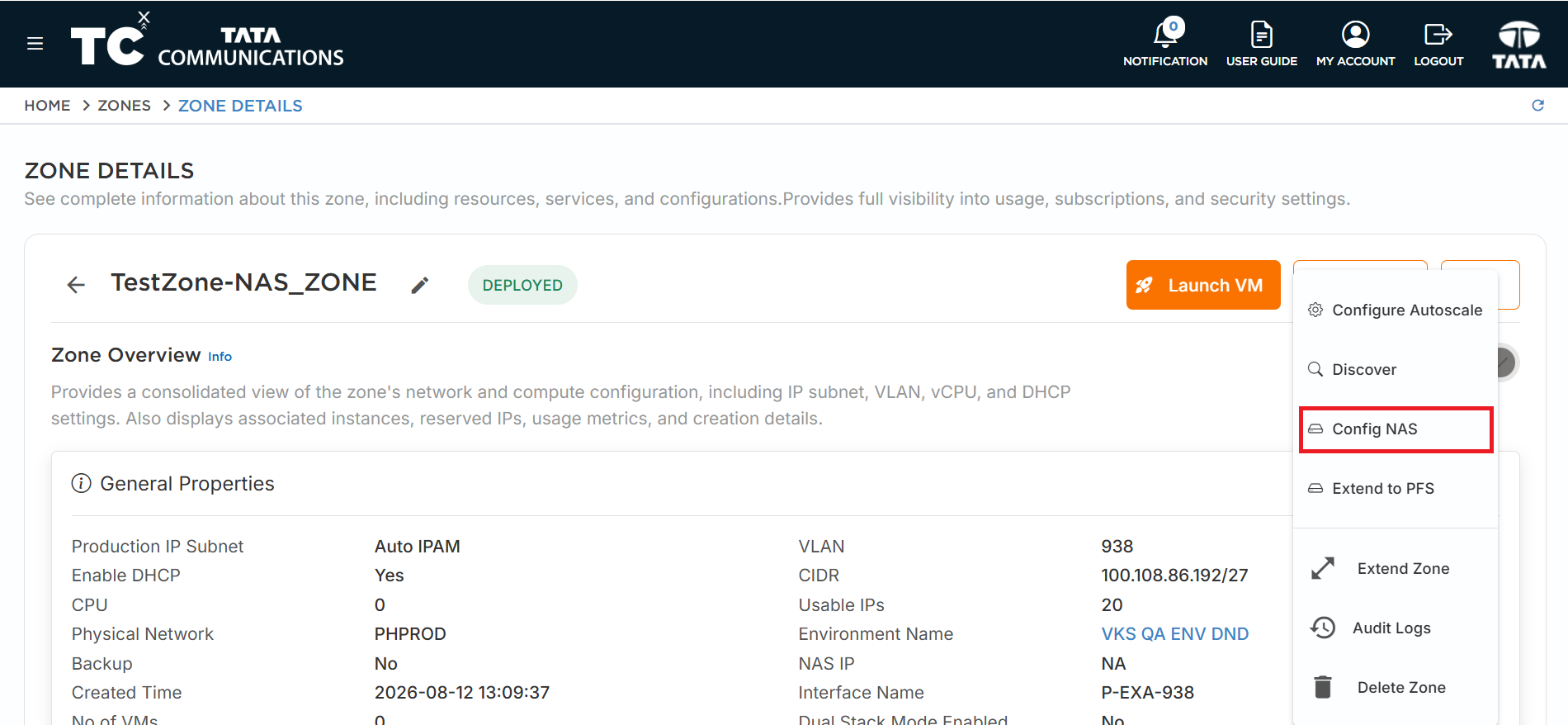
As mentioned previously, no VMs should be launched within this zone.
-
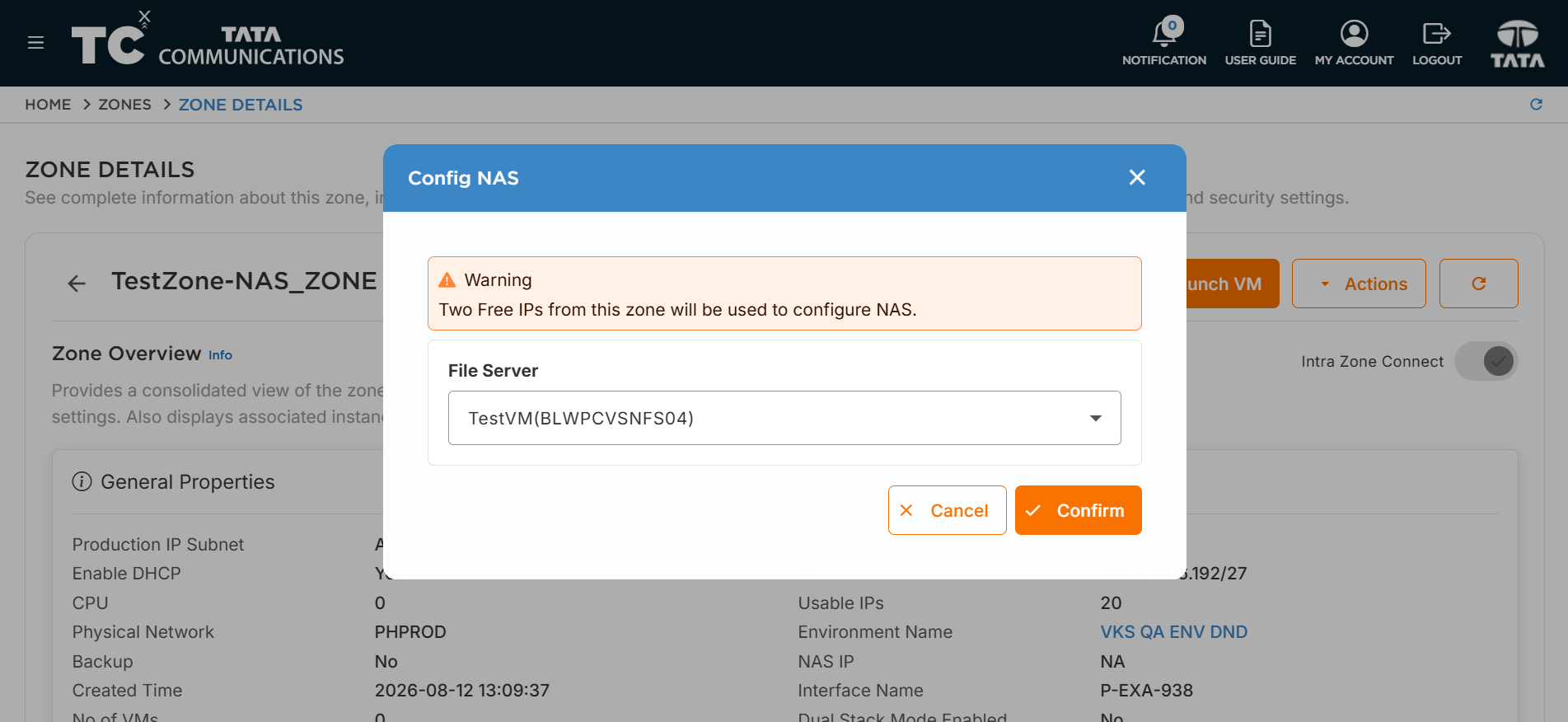
The CONFIG NAS window pops up.
-
From the drop-down menu, choose the SVM (Storage Virtual Manager) that was previously created.
-
Once you have chosen the SVM, click CONFIRM.
-
This will initialize the NAS configuration with an Audit ID getting generated.
-
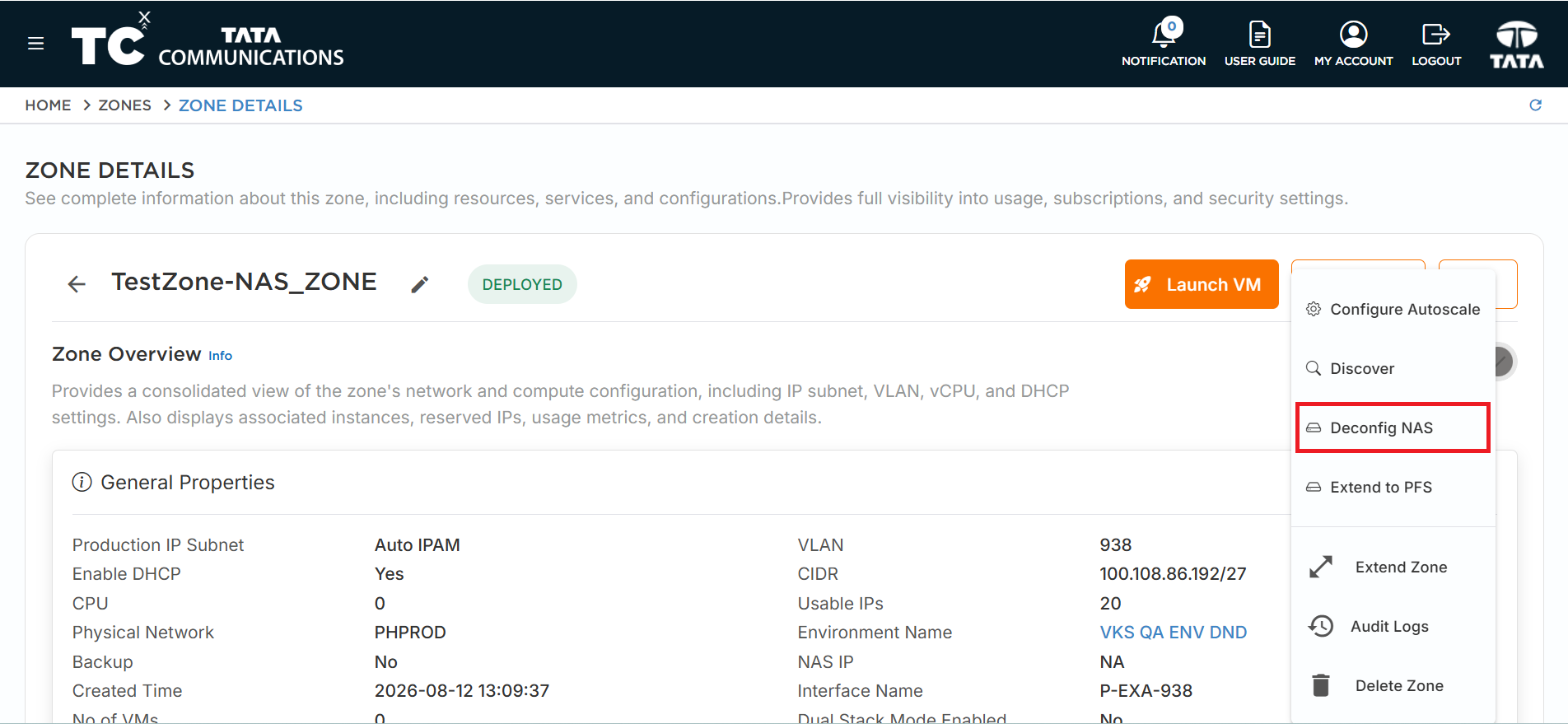
Once the audit is successful, the CONFIG NAS icon will change to DECONFIG NAS, indicating that NAS has been successfully configured for the zone.
Creating Firewall Rules Between NAS and Non-NAS Zones
After configuring NAS, you need to establish connectivity between the NAS zone and Non-NAS zone through firewall rules.
-
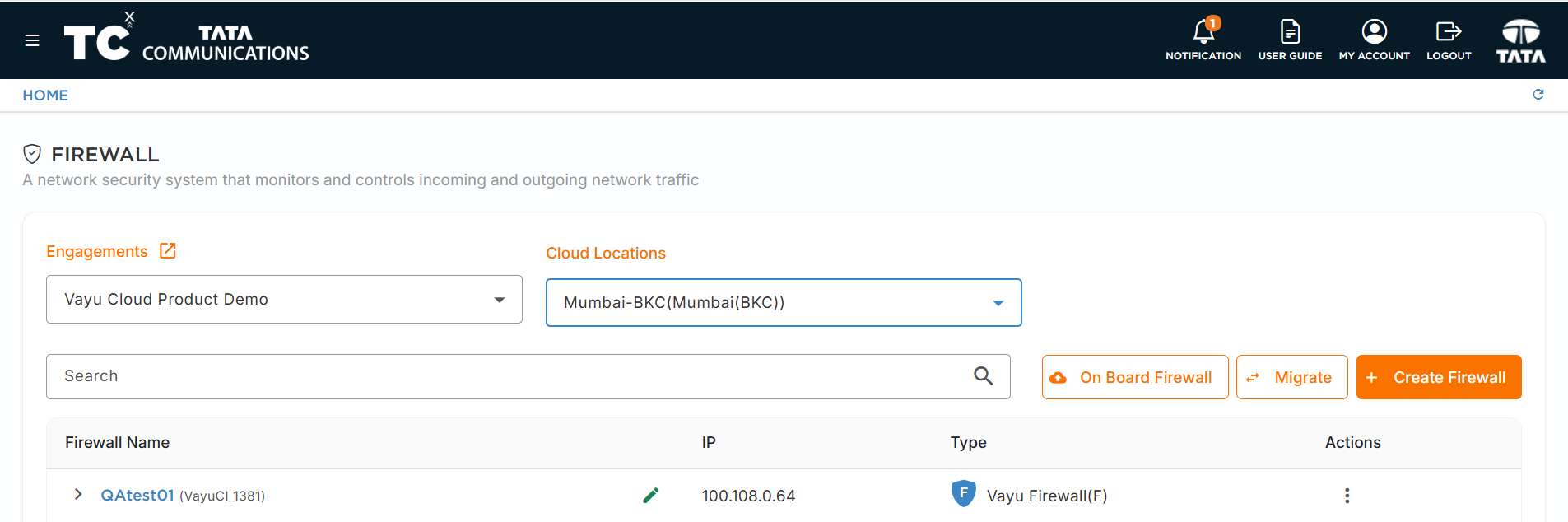
Navigate to the Firewall List page where these zones reside.
-
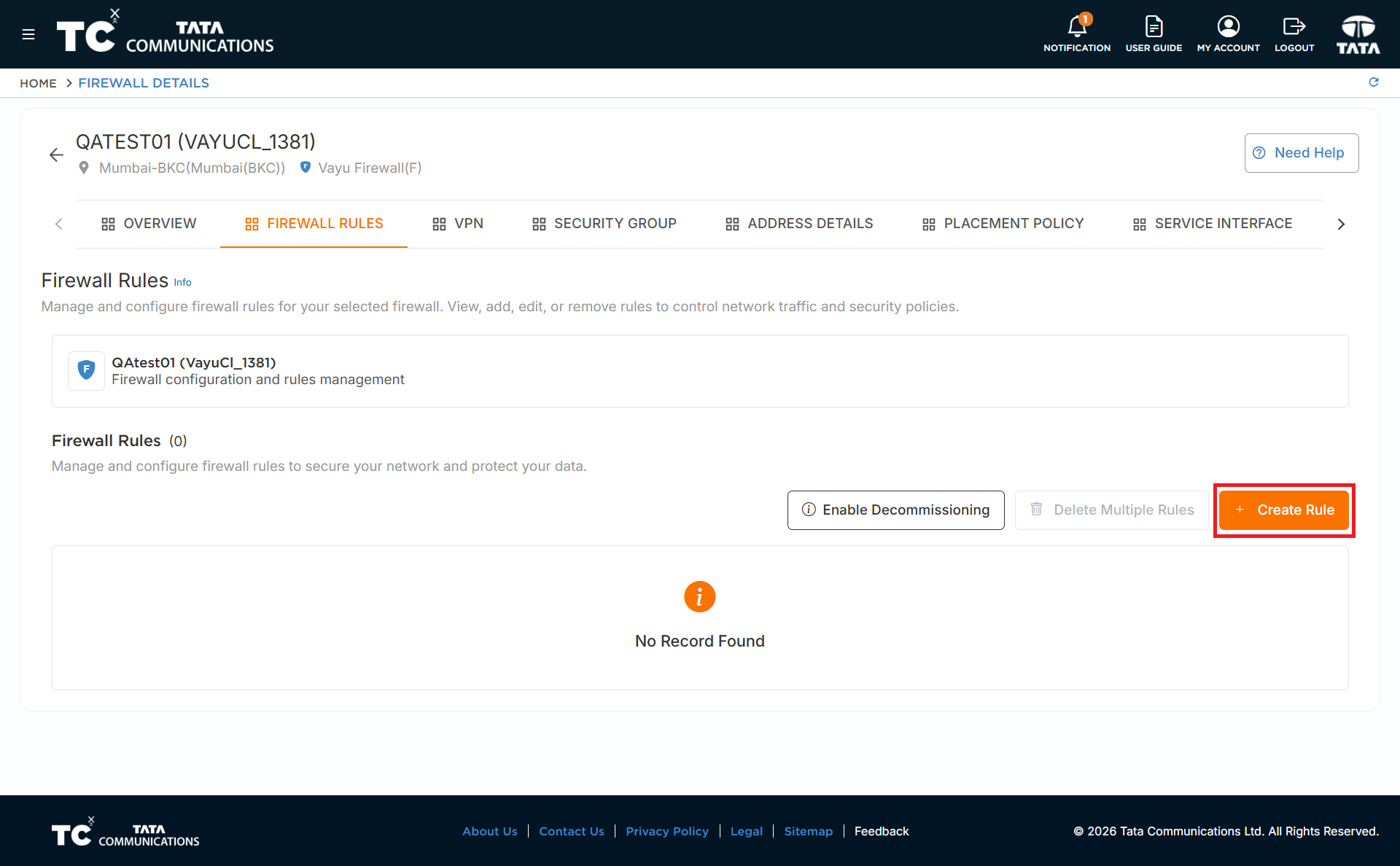
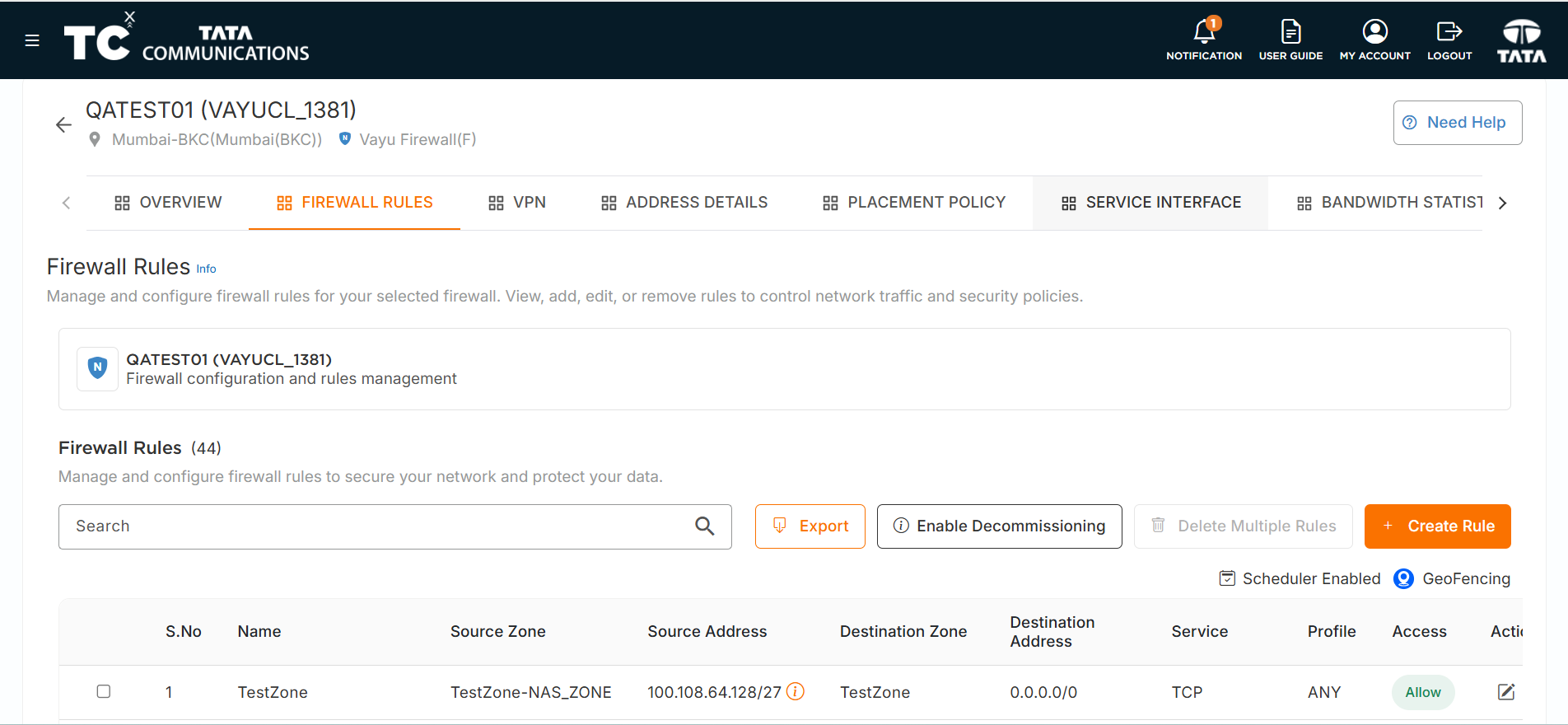
Click on the Firewall to access the FIREWALL DETAILS page.
-
Select the FIREWALL RULES tab and click +CREATE RULES Button.
The firewall rules must be bidirectional between the NAS and Non-NAS zones with custom ports.
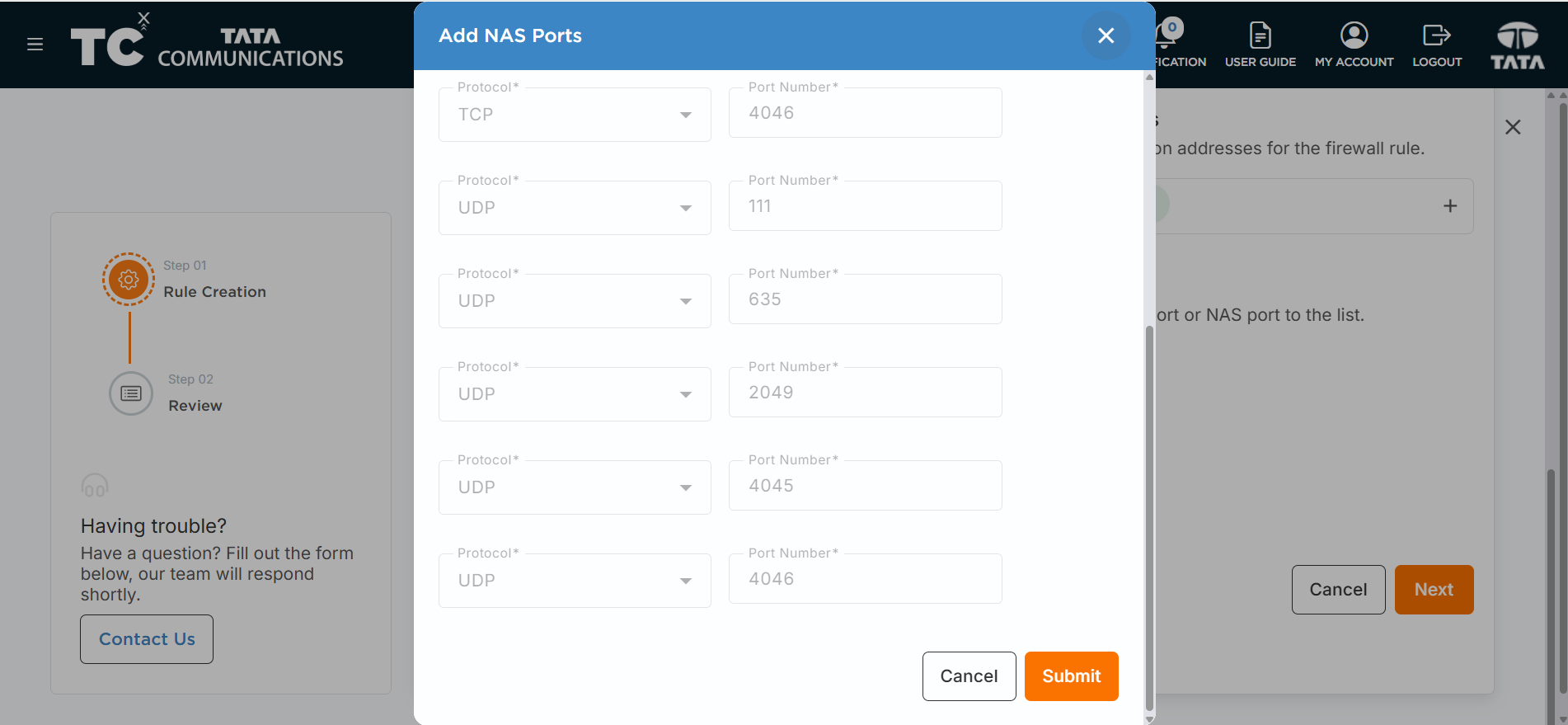
The following custom ports are required for NAS:
| Protocol | Ports |
|---|---|
| TCP | 111, 635, 2049, 4045, 4046 |
| UDP | 111, 635, 2049, 4045, 4046 |
Creating Rule from Non-NAS to NAS Zone
-
Click +CREATE RULES.
-
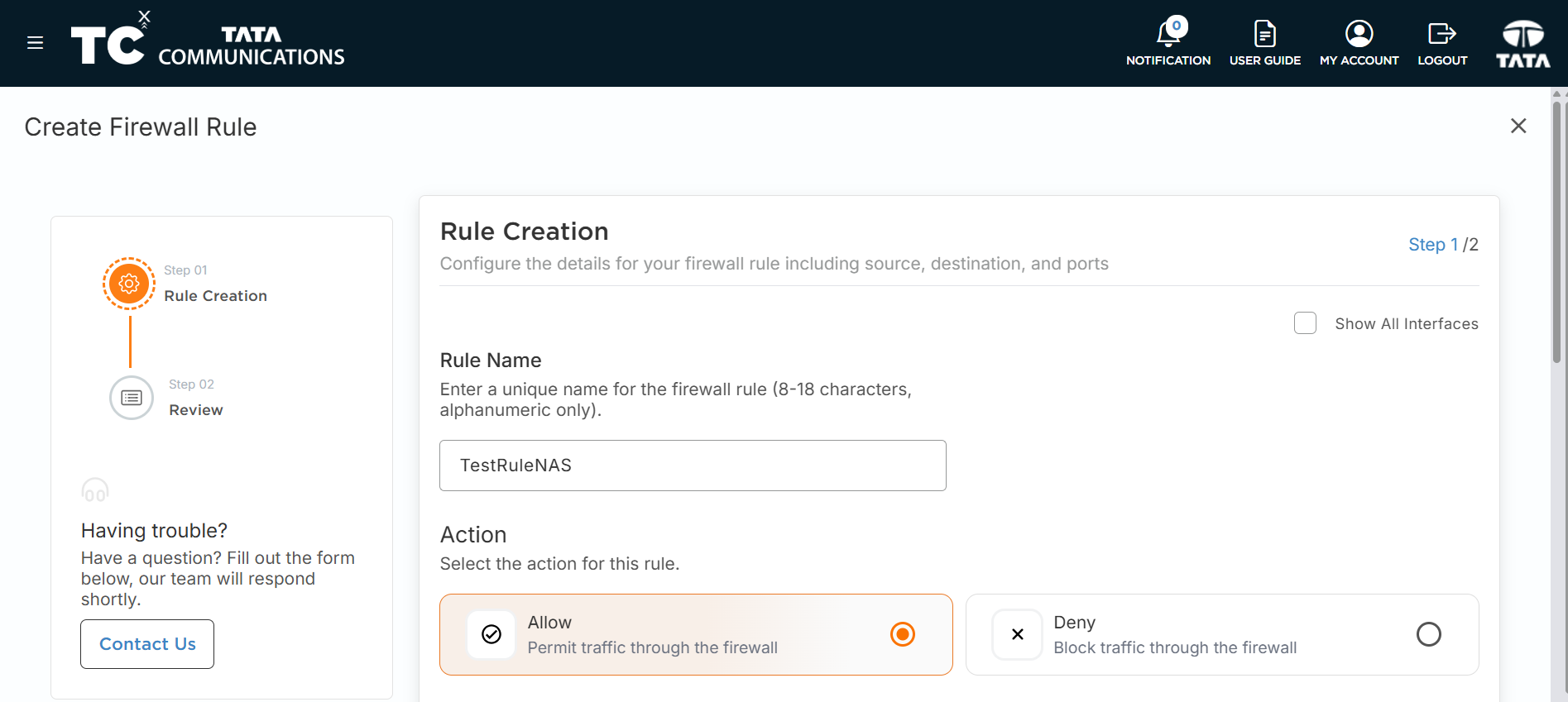
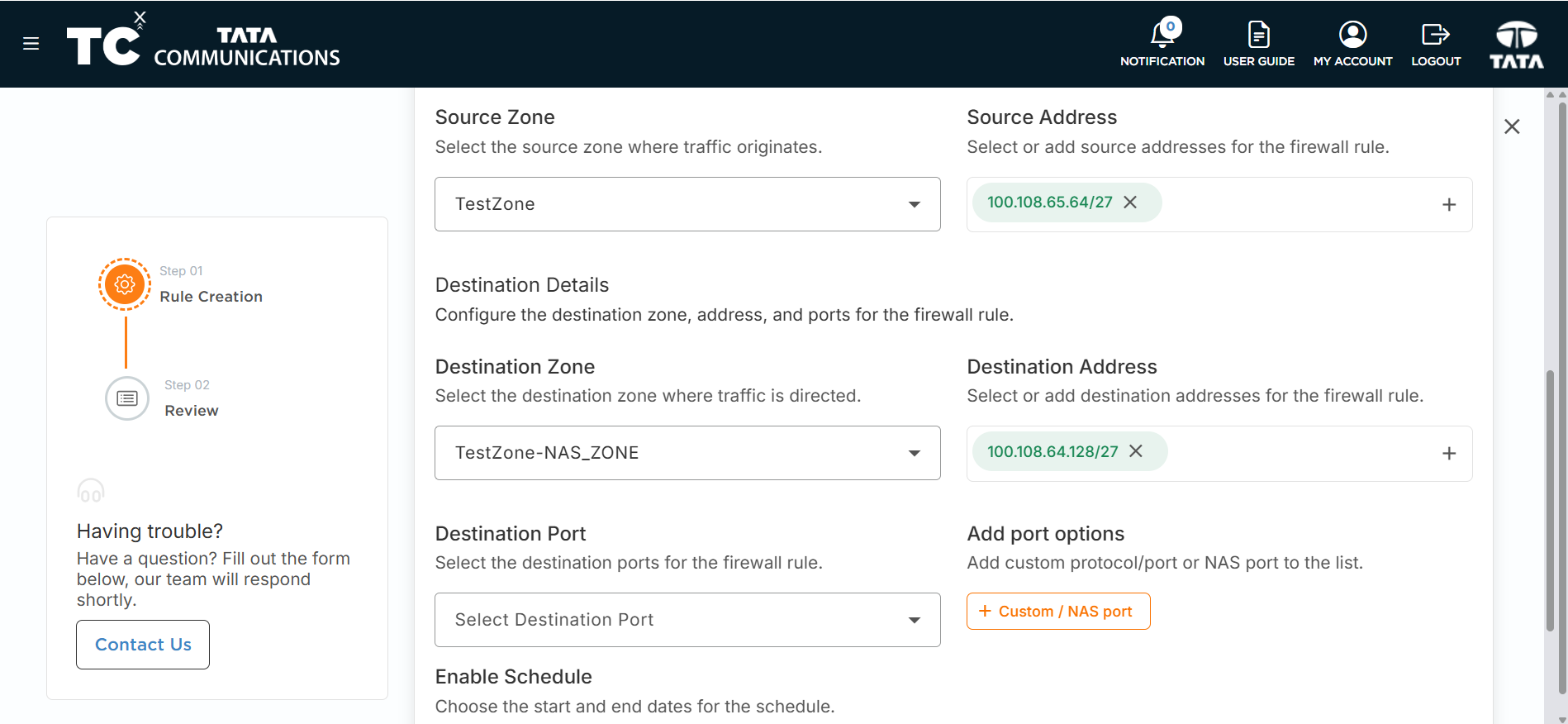
Fill in the rule details:
i. Rule Name - Enter a descriptive name.
ii. Source Zone - Select the Non-NAS (OVERLAY/VxLAN) zone.
iii. Destination Zone - Select the NAS (VLAN) zone.
iv. Protocol - Select as required.
-
For ports, you can either:
- Manually add the custom ports, OR
- Click on Custom/Nas port to automatically add all required ports.
-
After selecting click on SUBMIT.
-
The NAS ports will be automatically added to the Destination port field.
-
Click CREATE.
-
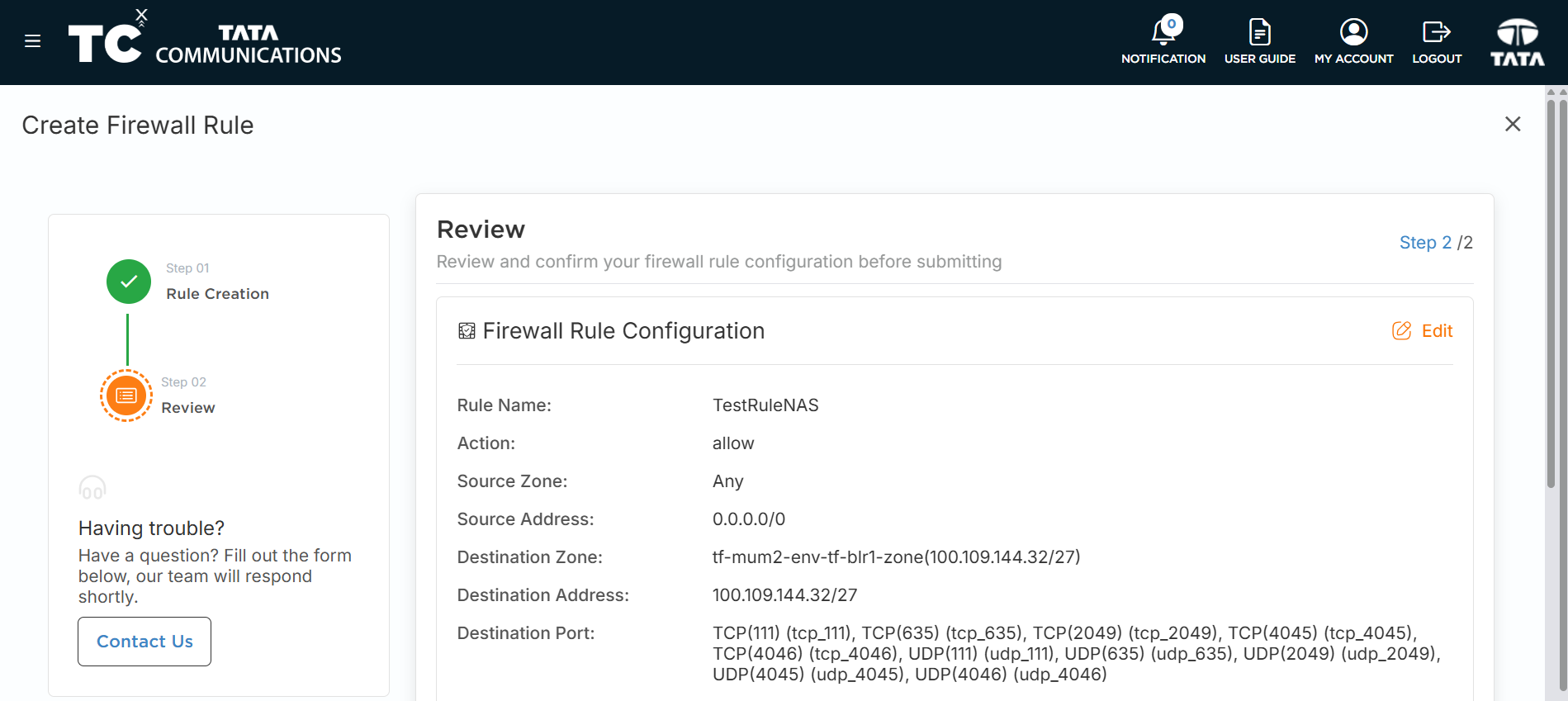
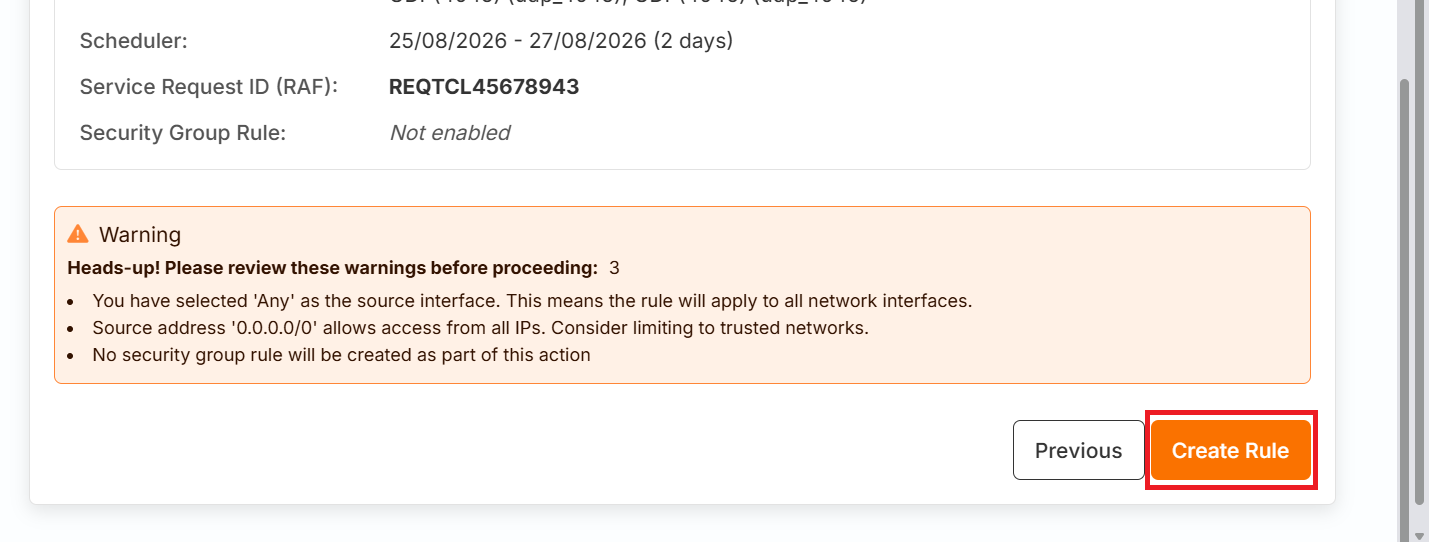
Review the Firewall Rule Details and click CREATE RULE.
-
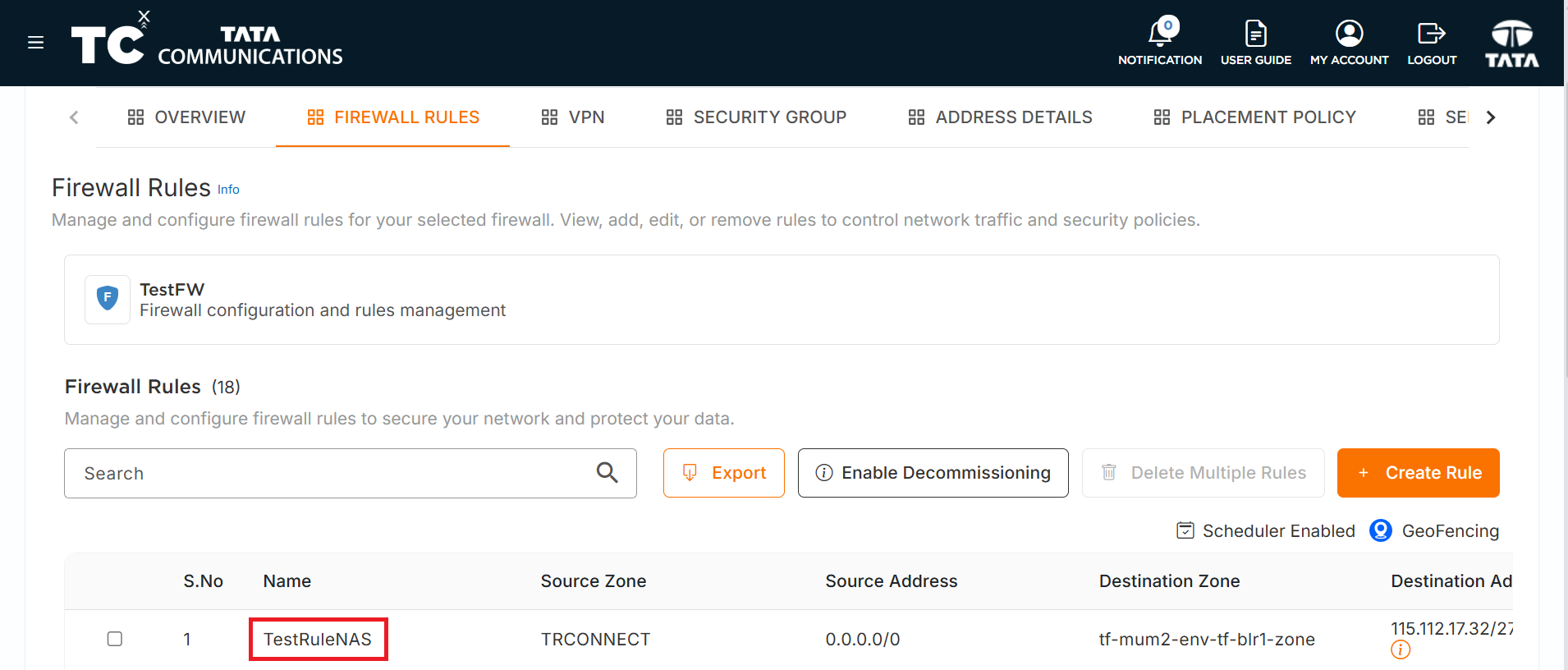
Once the audit is completed, the firewall rule will be listed in the Firewall Rules tab.
Creating Rule from NAS to Non-NAS Zone
-
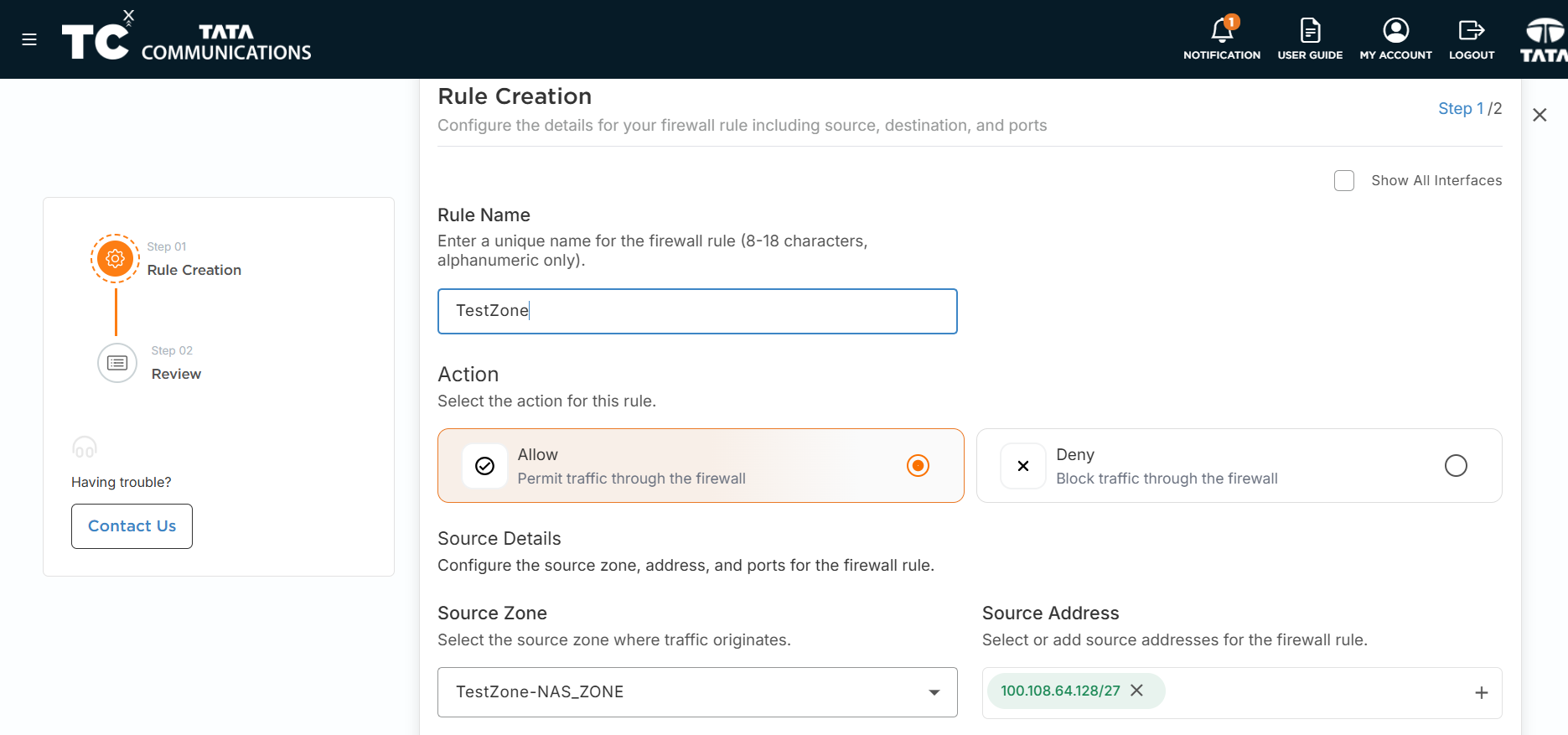
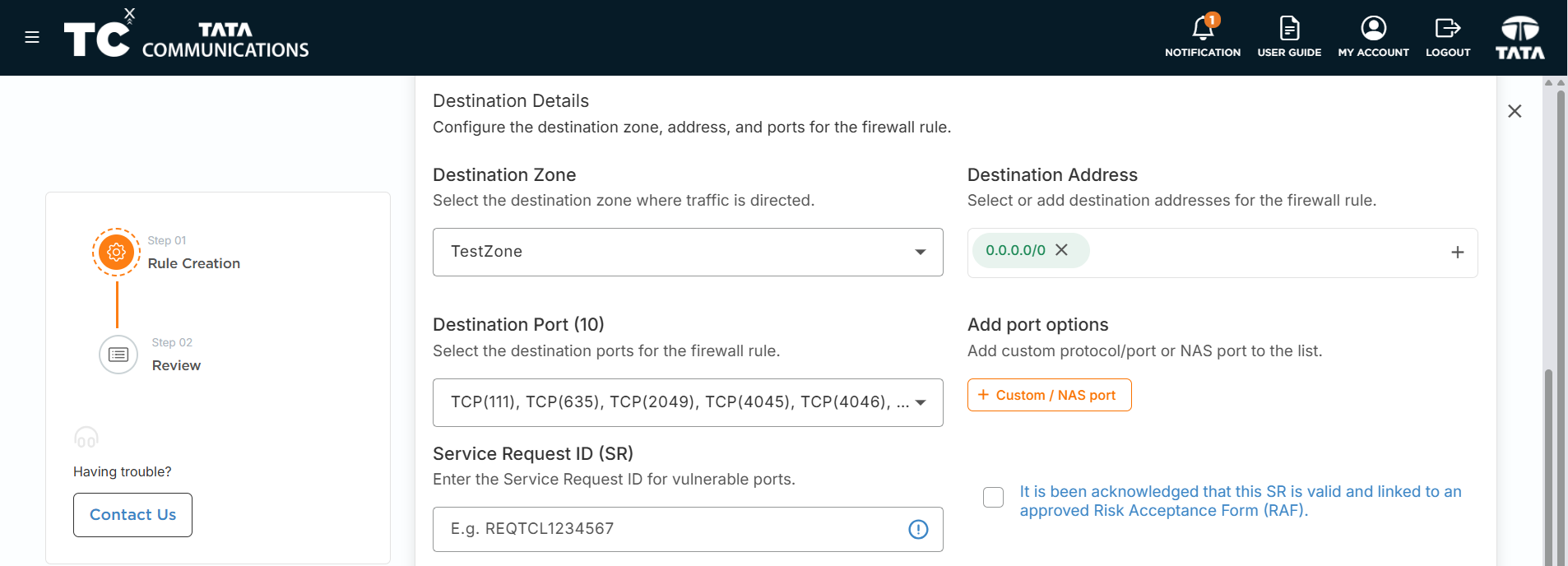
Follow the same steps as above, but reverse the source and destination:
i. Source Zone - Select the NAS (VLAN) zone.
ii. Destination Zone - Select the Non-NAS (OVERLAY/VxLAN) zone.
-
Click ADD NAS PORTS to add the required ports.
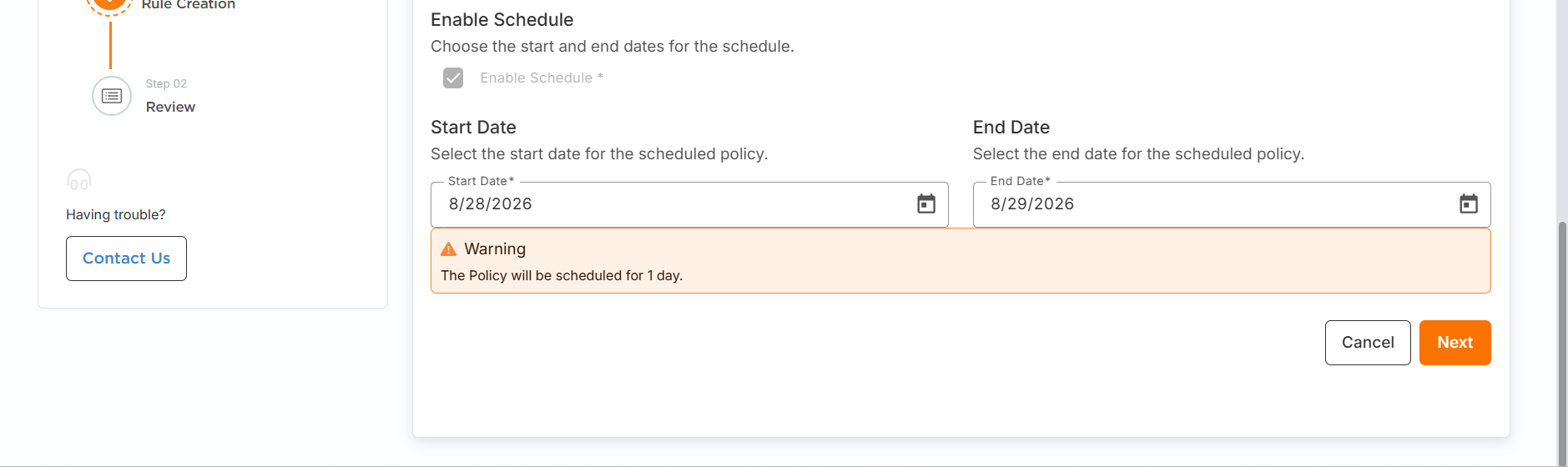
Ensure that you uncheck the Security Group Rule checkbox before creating the firewall rule.
-
Review the details and click CREATE RULE.
-
Once the audit is successful, the firewall rule gets listed.
Obtaining NAS IP Address
After establishing firewall connectivity between NAS and Non-NAS zones, you need to obtain the NAS IP address for mounting.
-
Navigate to the NAS Zone you configured.
-
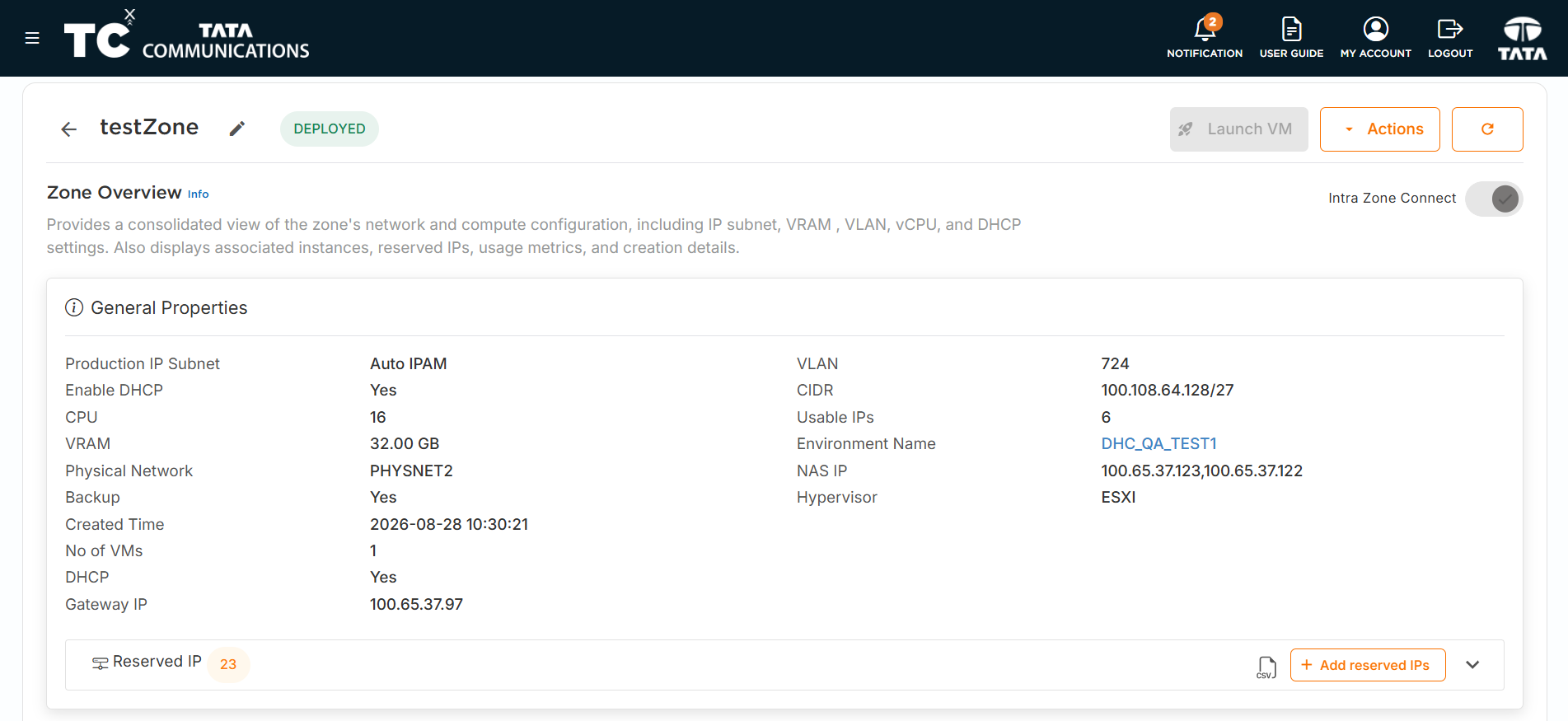
Click on the Zone to view the Zone Details of the NAS Zone.
-
The NAS IP address will be displayed in the zone properties.
-
Note down this NAS IP address, as it will be used for mounting the volume inside your VM.
Mounting NAS Volume on VM
For NFS volumes, you can also mount directly from the portal using the Mount Client action (see "Mounting a Client to the Volume") by entering the VM username and password, without logging into the VM.
To mount the NAS volume on your VM, follow these steps:
-
Login to your VM using the credentials.
-
Create a directory with the volume name:
mkdir /<volumeName>
Example:
If your volume name is testVolumn:
mkdir /testVolumn
- Mount the NAS volume using the NAS IP obtained from the zone properties:
mount -t nfs -o vers=4 <nasIP>:/<volumeName>/<volumeName>
Example:
If your NAS IPs are 100.108.64.132 and 100.108.64.131, and volume name is testVolumn:
mount -t nfs -o vers=4 100.108.64.132:/testVolumn/testVolumn
You can use any of the NAS IP addresses displayed in the zone properties.
Resizing File Storage Volume
To resize an existing File Storage volume:
-
Navigate to the File Storage LIST screen.
-
Select the volume you wish to resize from the list.
-
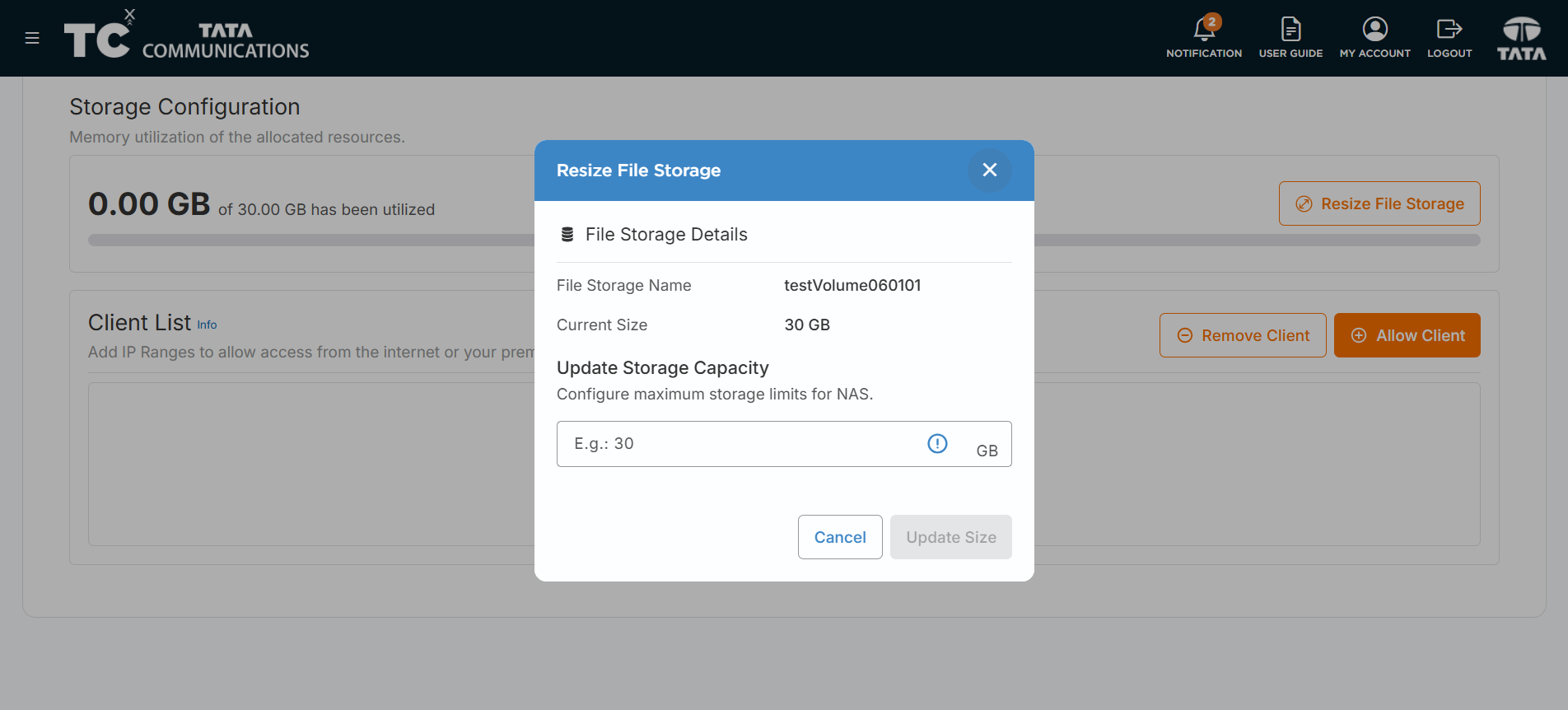
Under File Storage tab , Go to Storage Configuration Section and Click on Resize File Storage button.

-
The Resize File Storage popup window appears.
-
Enter the New Size (GB) in the provided field.
-
Click Update Size to confirm.
-
Once the audit is successful, the volume will be resized to the new capacity.
Quick Launch NAS
The Quick Launch feature provides a simplified way to create NAS volumes for first-time users. This option combines SVM and Volume creation into a single workflow. If you already have an SVM (returning users), simply select that SVM and create a volume on it.
Using Quick Launch
-
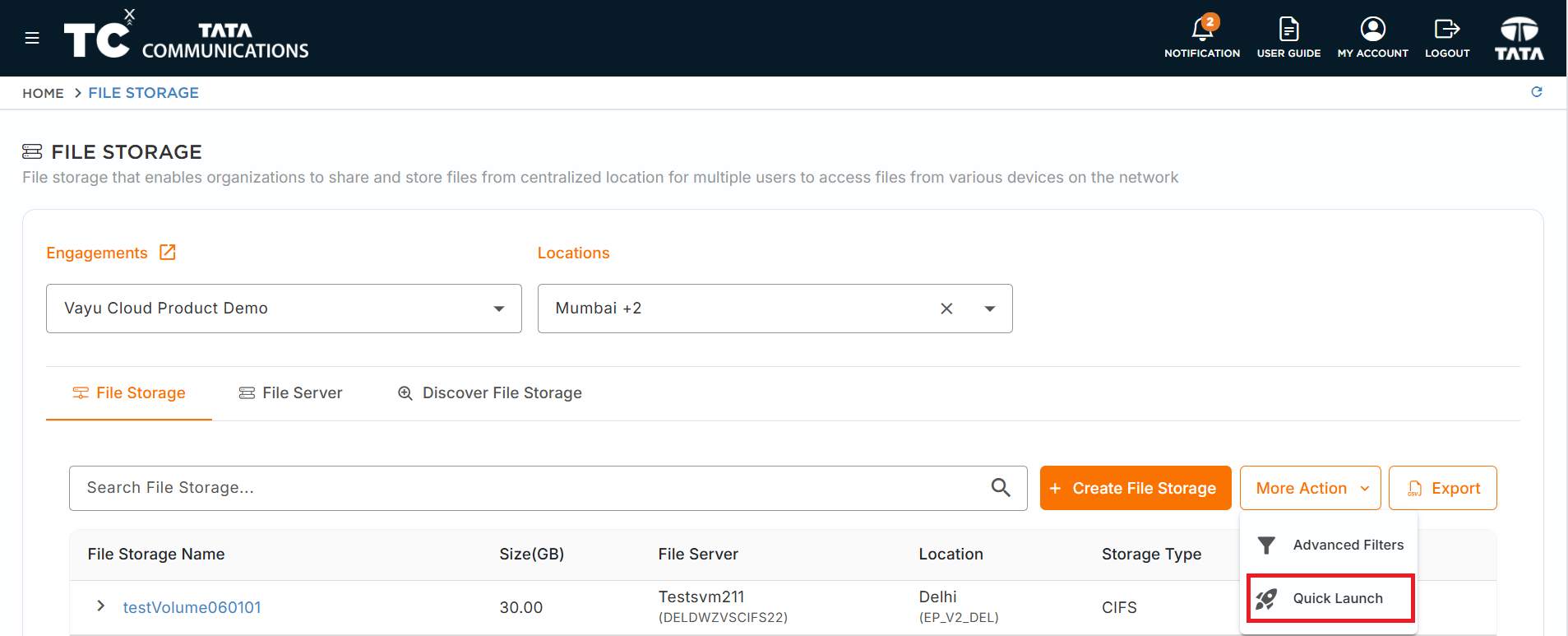
Navigate to the File Storage List page.
-
From More Actions , Select Quick Launch option.
-
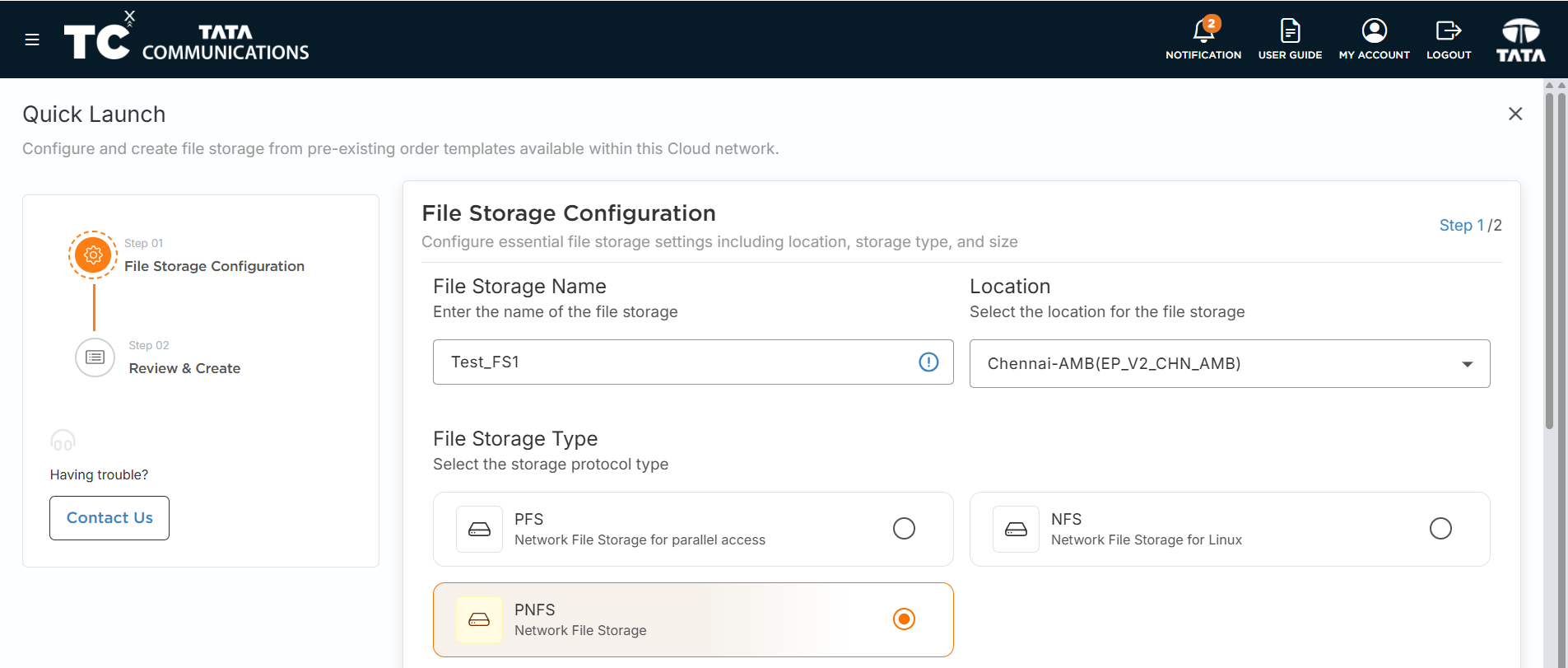
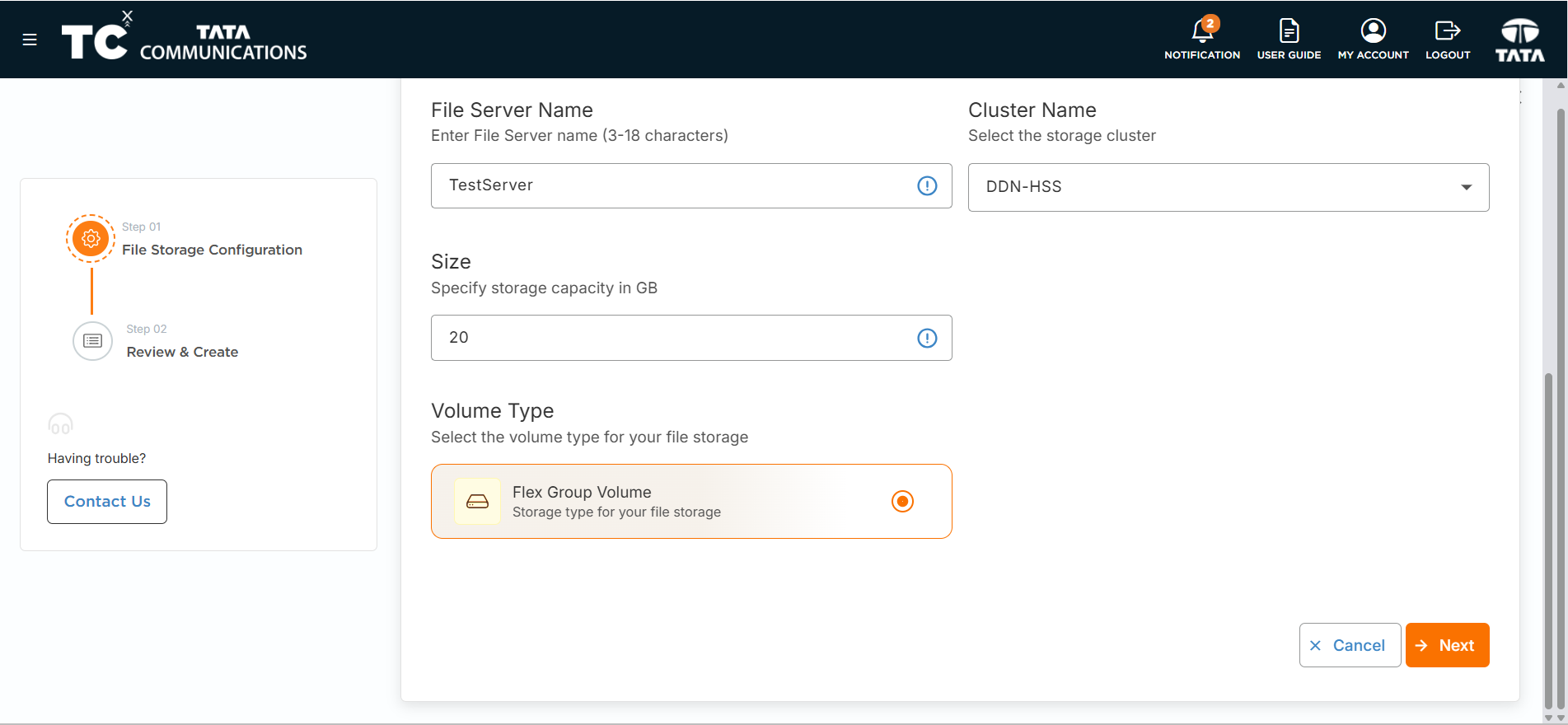
Fill in the following details:
i. Location - Select the location from the drop-down list.
ii. File Storage Type - Choose the required storage type.
iii. Storage Virtual Manager - Select an existing SVM from the drop-down list.
iv. Volume Name - Enter a name for your volume.
v. Size (GB) - Enter the size in gigabytes.
vi. Volume Type - Choose the appropriate volume type.
-
Once after Reviewing Click on SUBMIT.
If a Storage Virtual Manager is already available for that order, you can select and use it. Otherwise, the system will prompt you to enter an SVM name for new SVM creation.
- Once the audit is completed, your NAS volume will be ready to use.
De-configuration of NAS
To remove NAS configuration from a zone:
-
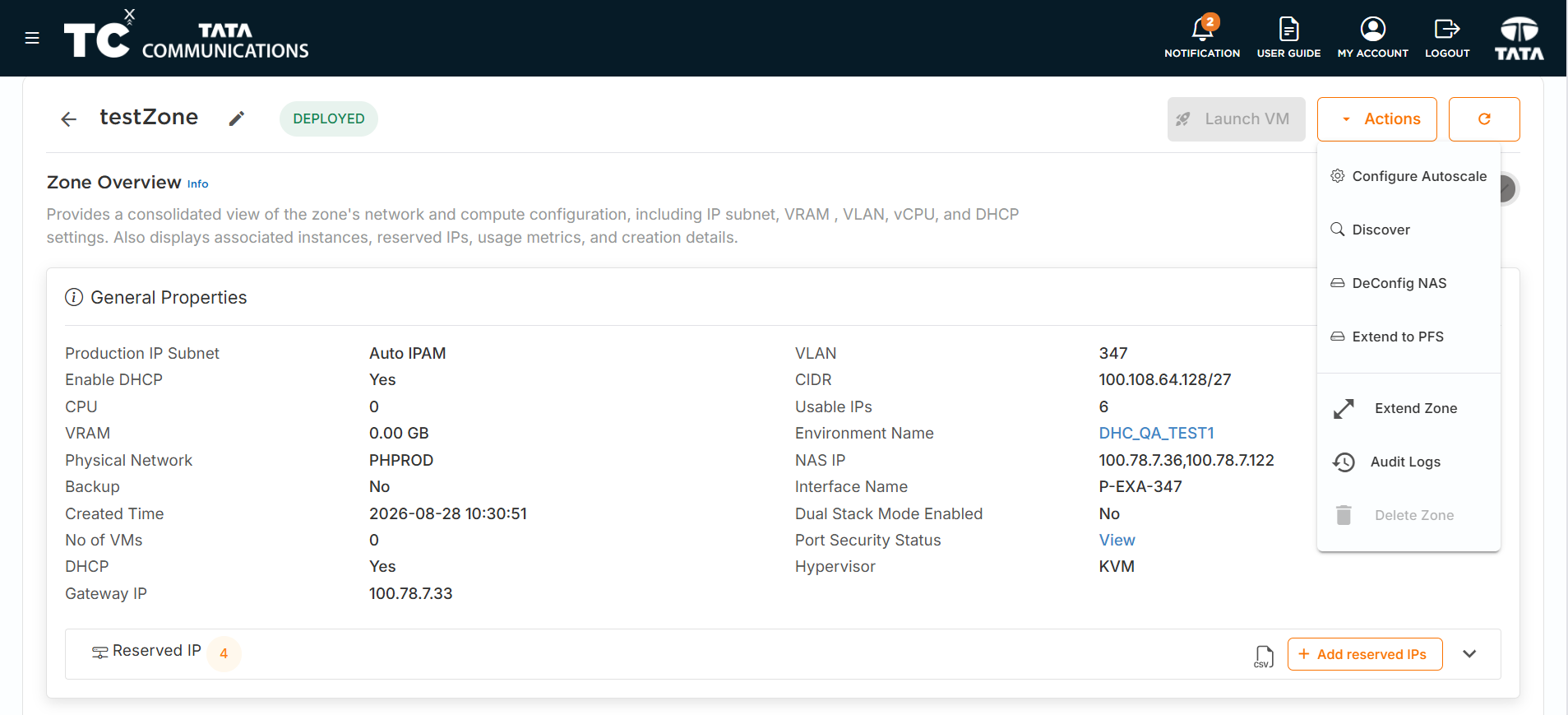
From Zone List Page , Navigate to the Zone Details Page where you have previously configured NAS.
-
Click on the DECONFIG NAS option from Actions.
-
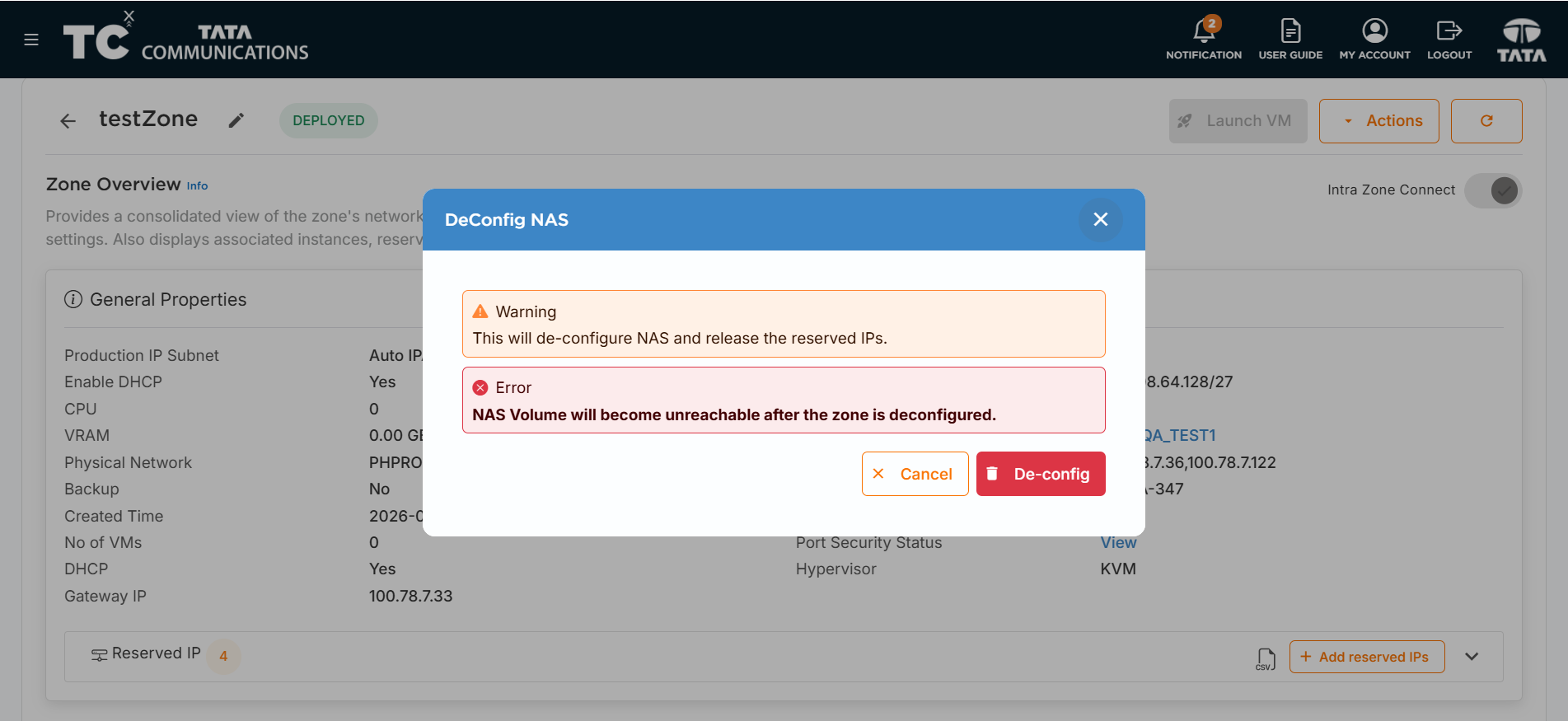
The DECONFIG NAS CONFIRMATION pop-up window appears.
-
Review the details in the window.
-
Click DE-CONFIG to proceed.
-
Once the audit is successful, the DECONFIG NAS option will change back to CONFIG NAS, indicating that NAS has been de-configured from the zone.
For additional assistance, please contact IPC DEV TEAM.