Business Units
Overview
A Business Unit is an organisational entity that consumes virtual resources using Vayu Cloud. For example, let's imagine that the company ABC Inc. has subscribed to Vayu Cloud. The different business units in the portal for company ABC could be classified based on its various departments (e.g., Finance, Marketing, HR, Engineering and so on) or locations (North Zone, South Zone or Central Zone etc).Vayu Cloud enables you to define the resource limit that can be consumed by a particular Business Unit.
A Business Unit is an organizational entity that consumes virtual resources using Vayu Cloud.Vayu Cloud enables you to define the resource limit that can be consumed by a particular Business Unit.
This Business Units section covers:
Navigating to Business Units
Creating a Business Unit
Creating a Business Unit from Firewall Page
Adding a user to a Business Unit
Adding a user to a Business Unit from Firewall Page
Creating VPN users in a Business Unit
Navigating to Business Units
-
Click on the hamburger menu on the left top of the portal, from the drop-down, click Vayu Cloud.
-
In the expanded list of options, click on Business Units
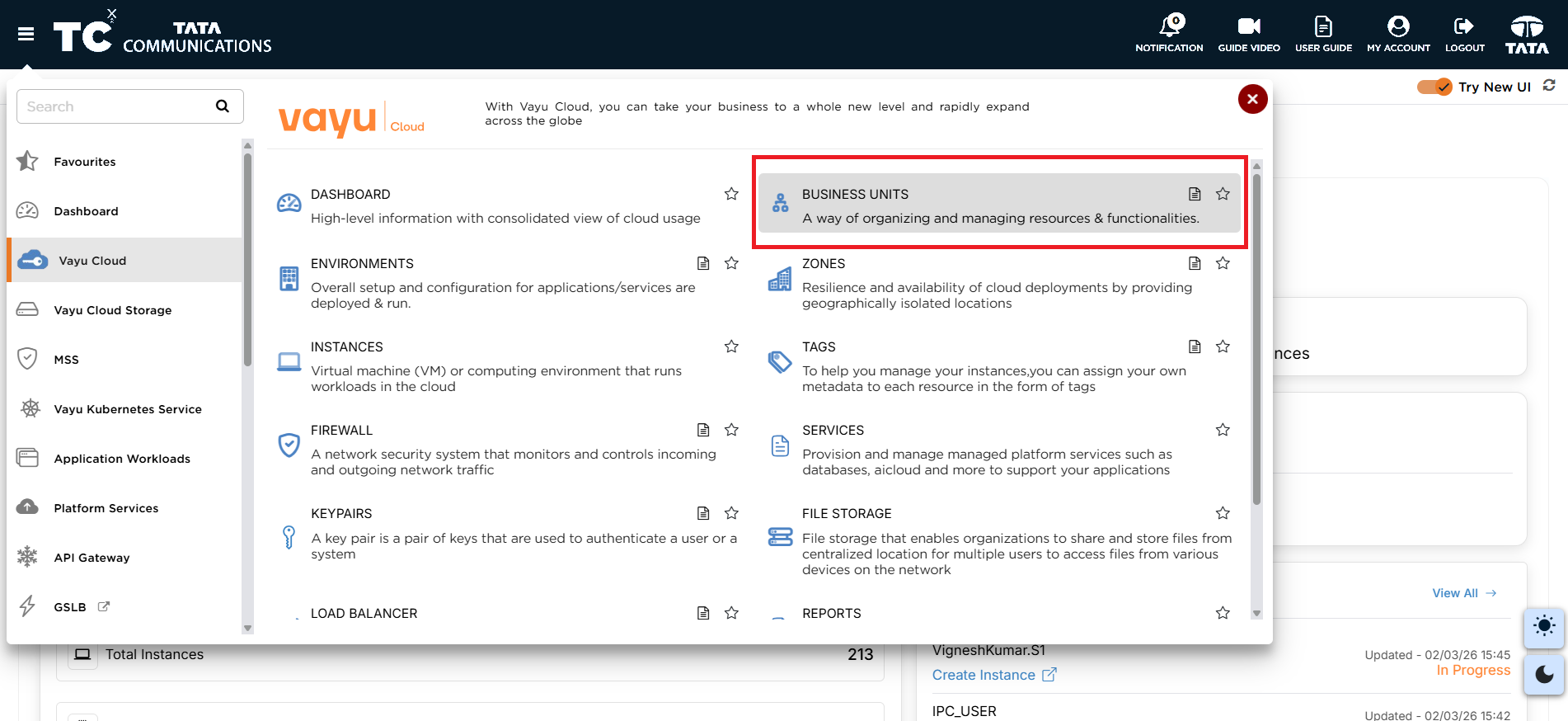
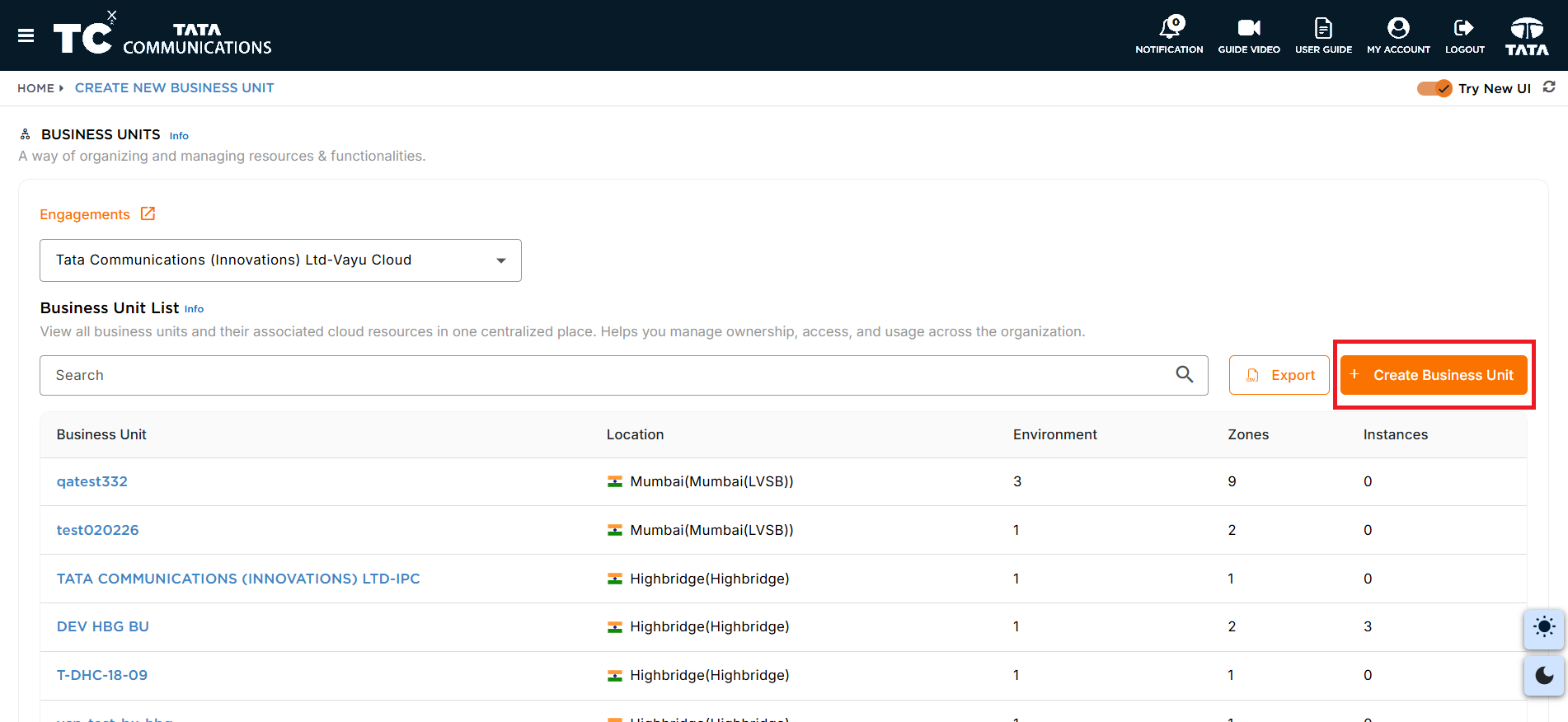
The BUSINESS UNITS page is displayed showing existing units.
Creating a Business Unit
- In the BUSINESS UNITS page, click on CREATE BUSINESS UNIT button
-
In the BUSINESS UNIT section of the CREATE NEW BUSINESS UNIT page, enter the following information:
a. Choose the Cloud Location from the drop-down menu
b. In the Business Unit Name field, enter the name of the Business Unit.
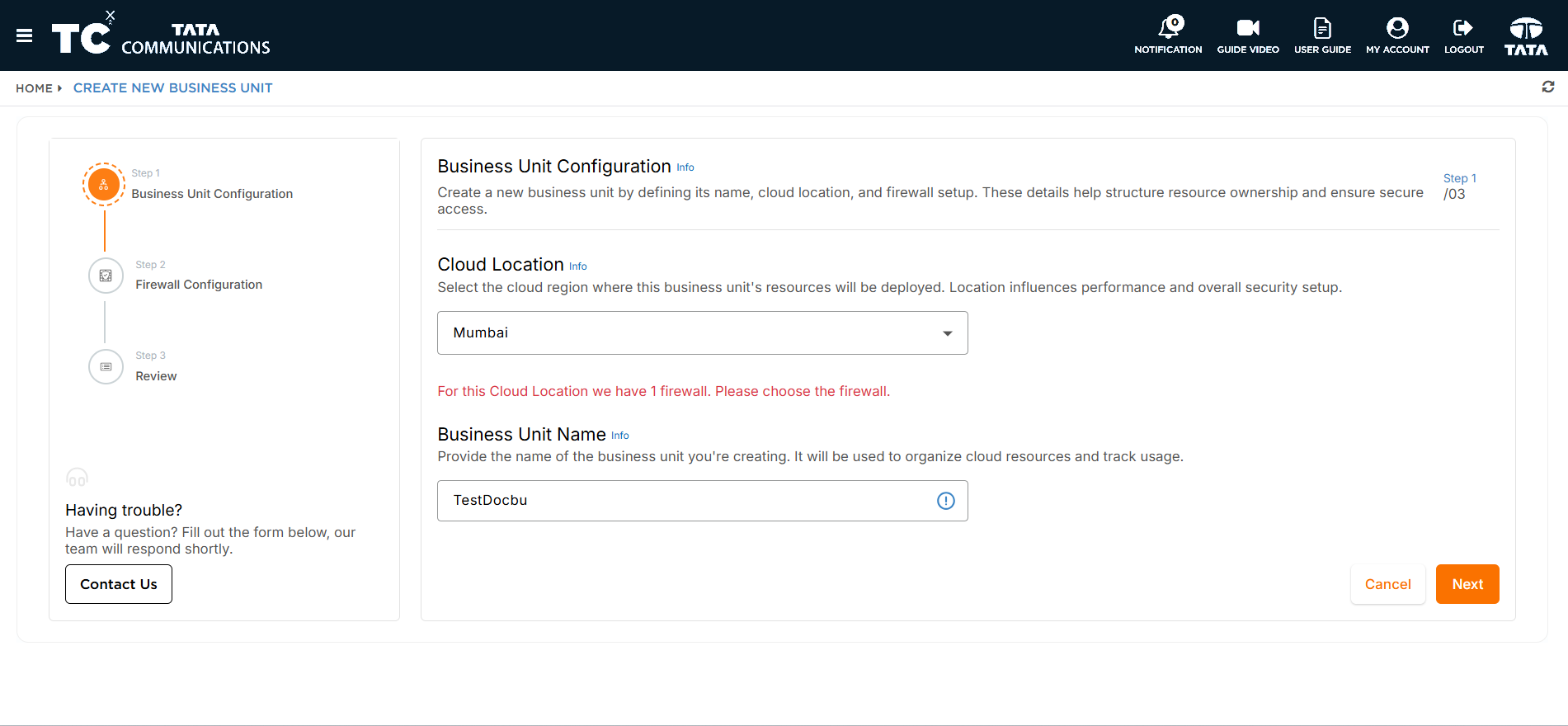
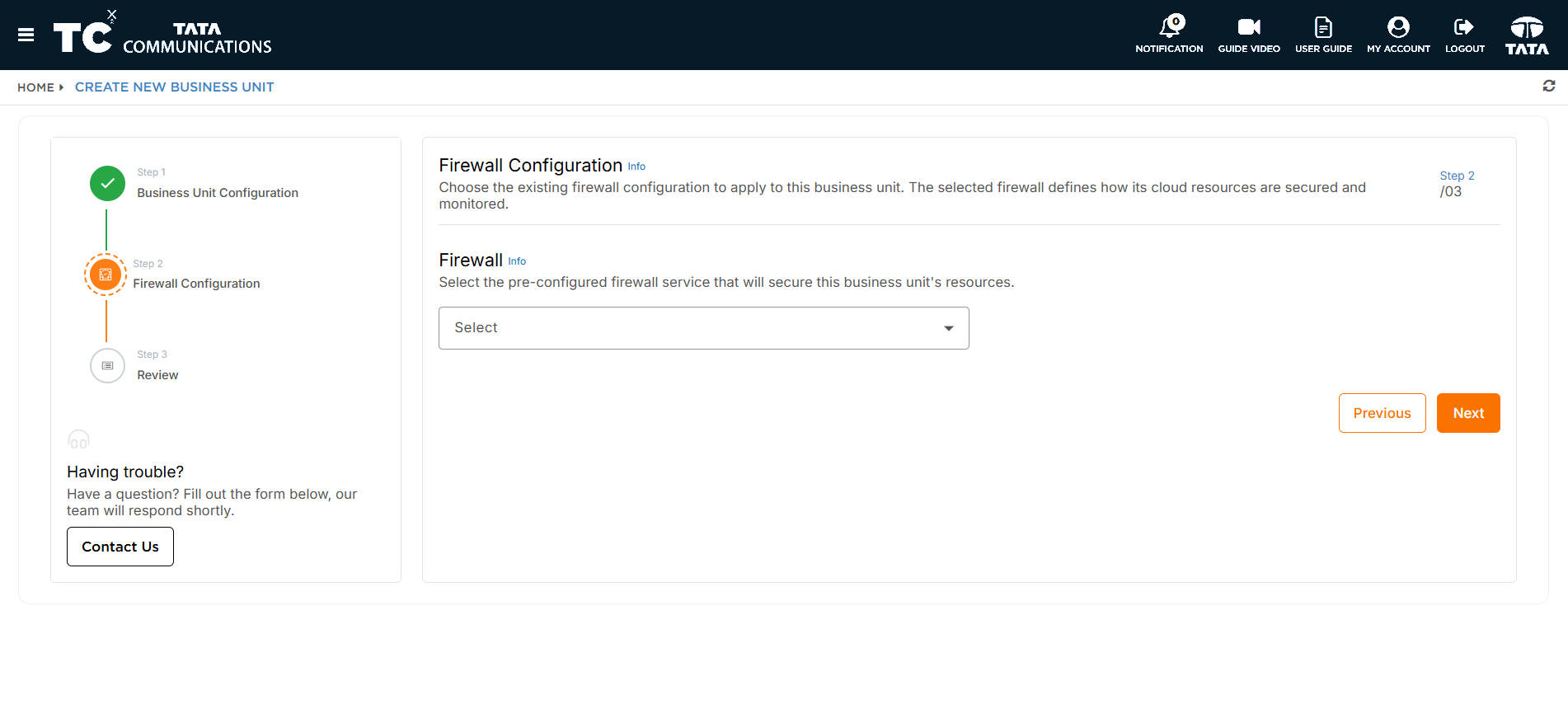
c. Click Next to go to Firewall Configuration. Select the pre-configured firewall service from the Select drop-down.
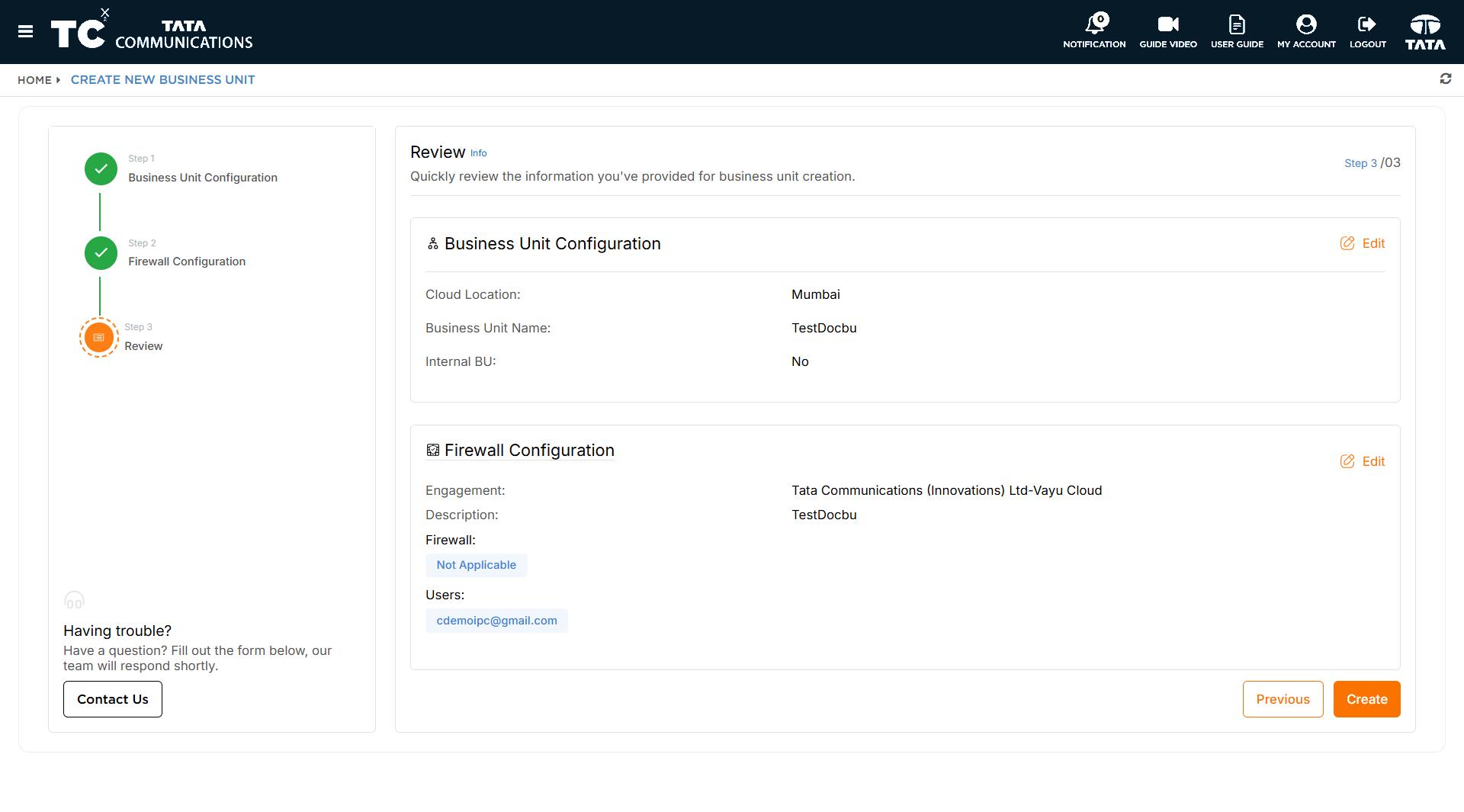
d. Click Next to go to Review. Check the summary of your Business Unit configuration and firewall selection, then click Create.
-
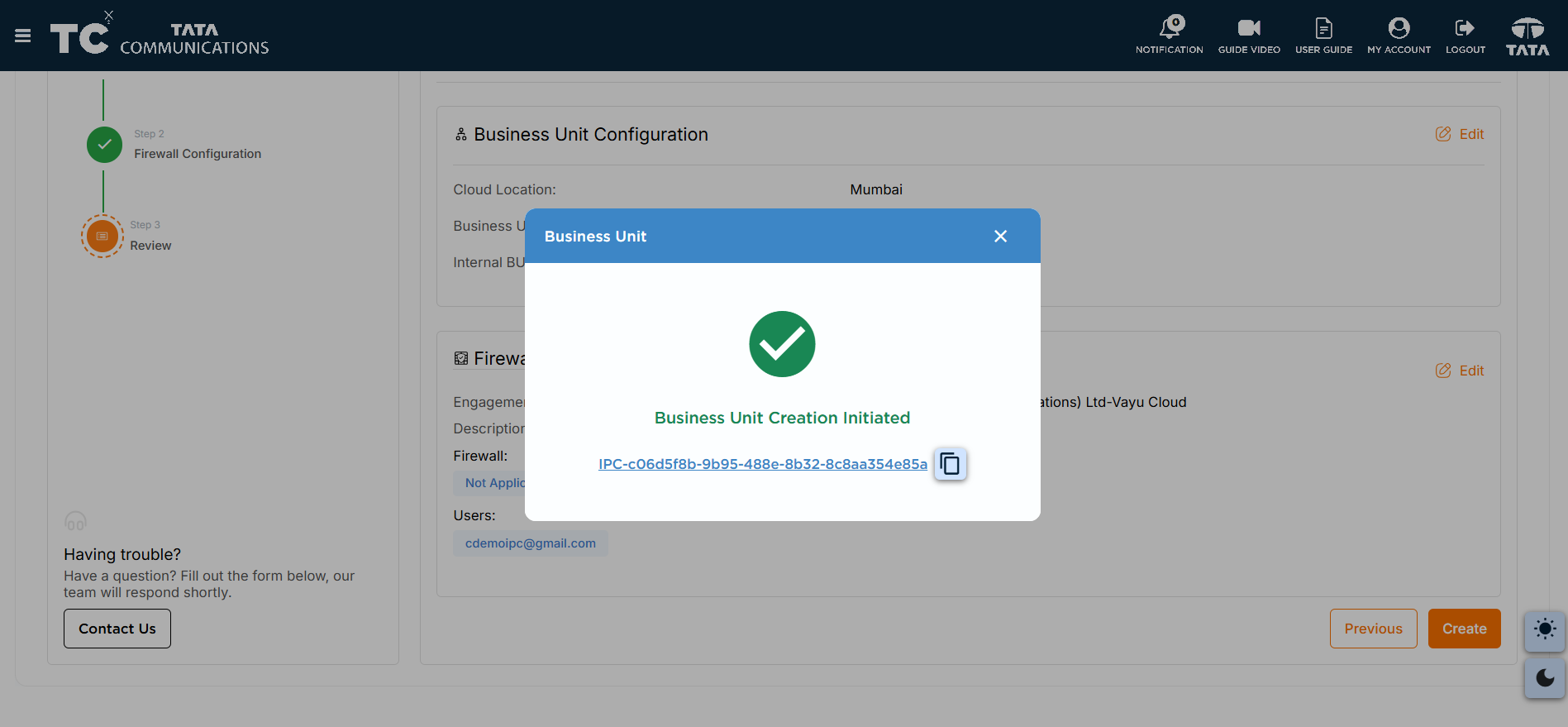
Click Create. The message 'Business Unit creation initiated' appears with the Audit Id. On clicking the Audit Id, you'll be redirected to the Business Unit creation ticket.
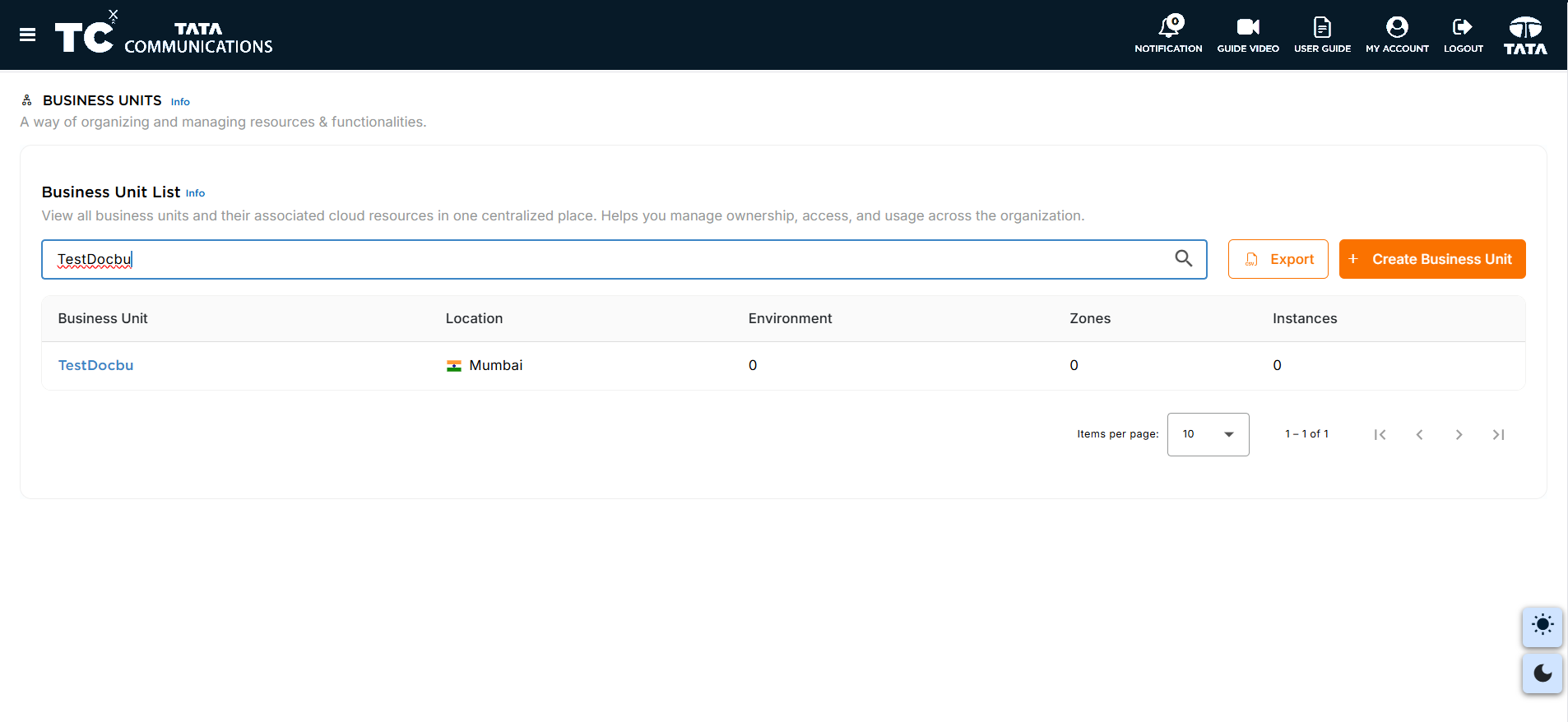
Once created, the new Business Unit is displayed in the BUSINESS UNITS page.
Creating a Business Unit from Firewall Page
- Navigate to the Firewall you've provisioned or created earlier.
-
click on Firewall Name it will take you to the Firewall Details page .
-
In the Firewall Details page, In overview tab Scroll down to the Business Units card where you can create business units associated with the firewall.Click on Create Business unit button.
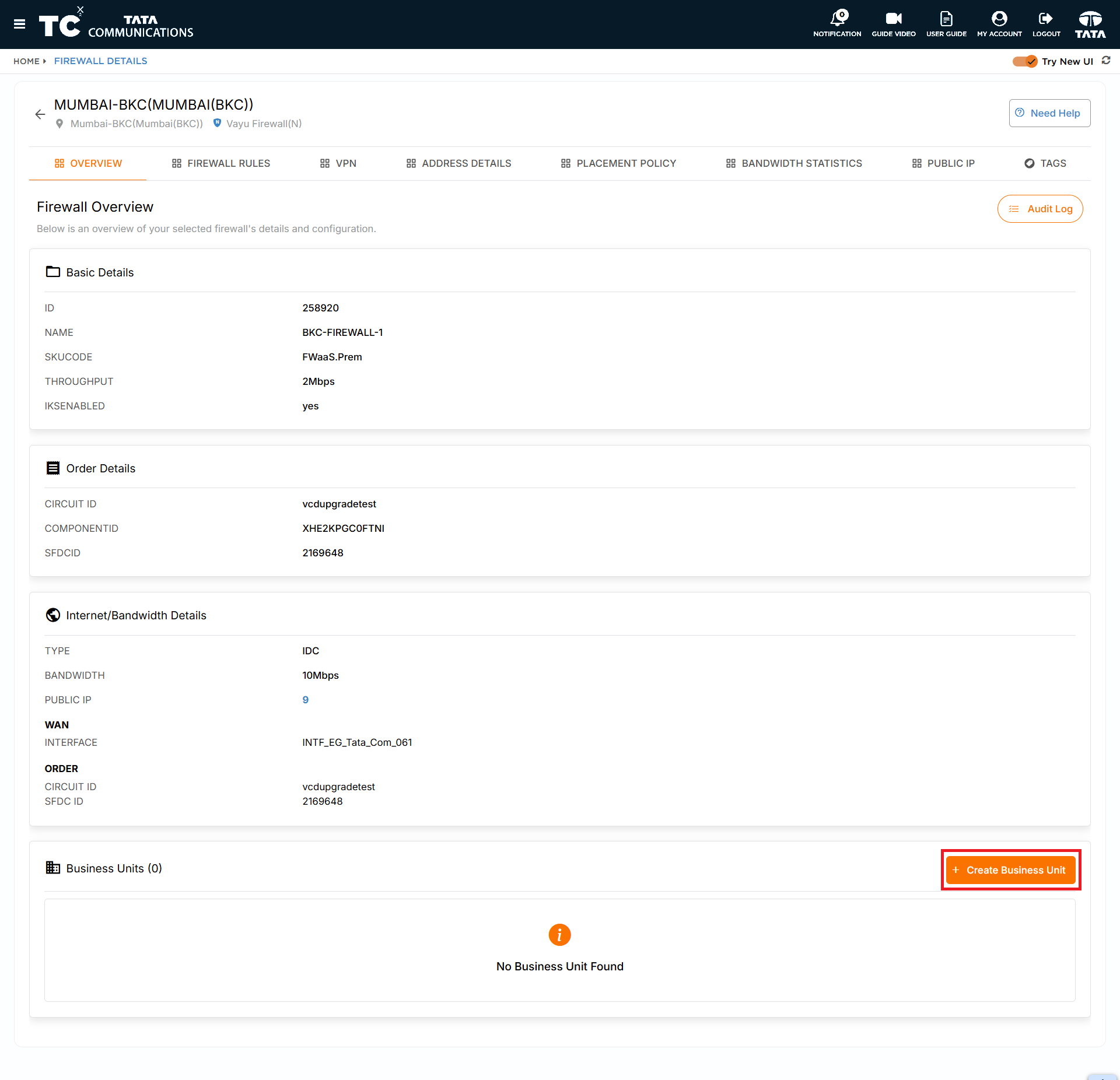
If business units have already been created, they will be listed under this tab. For a newly created firewall, this tab will be empty until you add one.
-
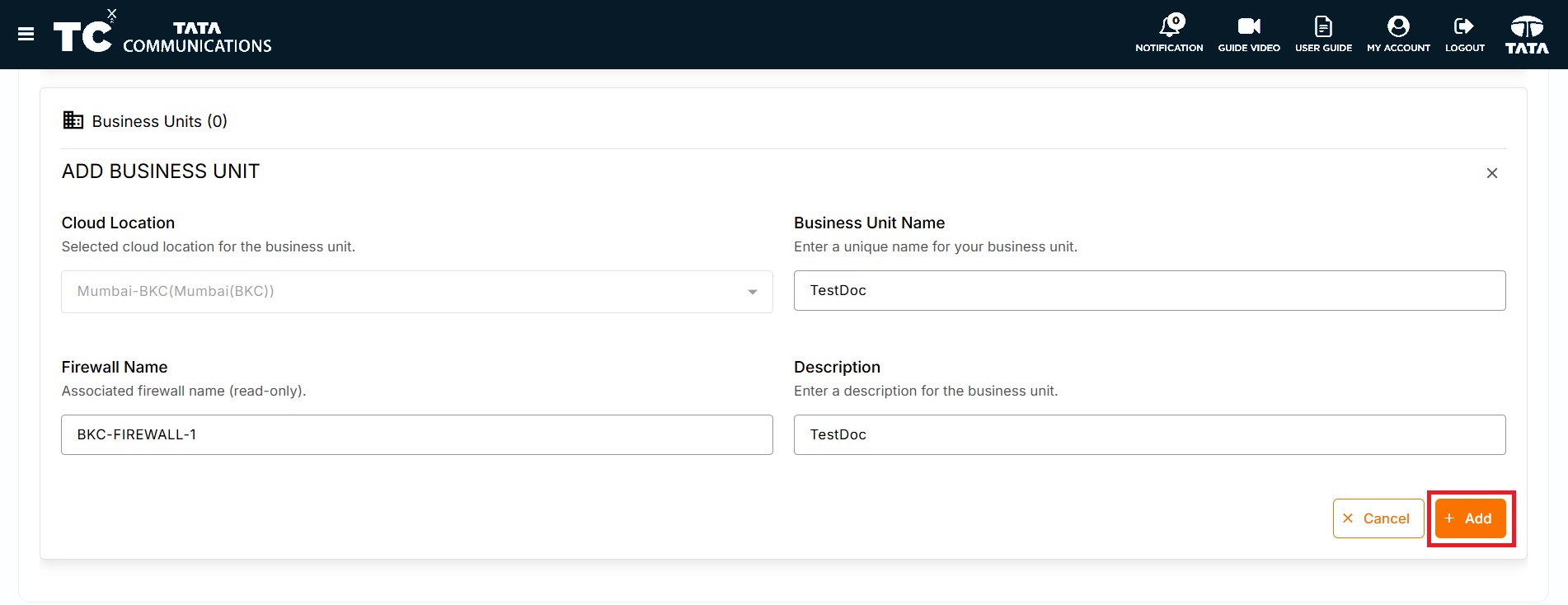
In the ADD BUSINESS UNIT form, enter the following:
a. Cloud Location is read-only.
b. In the Business Unit Name field, enter a unique name for your business unit.
c. The Firewall Name is read-only and shows the firewall associated with this business unit.
d. In the Description field, enter a description for the business unit (optional).
e. Click on Add to create the business unit.
-
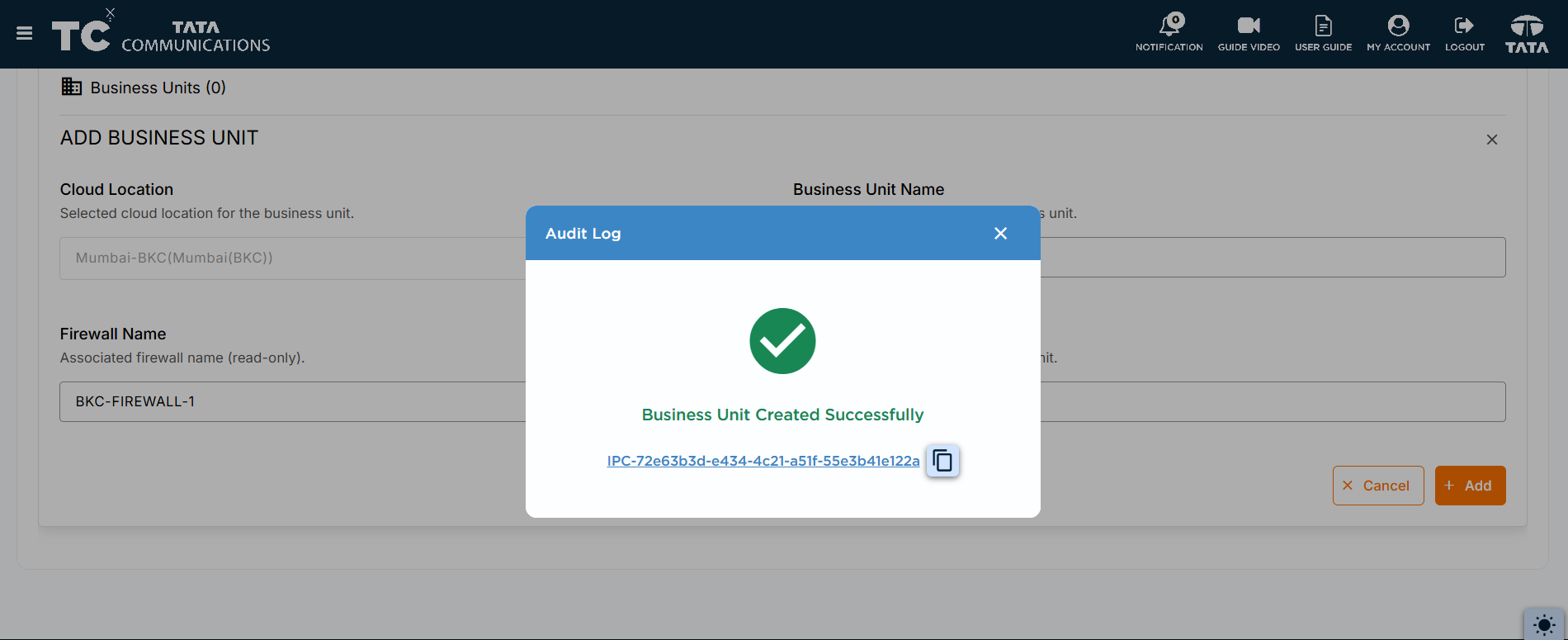
Once the Audit is successfully completed, the Business Unit that you have added will be listed under the BUSINESS UNITS card.
Adding a user to a Business Unit
-
Navigate to the Business UNITS page,
-
Select the Business Unit to which you want to add users.
-
In the USERS tab of the selected Business Unit,Click on Add button and SELECT USERS from drop-down list. This displays users who have access to the service and their user privileges. Select the user whom you want to add to the Business Unit and click Add.
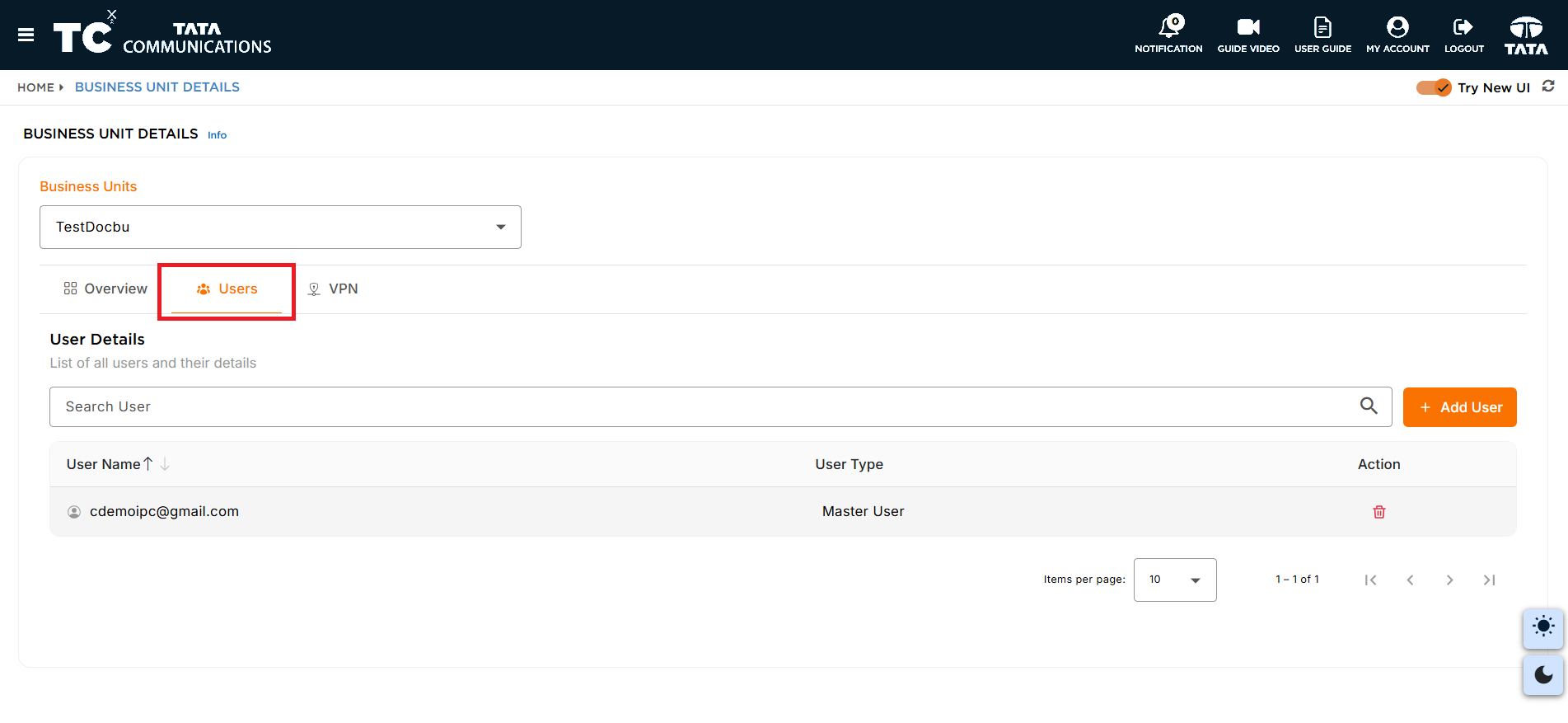
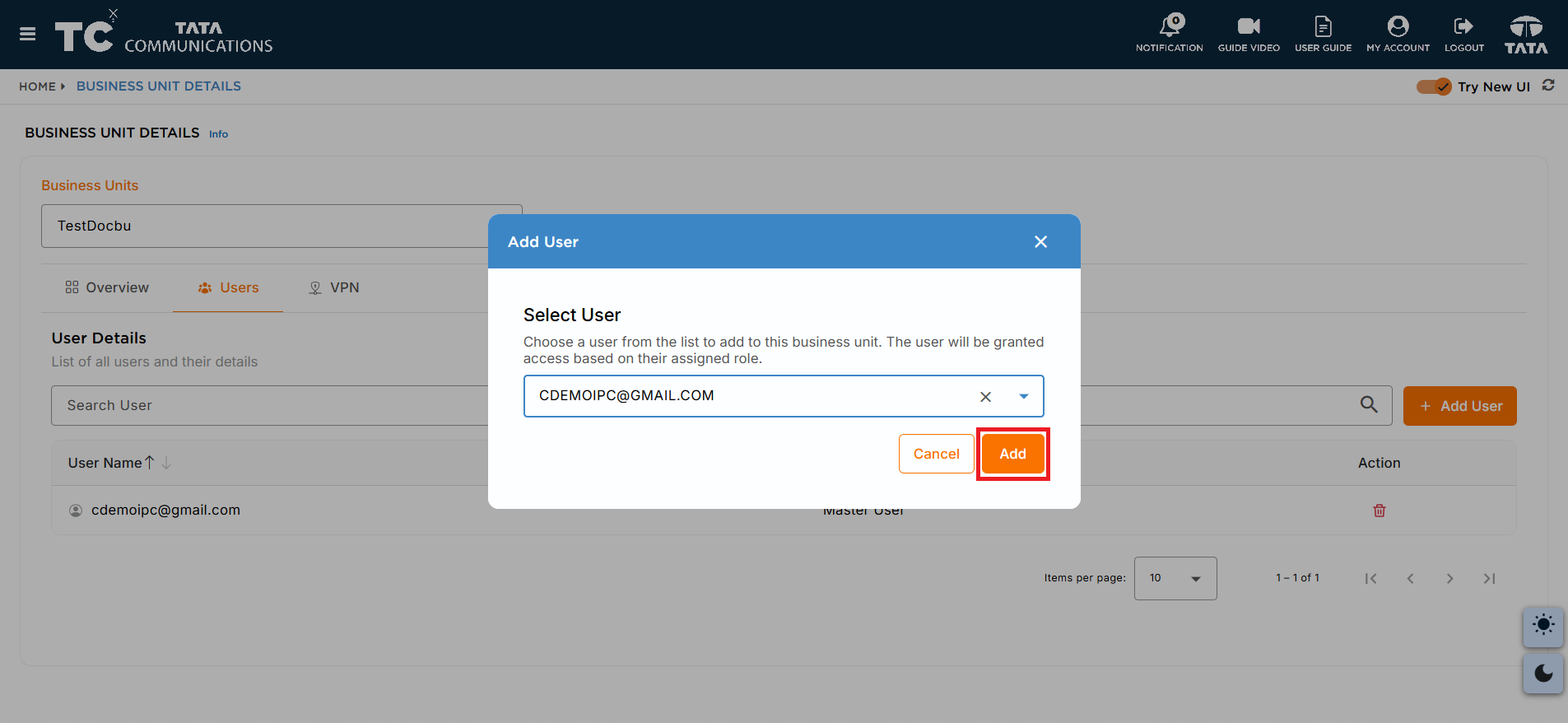
The selected user will be added to the Business Unit.
Adding a user to a Business Unit from Firewall Page
-
Navigate to the Firewall Details Page against the firewall you have created.
-
In the Business Units card , click on the Business Unit for which you want to add the users
-
Within the Business Unit Details page, click on the USERS tab.
4.Click on Add button and SELECT USERS from drop-down list. This displays users who have access to the service and their user privileges. Select the user whom you want to add to the Business Unit and click Add.
Creating VPN Users in a Business Unit
-
Navigate to the BUSINESS UNITS page.
-
Select the Business Unit in which you want to configure and create VPN users
-
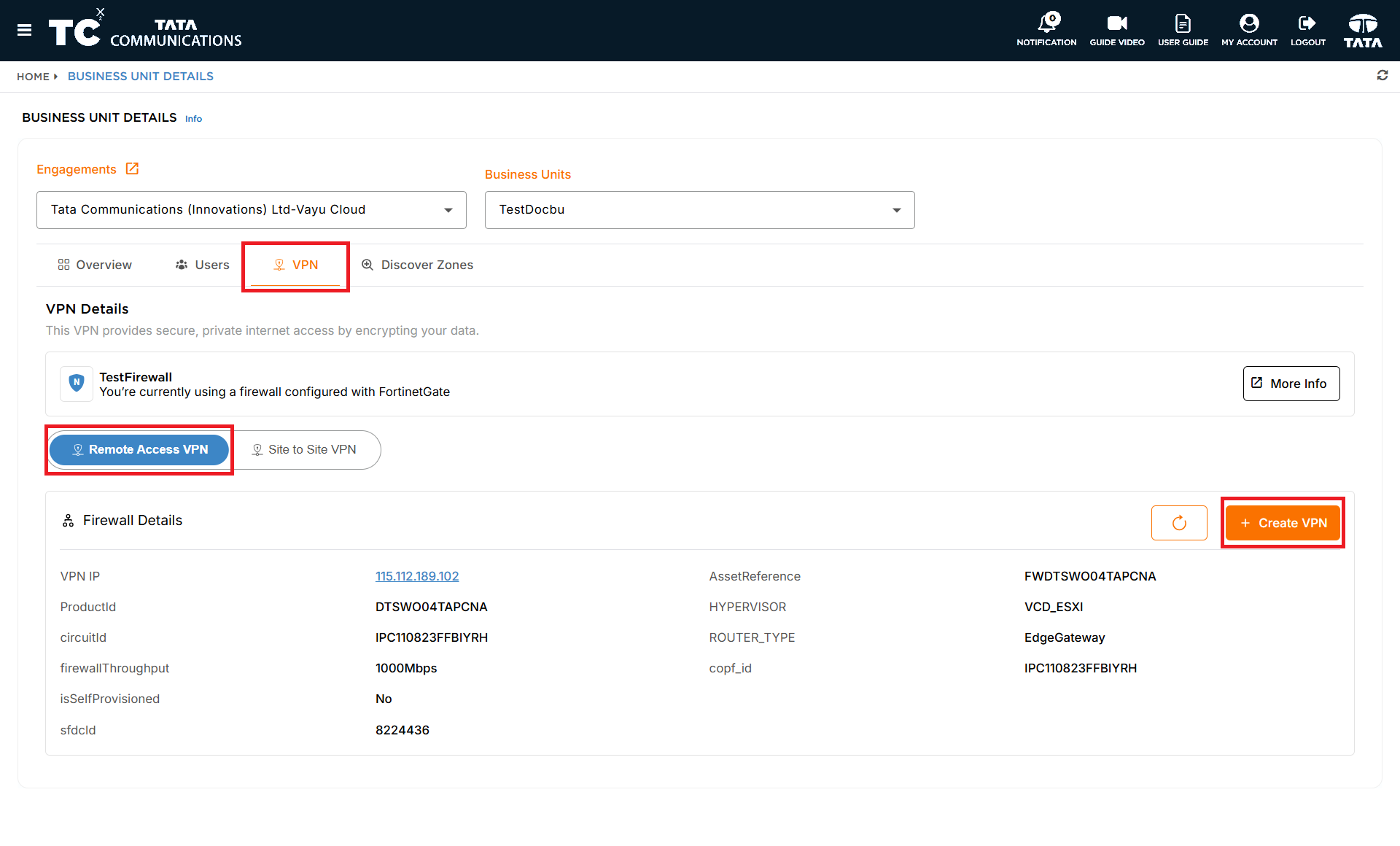
Within the selected Business Unit, click on the VPN tab.
-
Then, select the REMOTE ACCESS VPN tab to configure VPN settings
-
Click on the CREATE VPN icon under the REMOTE ACCESS VPN tab
-
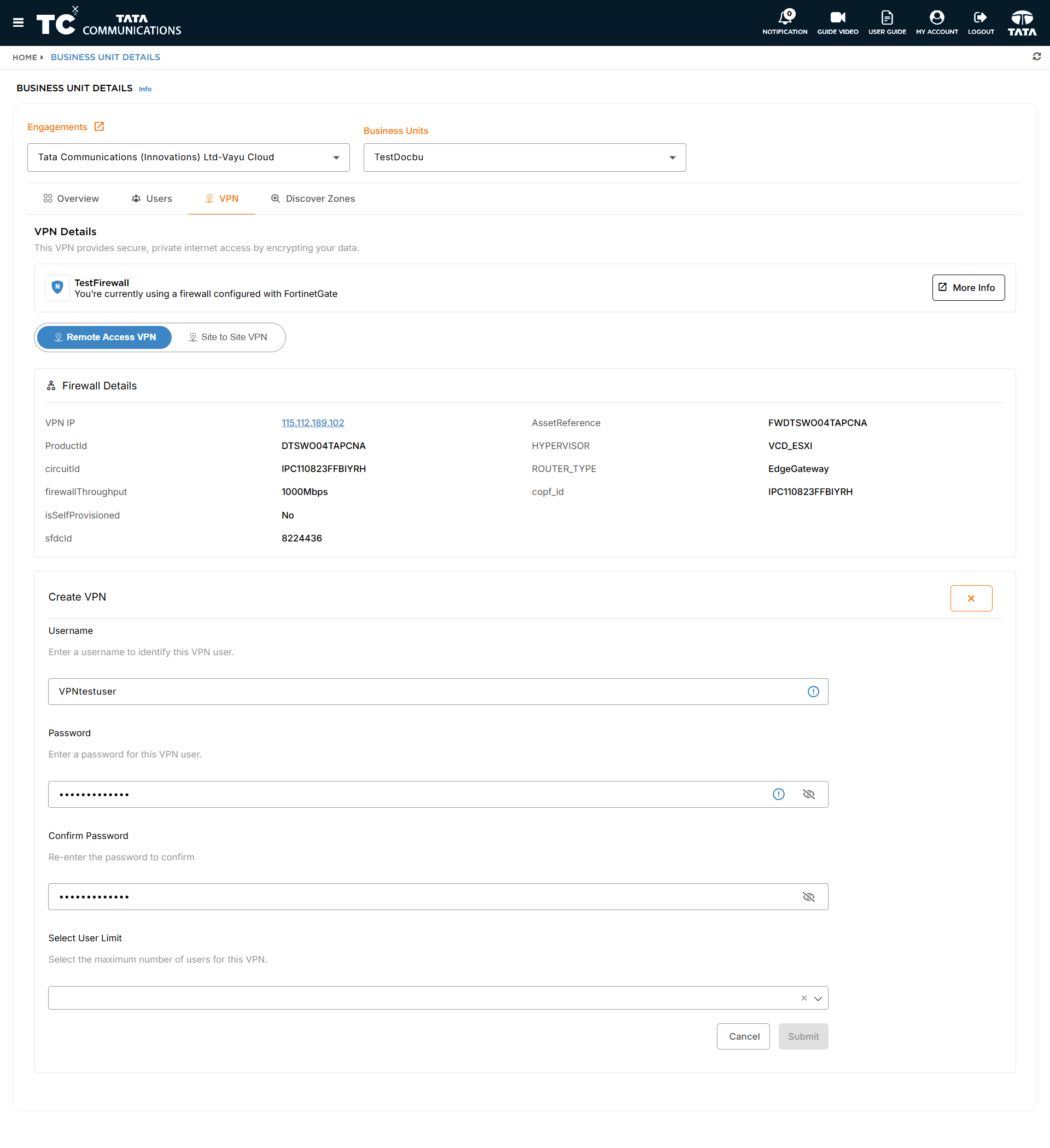
The CREATE VPN form will be displayed.
-
In the CREATE VPN form:
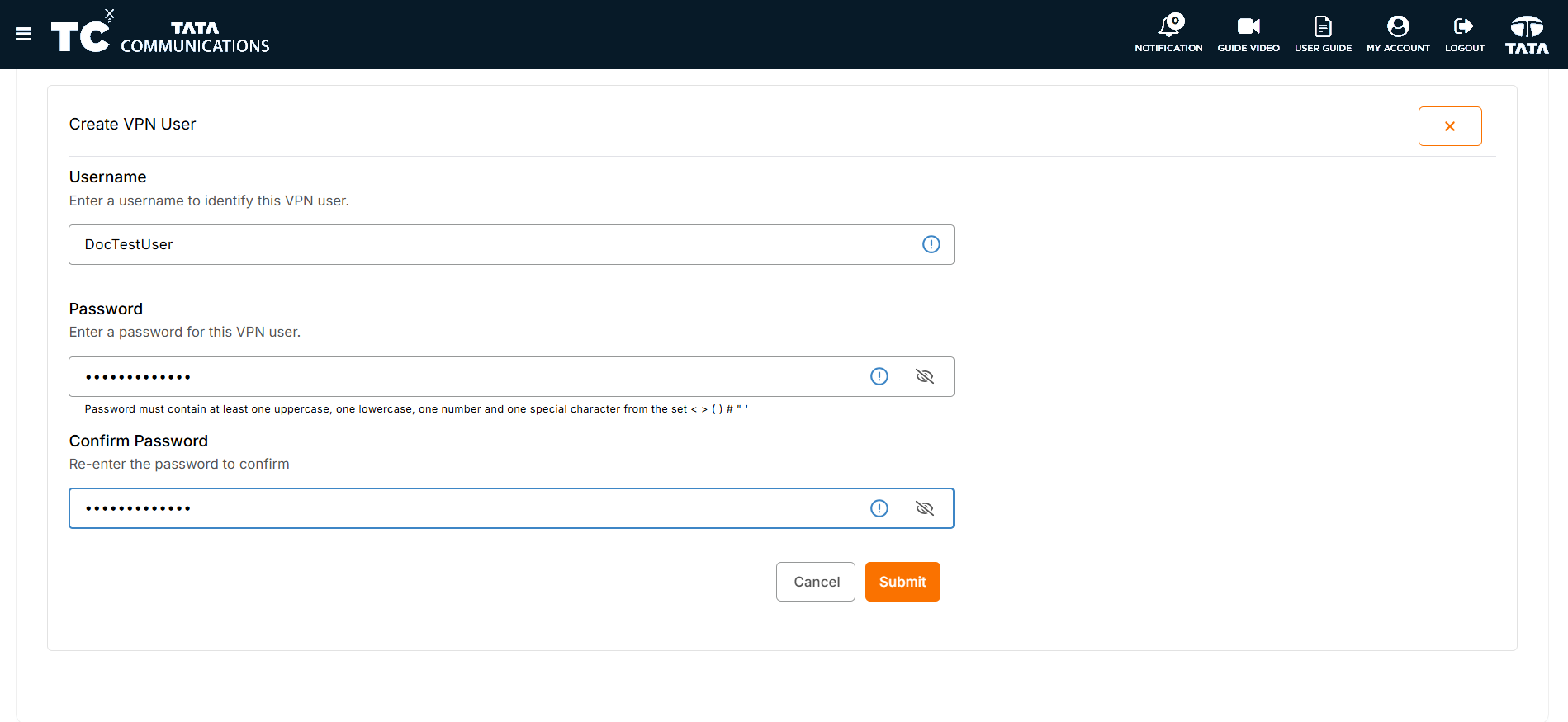
a. In the Username field, enter the VPN user's name.
b. In the Password field, enter the VPN user's password.
c. Confirm password by entering the same password again.
d. Select the User Limit from the drop-down list, this is to decide on how many users will have access to use the VPN and these users get listed in the VPN USER section.
e. Click on SUBMIT
f. Once the audit has been successfully completed, the user created will be added to the VPN USERS section and this action will also configure your VPN PROFILE.
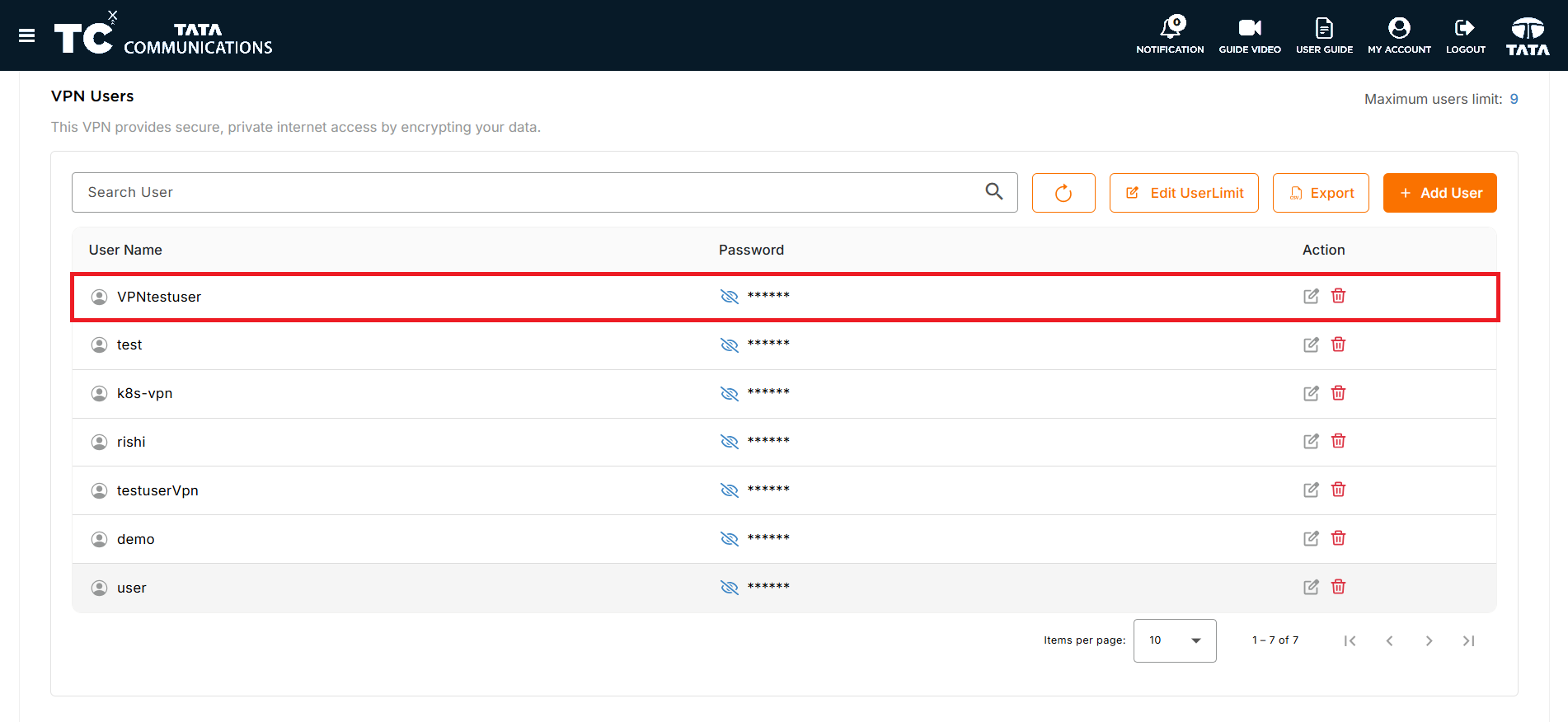
g. To add more users to the VPN USERS section:
Click on the Add User button.
Fill in the details such as Username and Password in the ADD VPN USER form.
Click on SUBMIT to add the new user.