AutoScale
Overview
In the Zone in which you want to create AutoScale, there should be PPU VMs created already (no. of PPU VMs should be equal to or more than the max VMs in the AutoScale group).
The steps to be followed to configure Autoscaling.
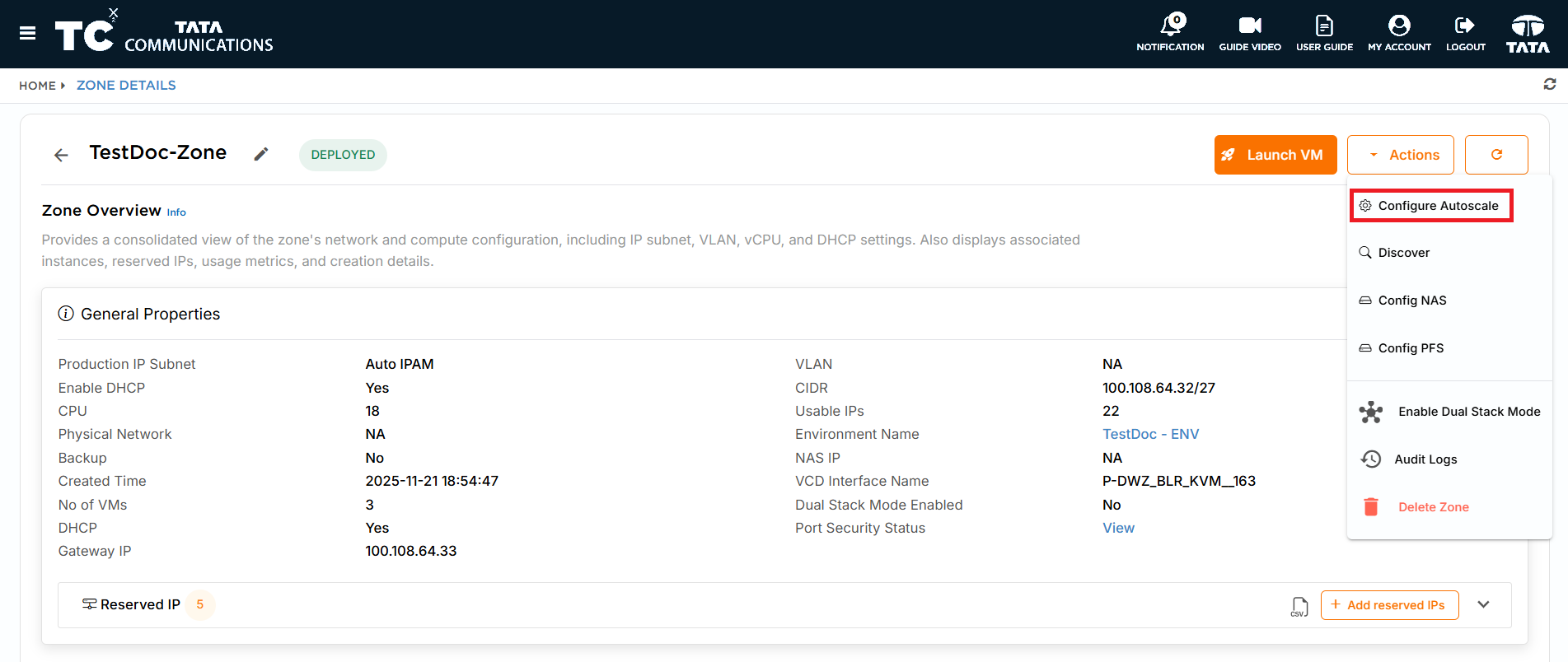
- Go to the zone in which you want to create Autoscale. Click on the Actions button , Select Configure AutoScale option.
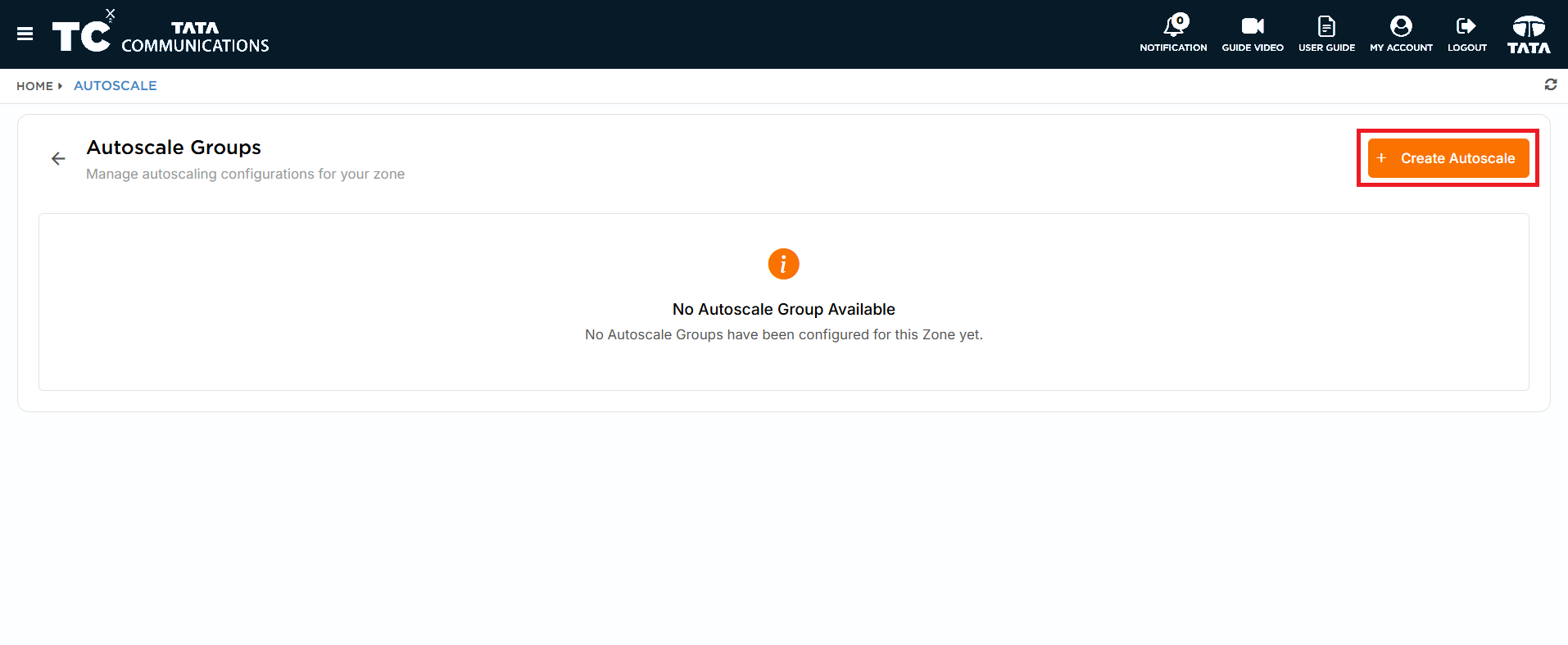
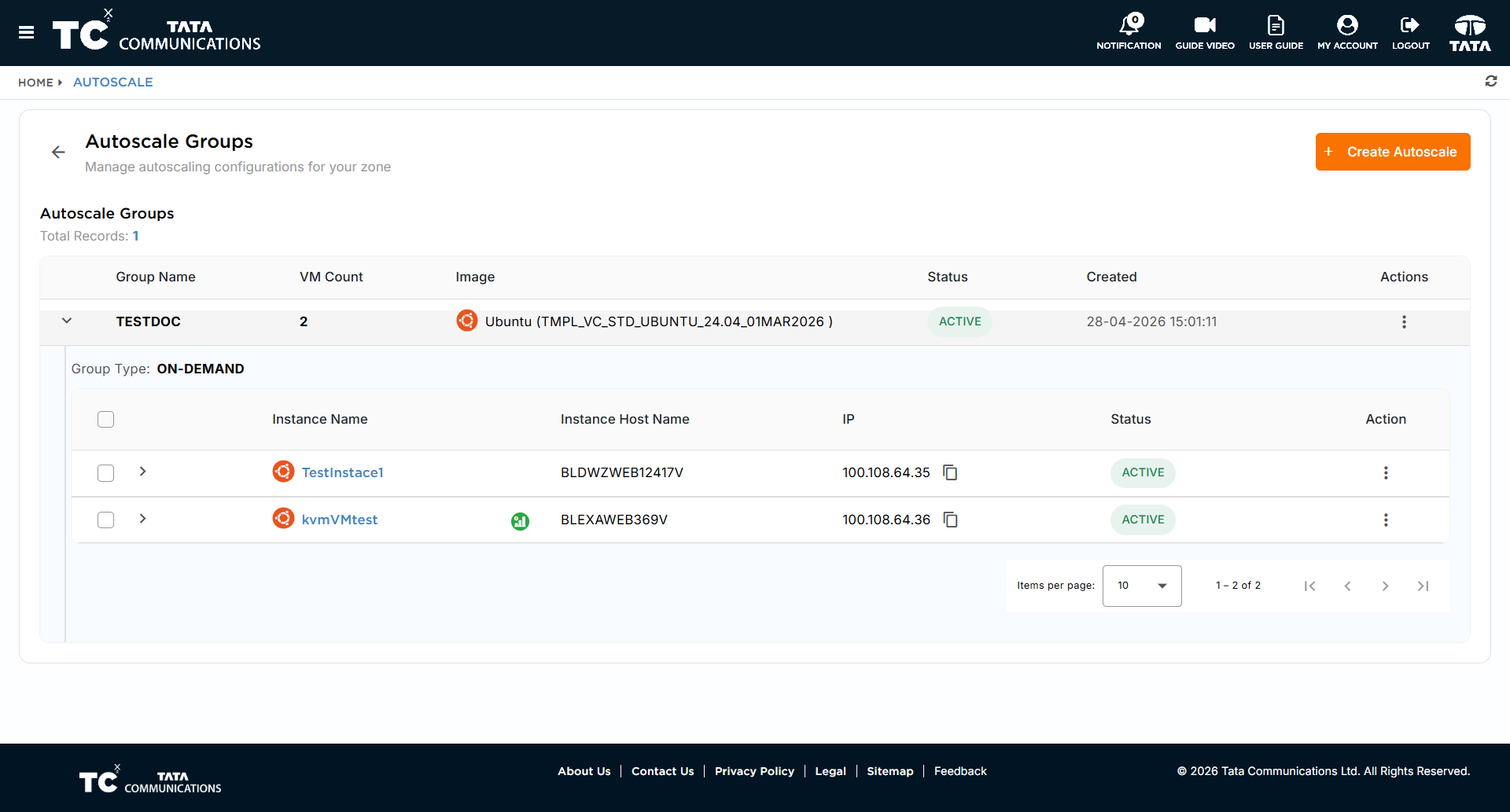
On redirecting to AutoScale page , if there are any autoscale groups already configured, it will be viewed here.
- To create a new group, click on Create Autoscale. button.
- Now, enter the details as per requirement, enter the Autoscale group name and click on Submit.
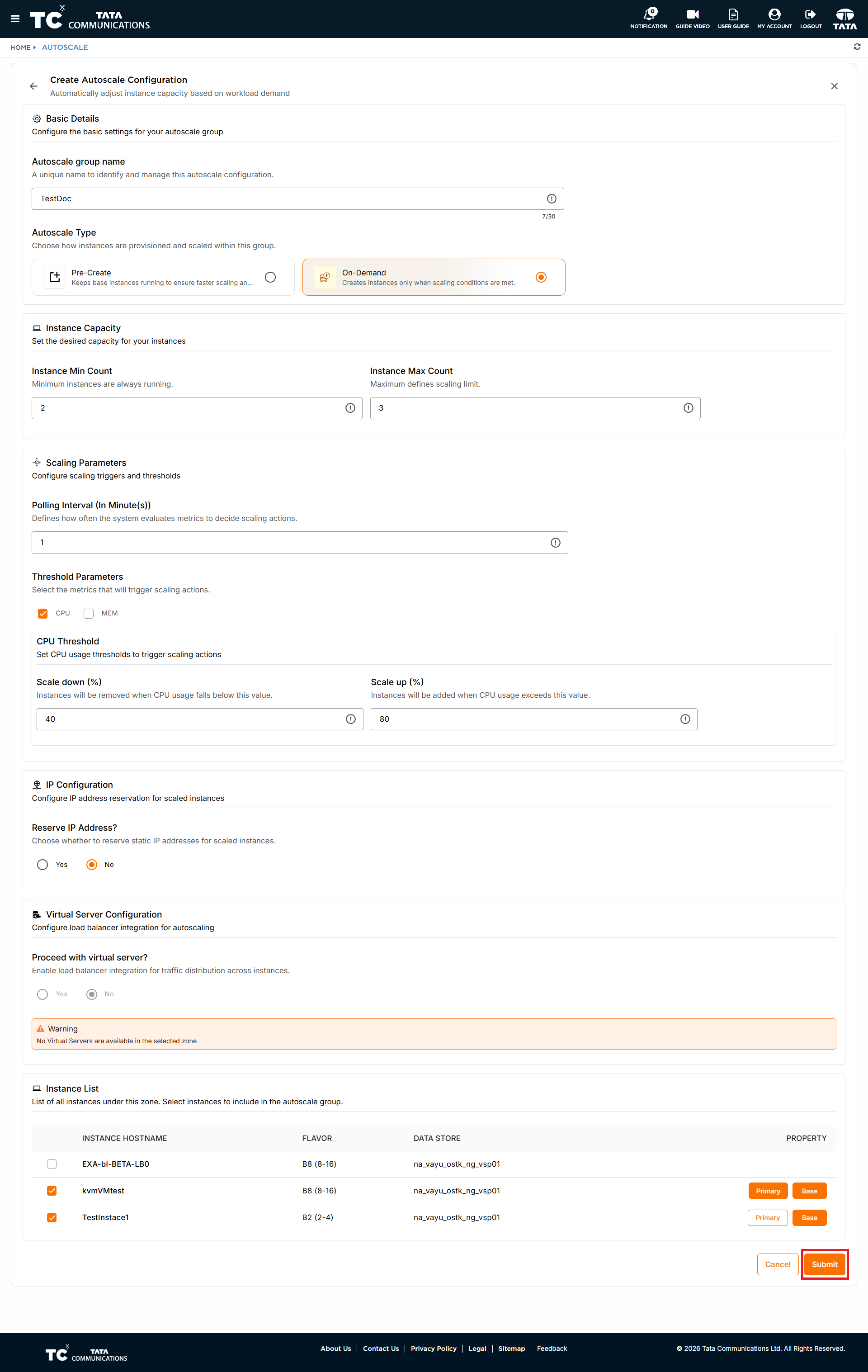
AutoScale configuration
-
VM Count
- Min – the minimum number of VMs to be added to the autoscaling group.
- Max – the maximum number of VMs to be added to the autoscaling group.
-
Polling interval
- The frequency at which the AutoScale group monitors the threshold parameter.
-
Threshold parameter
- Autoscaling can be configured based on CPU and RAM average utilizations.
Case 1 – If you want to scale up/down based on either CPU or RAM, then select the respective metrics (CPU/RAM). Enter the scale-up and scale-down values for selected CPU or RAM.
- Scale-up will happen when CPU/RAM average utilization exceeds the configured scale-up threshold.
- Scale-down will happen when CPU/RAM average utilization goes below the configured scale-down threshold.
Case 2 – If you want to scale up/down based on both CPU & RAM, then select both (CPU & RAM). Enter the scale-up and scale-down values for both CPU & RAM
-
Scale-up happens when either CPU or RAM average utilization exceeds the configured scale-up thresholds.
-
Scale down will happen when both CPU and RAM average utilization goes below the configured scale-down thresholds.
-
AutoScale type will be Pre-create.
-
Do you want to create Autoscale Group with Virtual Server – Not applicable
-
Enter the Autoscale group name.
-
Select the VMs that you want to add to the AutoScale group (selected VMs count should be equal to or more than the max VMs count entered)
- P (Primary) – Primary VM to be marked.
- B (Base) – you can enable Base option to multiple VMs.
- If a VM is enabled with Base option, then AutoScale group will not alter the state of the VM.
- For example – if the VM is in active state and base option is not enabled, if the threshold gets below the configured values, the VM will be shut down.But if the VM has base enabled, then even if the threshold gets below the configured values, the VM will not be shut down.
- Once you click on submit, you will be able to see a pop up saying Creating Autoscale.
- Click on the Autoscale group to see more details.
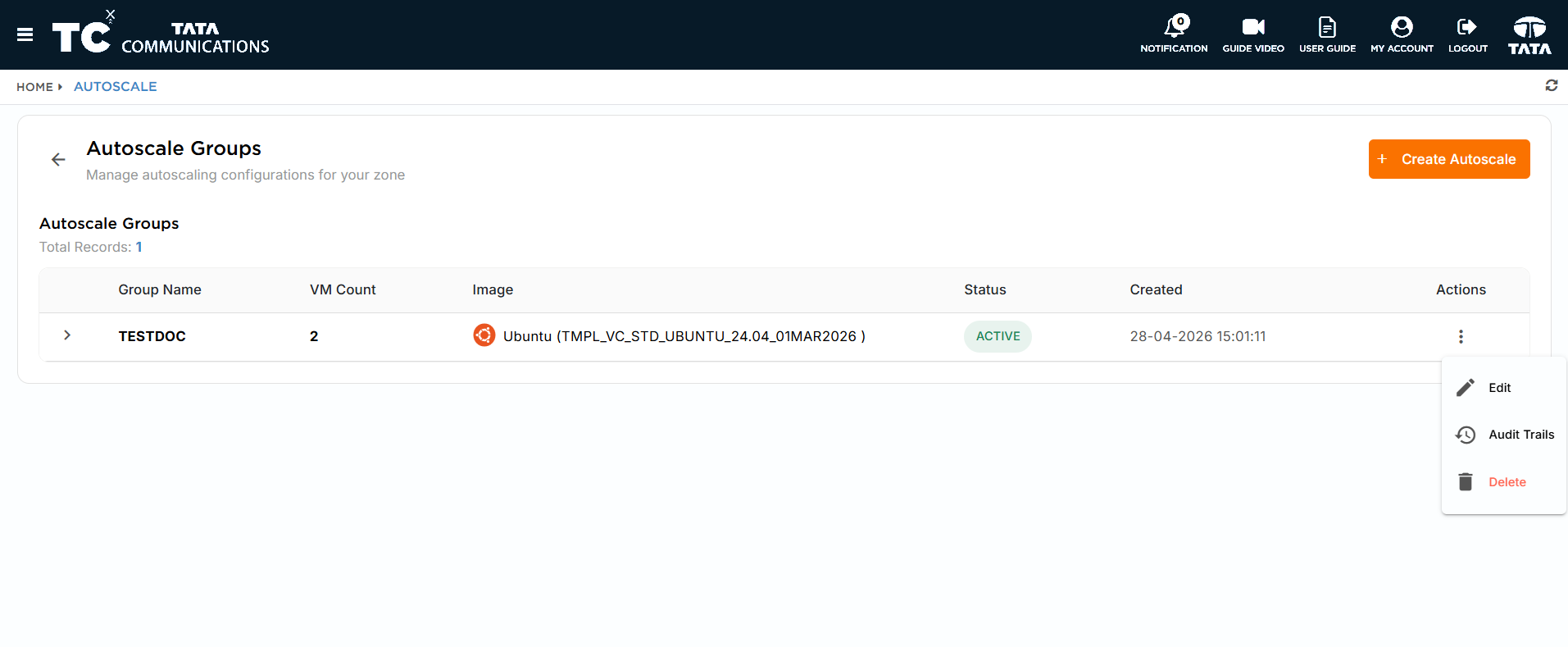
- To delete the AutoScale Group Click on Actions and Select the Delete option.
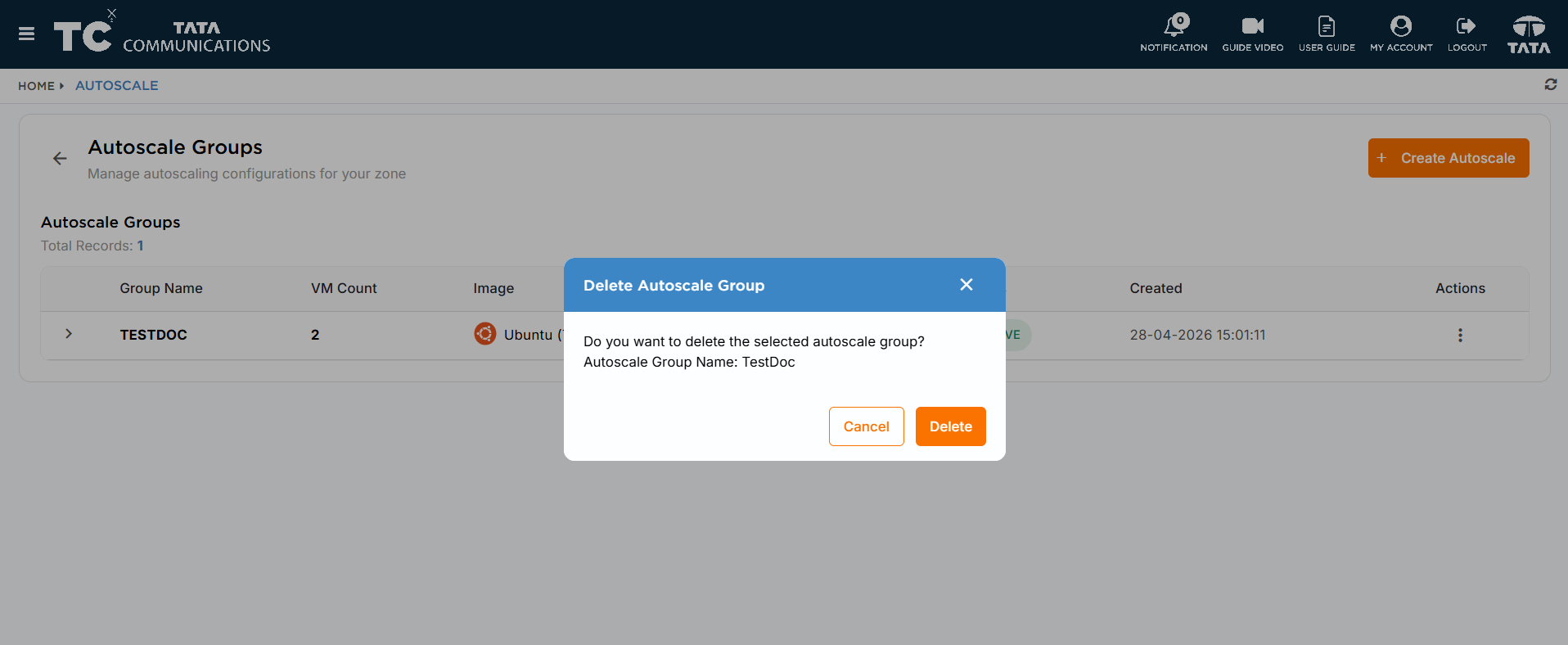
- On clicking Delete , Confirmation pop-up will be displayed . Click on Delete to confirm deletion.
Actions:
| Icon | Action | Description |
|---|---|---|
 | Edit AutoScale | Edit the requirements of the Autoscale. |
 | Delete AutoScale | Delete the exisitng autoscale by using this option. |
 | Audit logs | Check all the actions triggered on the selected Autoscale. |