Getting Started
In this Getting Started section, you’ll learn how to create your first Kubernetes cluster in the Vayu Cloud Portal.
Create Cluster
-
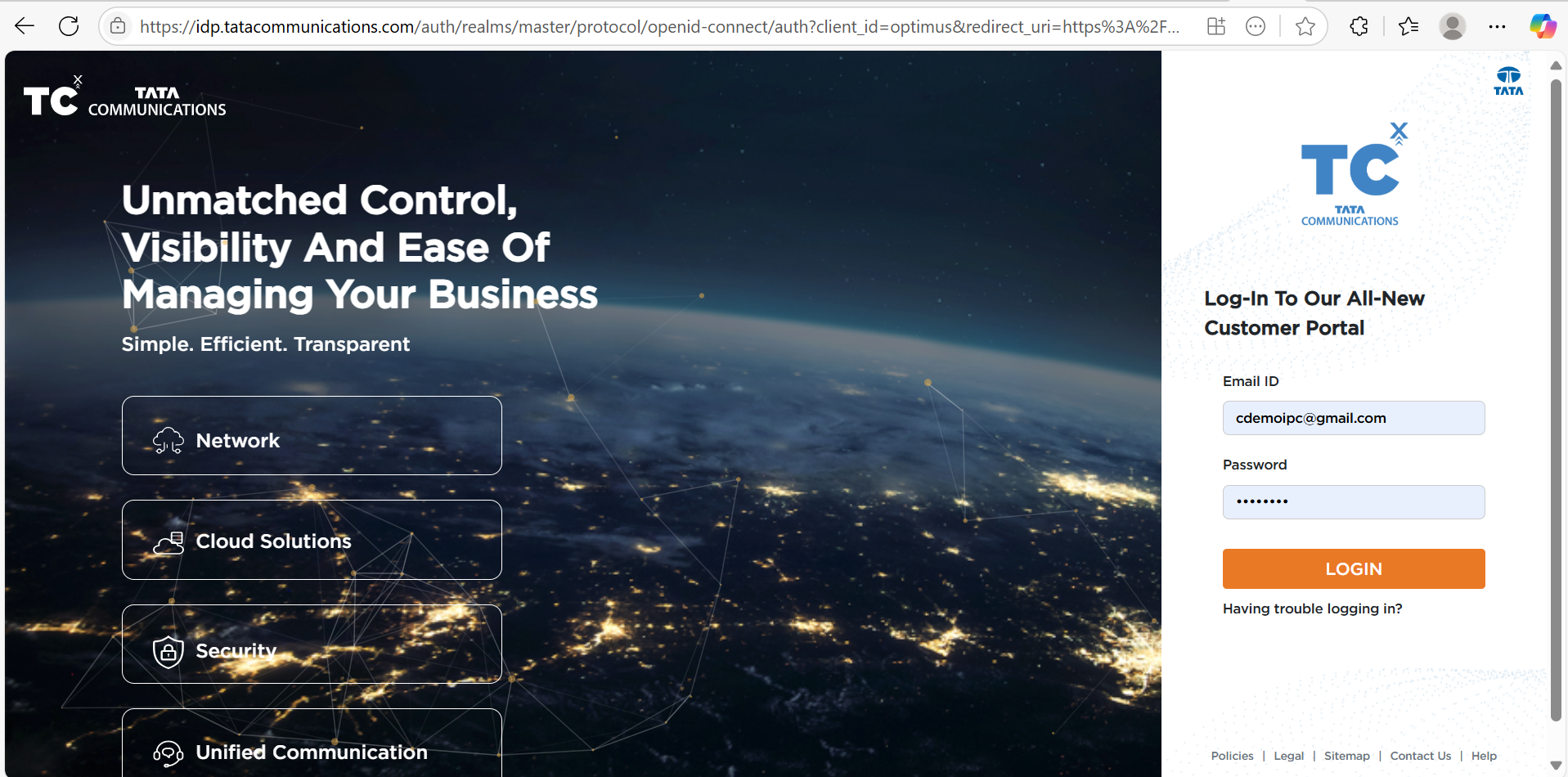
Sign in to enter the dashboard of Vayu Cloud.
-
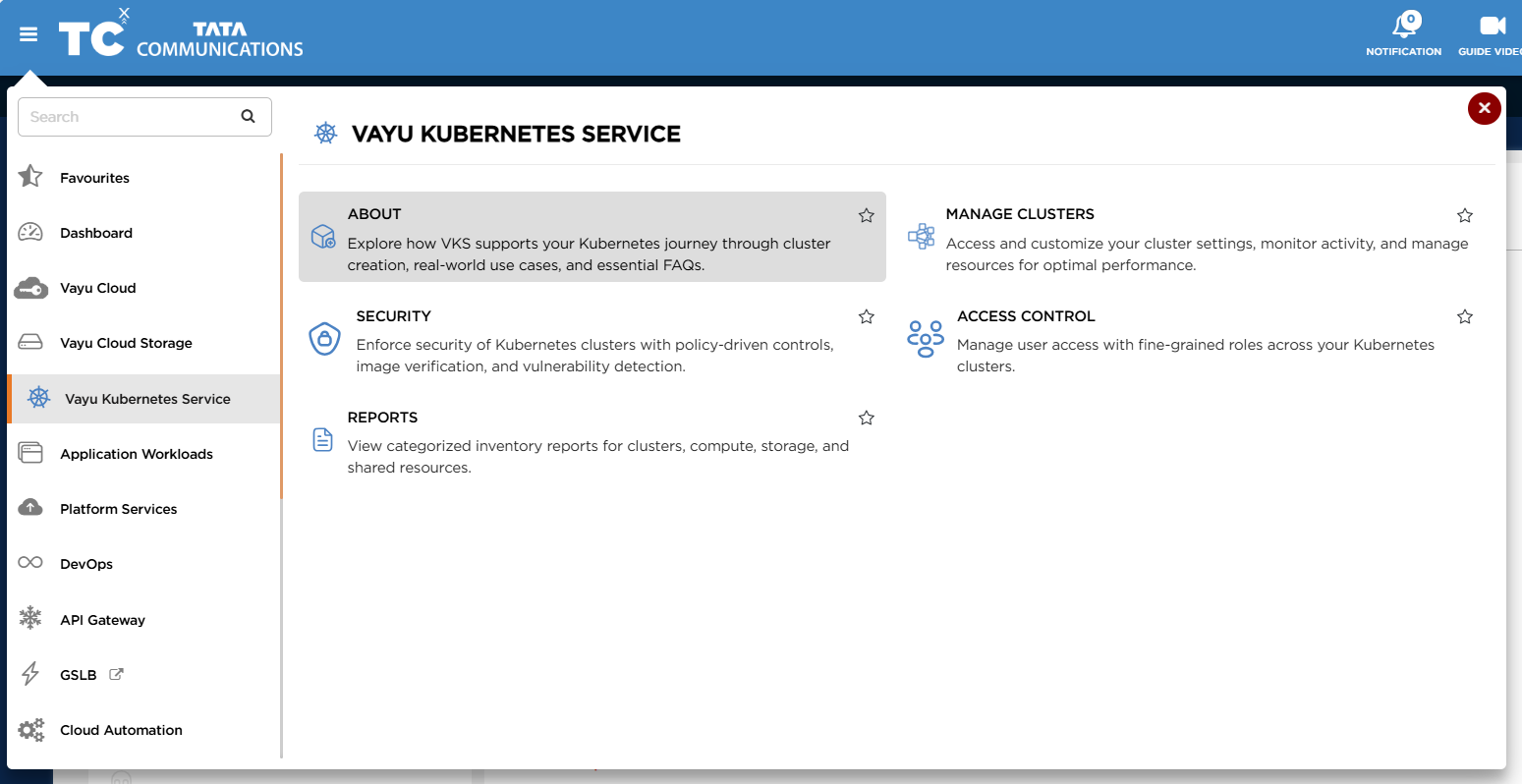
From the left navigation menu, select Vayu Kubernetes Service, and then click About.
-
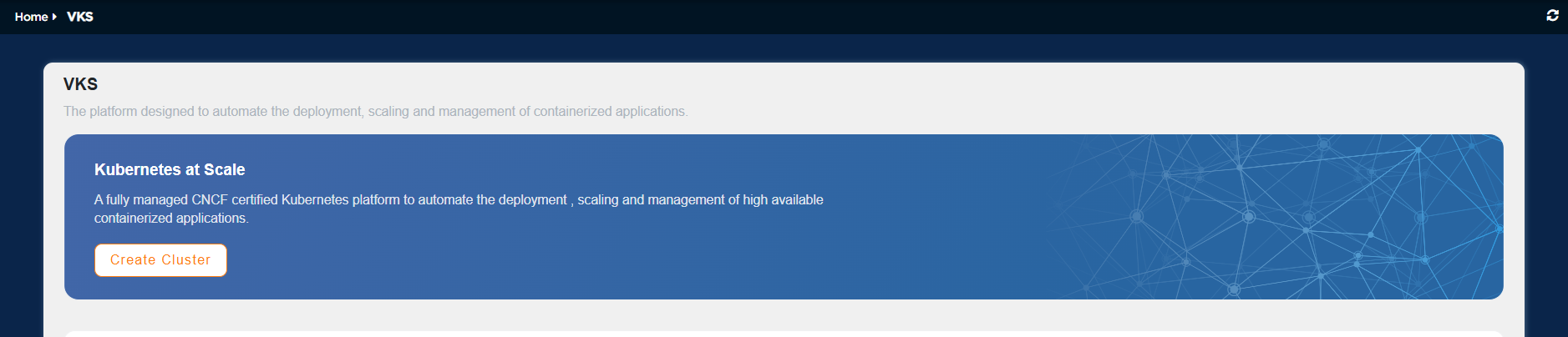
On the Vayu Kubernetes About page, click on Create Cluster button to create a new cluster.
Cluster Configuration
-
In this step, you define the core specifications for your Kubernetes cluster:
-
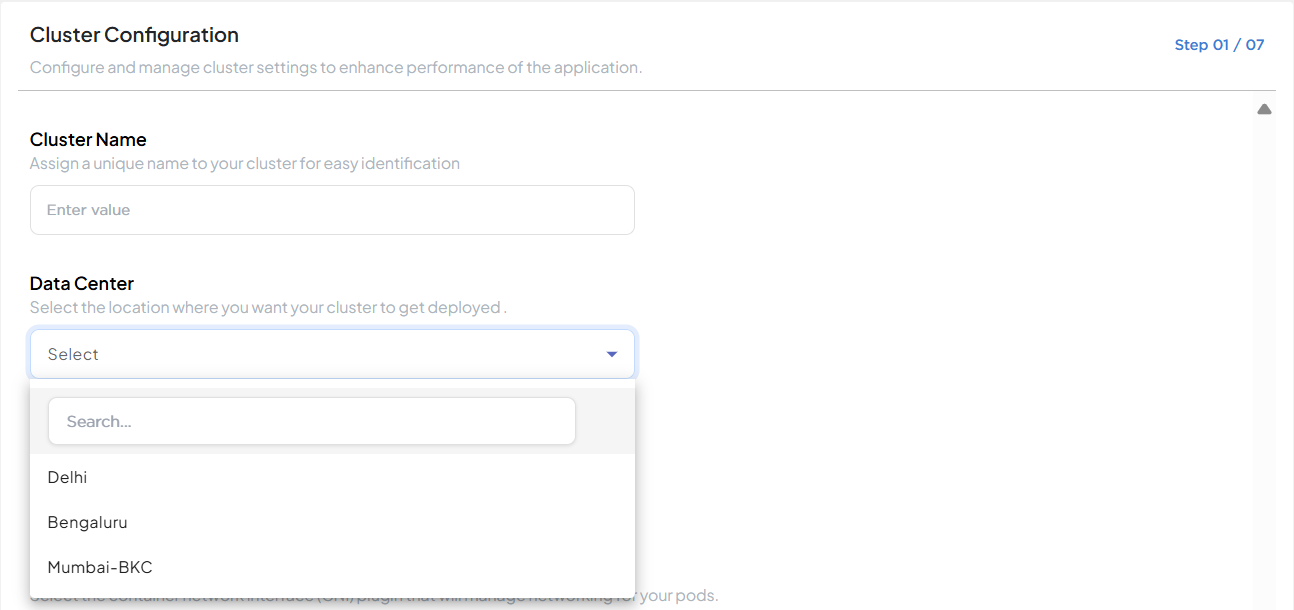
Cluster Name: Enter a unique and descriptive name for your cluster.
-
Data Center: Select the preferred location from the available options (Delhi, Bangalore, Mumbai- BKC).
-
Kubernetes Version: Choose the desired version.
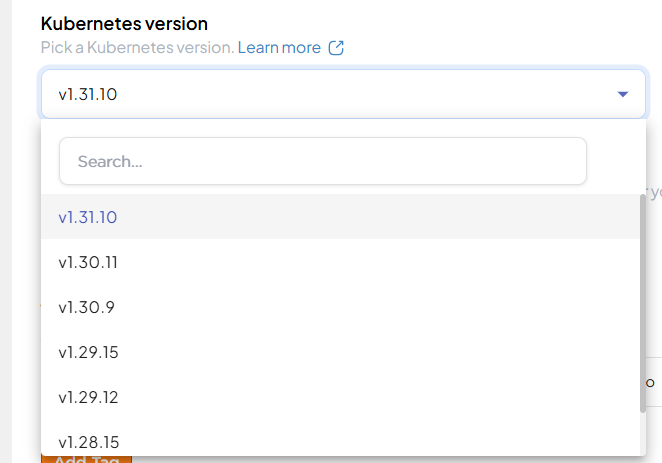
As best practice we recommend N-1 (N is latest version number of open-source Kubernetes) version of Kubernetes for our user, for example if latest Kubernetes distribution is 1.31 (N=28) we recommend using 1.30 to user in production environment.
-
CNI Driver: Select a networking plugin (Calico or Cilium) based on your requirements.
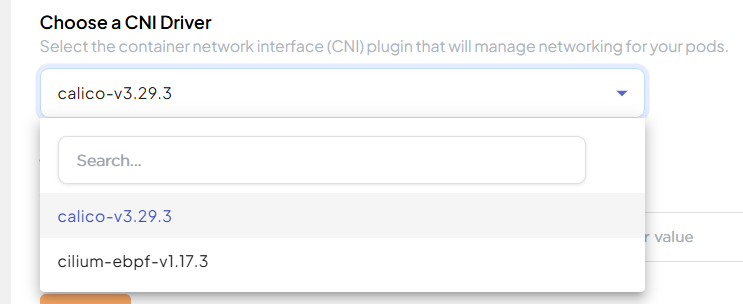
The platform provides the following options:
- Calico: Provides high-performance networking and advanced network policy enforcement. Ideal for clusters that require strict security policies and scalability.
- Cilium: Uses eBPF technology to deliver advanced observability, security, and load balancing. Best suited for microservices architectures and zero-trust security models.
Click here to learn more about CNI Drivers.
-
Tags: Add tags to help organize and identify your clusters efficiently.
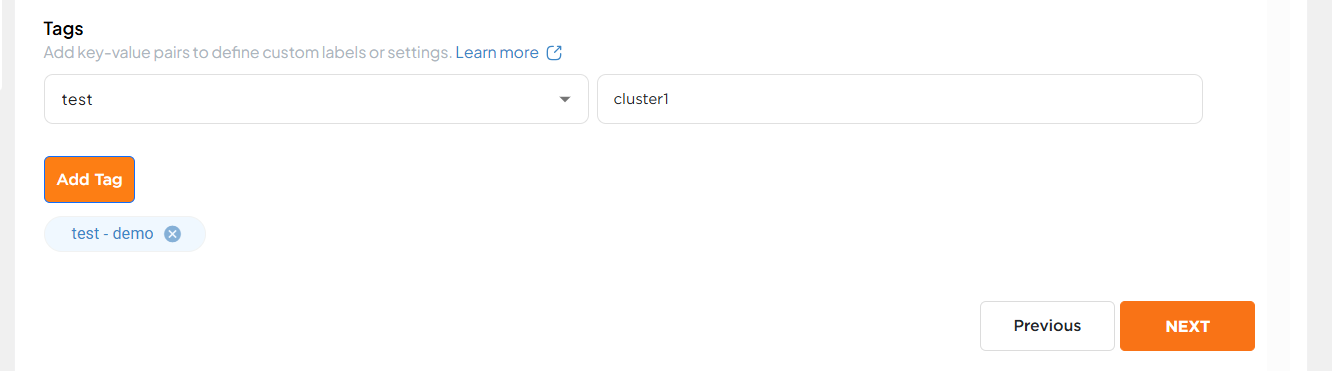
Click here to learn more about tags.
-
Once all fields are completed, click Next to proceed to the Network configuration.
-
Network Setup
-
In this step, you define the logical network and organizational parameters for your cluster:
-
Business Unit: Select the department or team under which the cluster will be deployed. If the required unit does not exist, click Create Business Unit to add a new one.
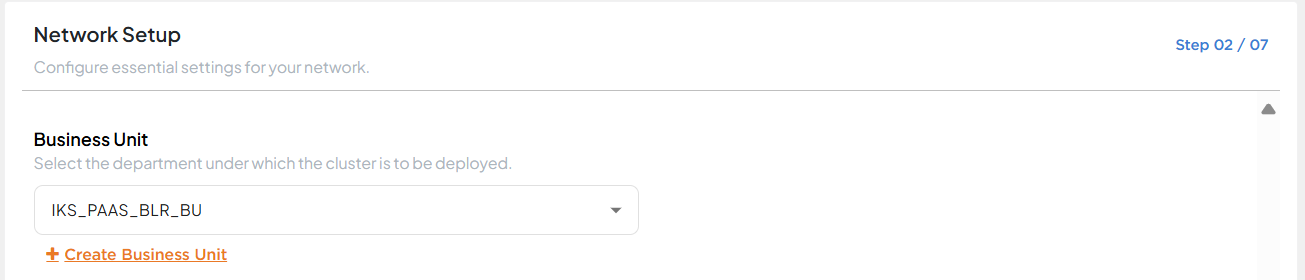
Click here to learn more about Business Units.
-
Environment: Choose the deployment stage (e.g., Development, Staging, Production). You can also create a new environment by clicking Create Environment.

Click here to learn more about Environments.
-
Zone: Specify the VLAN or logical network zone where the cluster will reside. To add a new zone, click Create Zone.
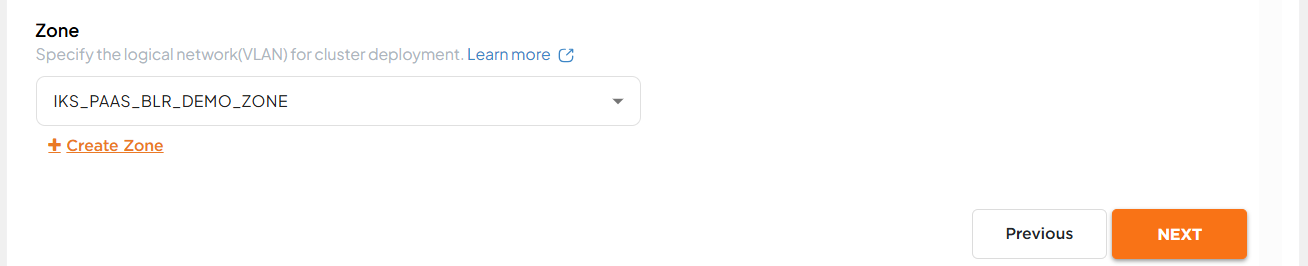
Click here to learn more about Zones.
-
Once all the fields are completed, click Next to proceed to the worker node pool configuration.
-
Worker Node Pool
-
In this step, you configure the compute resources and scaling options for your Kubernetes cluster.
-
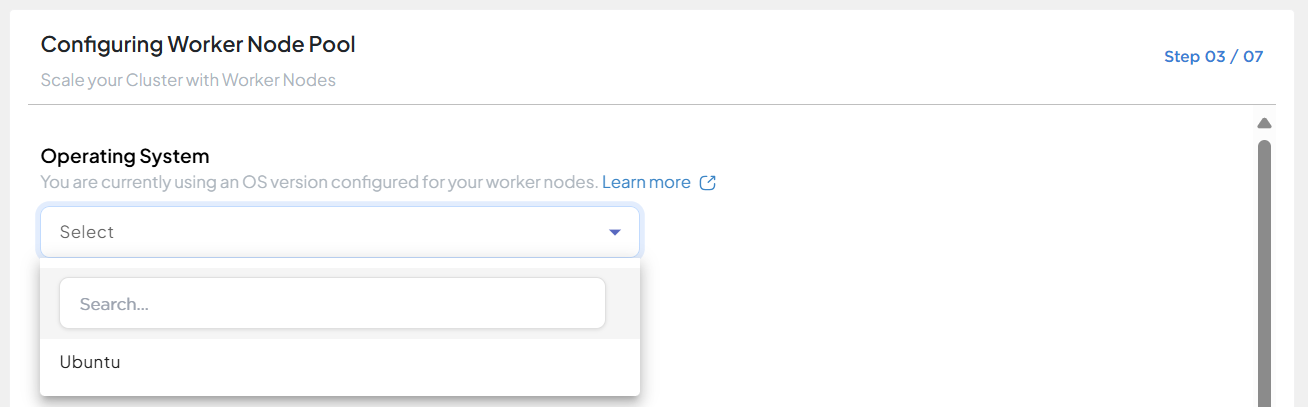
Operating System: Select the OS for your worker nodes from the available options in the dropdown (Ubuntu).
-
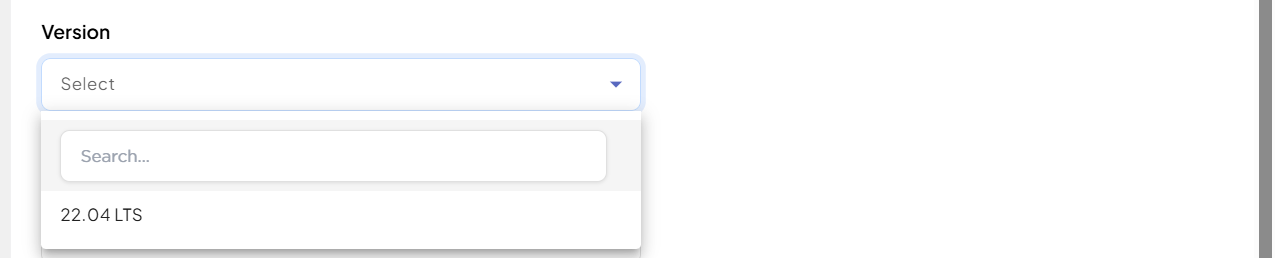
Version: Choose the desired OS version for the worker nodes.
-
Worker Node Pool Name: Enter a unique name for your worker node pool to identify it easily.

-
Node Type: Choose the type of node that suits your workload requirements (e.g., General Purpose, etc).

-
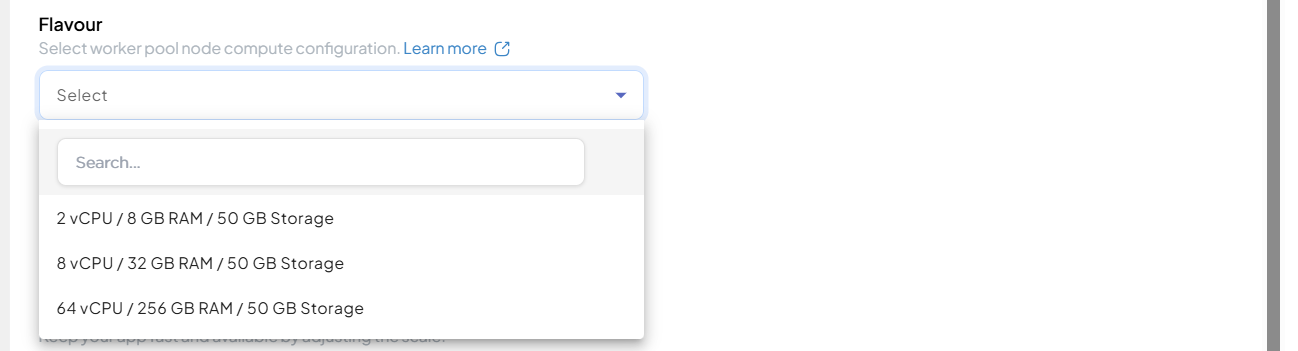
Flavour: Select the compute flavor for worker nodes, defining CPU and memory resources.
-
Fixed Replica Count: Enter the initial number of worker nodes that will be provisioned in the pool.

-
Enable Auto-Scaling (Optional): Check this option if you want the system to automatically adjust the number of nodes based on workload demands.
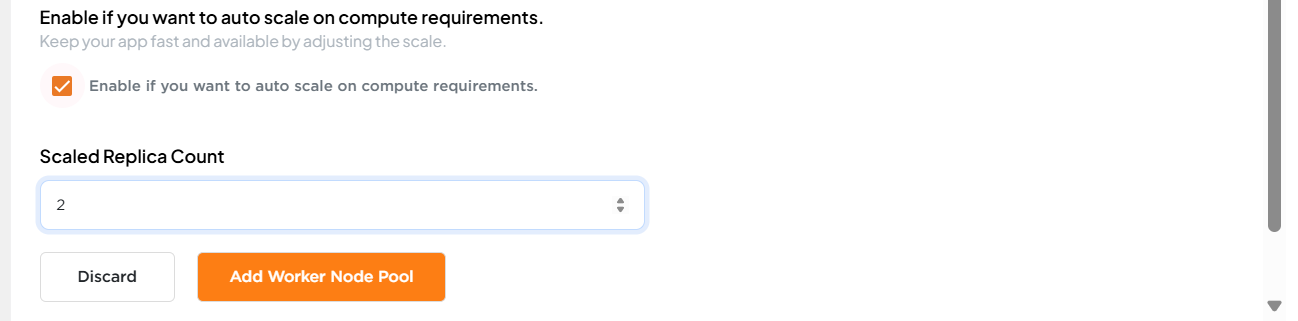
- Scaled Replica Count: Specify the maximum number of nodes the pool can scale up to when auto-scaling is enabled.
-
Once you have configured the settings, click Add Worker Node Pool to save and view the worker node pool. You can manage an existing worker node pool by using the available actions, Edit to update the configuration or Delete to remove the pool.
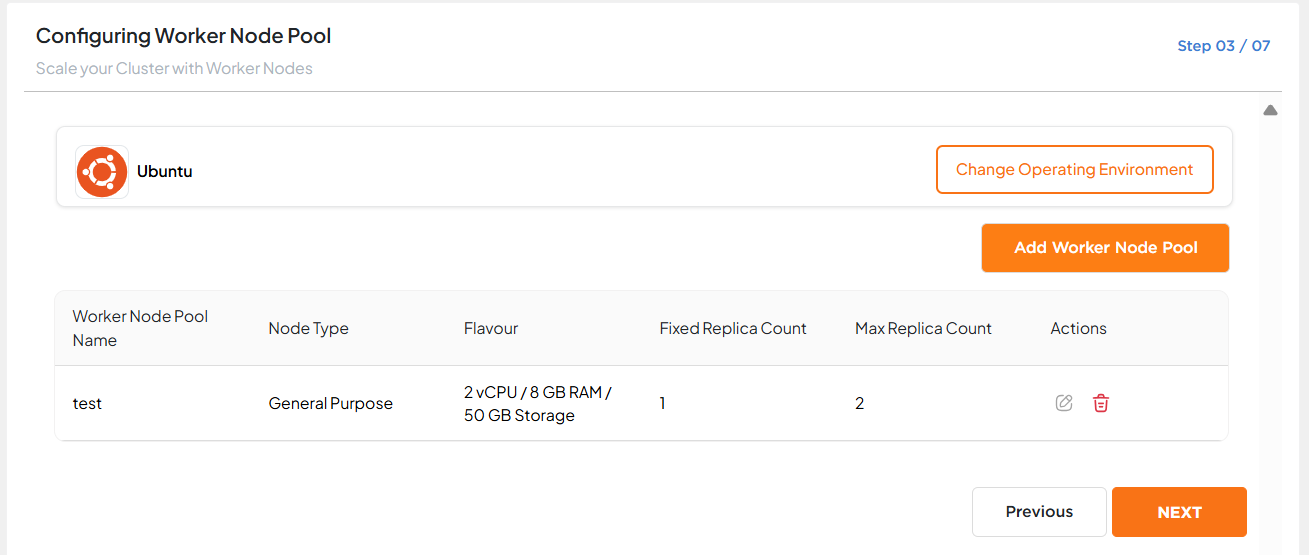
- To configure an additional worker node pool, click the Add Worker Node Pool button and complete the fields in the prompt.
-
Once all fields are completed, click Next to proceed to the Storage Class configuration.
Click here to learn more about worker node pool.
-
Storage Class Configuration
-
In this step, you will set up the persistent storage for your cluster.
-
Persistent Volume Name: Enter a unique name for the persistent volume (PV) to identify the storage.

-
Class Configuration: Select the appropriate storage class based on your IOPS and performance requirements from the available options (IOPS 1, IOPS 5).
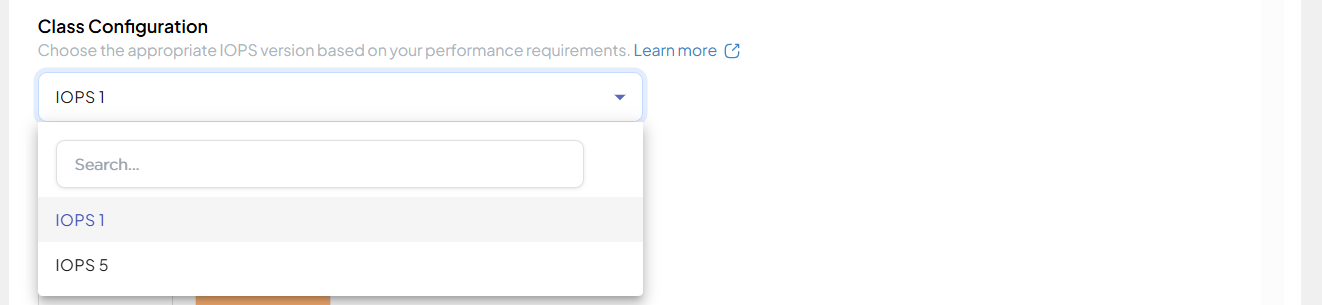 1 is standard IOPS we offer but if user needs high I/O intensive requirements then user can select IOPS 5.
 -
Capacity (GB): Specify the storage size in gigabytes. The maximum supported capacity is 7000 GB.

-
Once you have configured the settings, click Add PVC to save and view the class configuration. You can manage an existing storage class configuration by using the available actions, Edit to update the configuration or Delete to remove it.
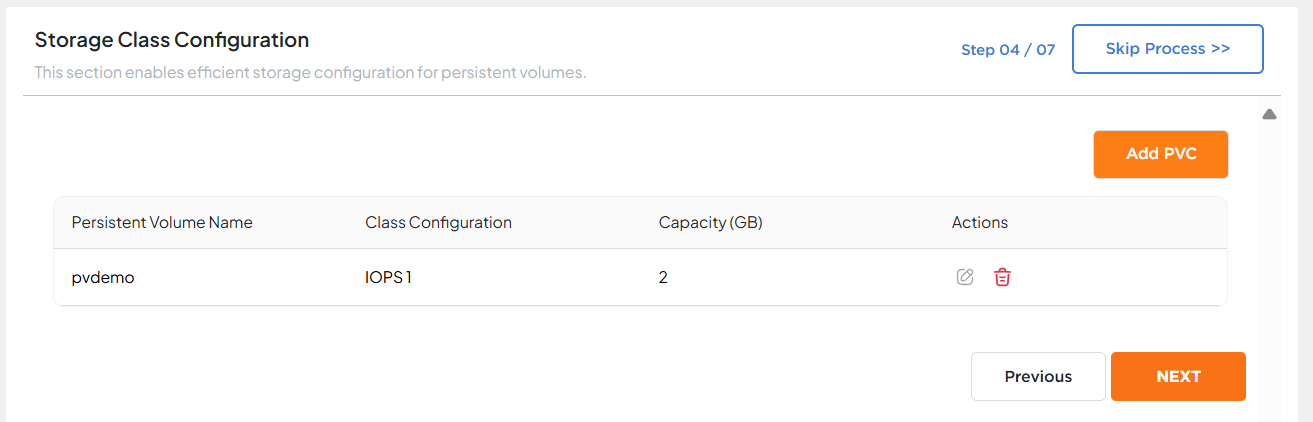
- To configure an additional Persistent Volume, click the Add PVC button and complete the fields in the prompt.
-
Once all fields are completed, click Add PVC to create the Persistent Volume Claim, then click Next to proceed.
Note
- Storage Class is optional and can be configured later if not selected during cluster creation.
-
Backup Management
-
This step allows you to enable data protection for your cluster by configuring backups.
-
Filter by Namespace: This allows scheduled backup of Kubernetes cluster, filtered using label-based selectors (e.g., key=value).
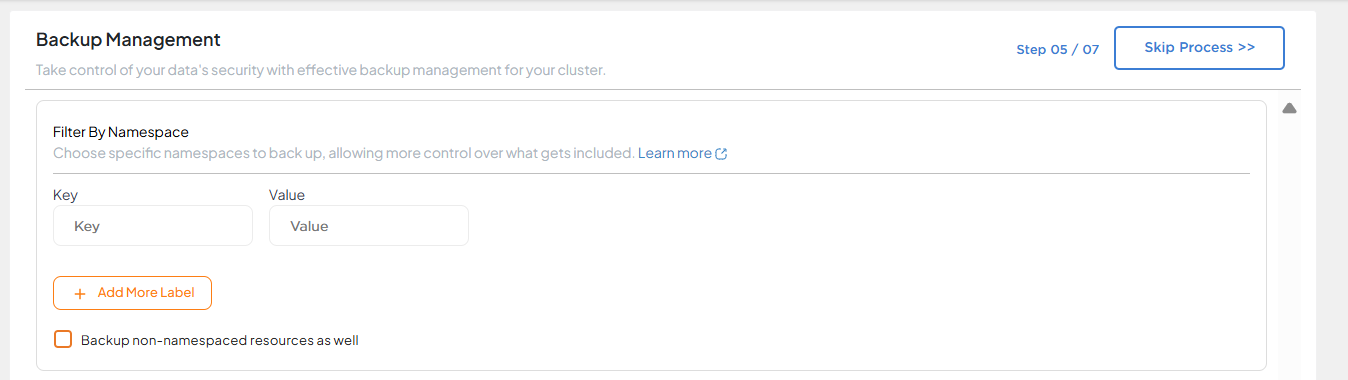
- Backup Non-Namespace Resources: Check this option if you also want to include cluster-level resources like CRDs and roles.
Tip: Leave this blank to perform a backup of the entire cluster.
-
Storage Location: Backups are written to the defined storage location for recovery and restore operations. Provide Storage Pool ID and Storage Pool Name where the backup will be stored.
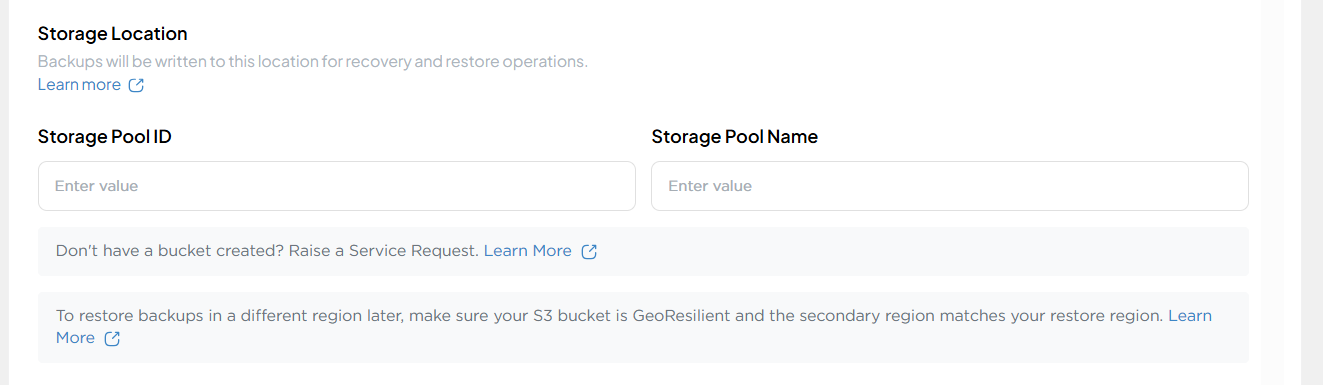
- Storage Pool ID: Unique identifier for the backup storage pool.
- Storage Pool Name: Name of the storage pool where backups will be stored.
Click here to learn more about Storage.
Note:
- Make sure the storage bucket exists. If you don’t have a bucket created, you can raise a Service Request directly from the portal.
- Geo-Resilient Backup: To restore backups in a different region later, ensure your storage bucket supports GeoResilient replication and the secondary region matches your restore region.
- Once the Storage Pool ID and Storage Pool Name are selected for backup, they cannot be modified later.
-
Backup Frequency: Users can select one or more predefined backup schedules- Daily, Weekly, Monthly, or Yearly.
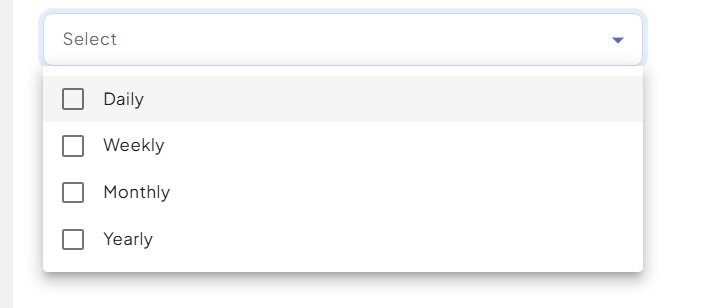
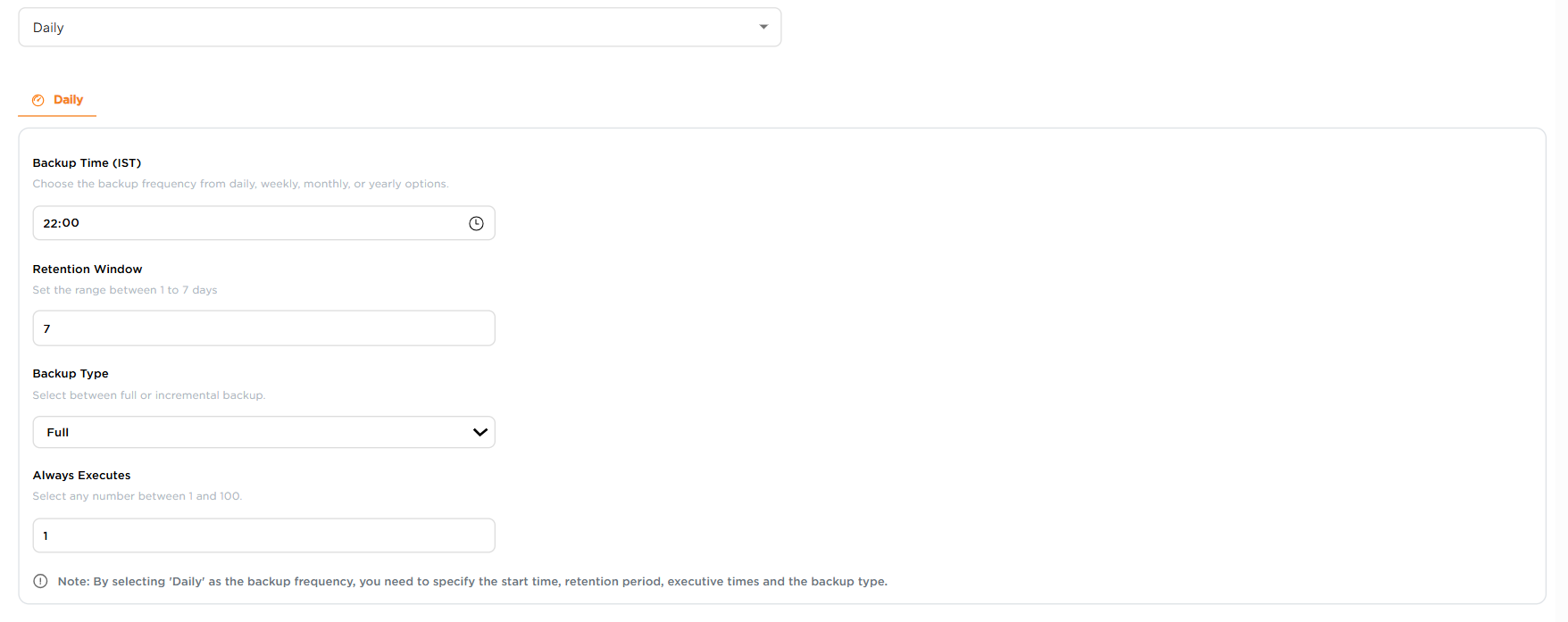
Select Daily to configure daily backup settings.
-
Daily Backup Configuration
- Backup Time: Set the daily backup time (e.g., 22:00 IST).
- Retention Window: Specify how many days backups should be retained (e.g., 7 days).
- Backup Type: Choose between:
- Full: Complete backup of data.
- Incremental: Only changes since the last backup.
- Always Executes: Define the interval between backups (e.g., 1 day).
Select Weekly to configure weekly backup settings.
-
Weekly Backup Configuration
- Backup Time: Set the time to start the backup job (e.g., 22:00 IST).
- Retention Window: Define how many days the backup should be retained (e.g., 30 days).
- Backup Day: Select the day of the week when the backup should run (e.g., Sunday, Monday, etc.).
- Always Executes: Choose the interval in weeks for the backup to repeat (e.g., every 1 week).
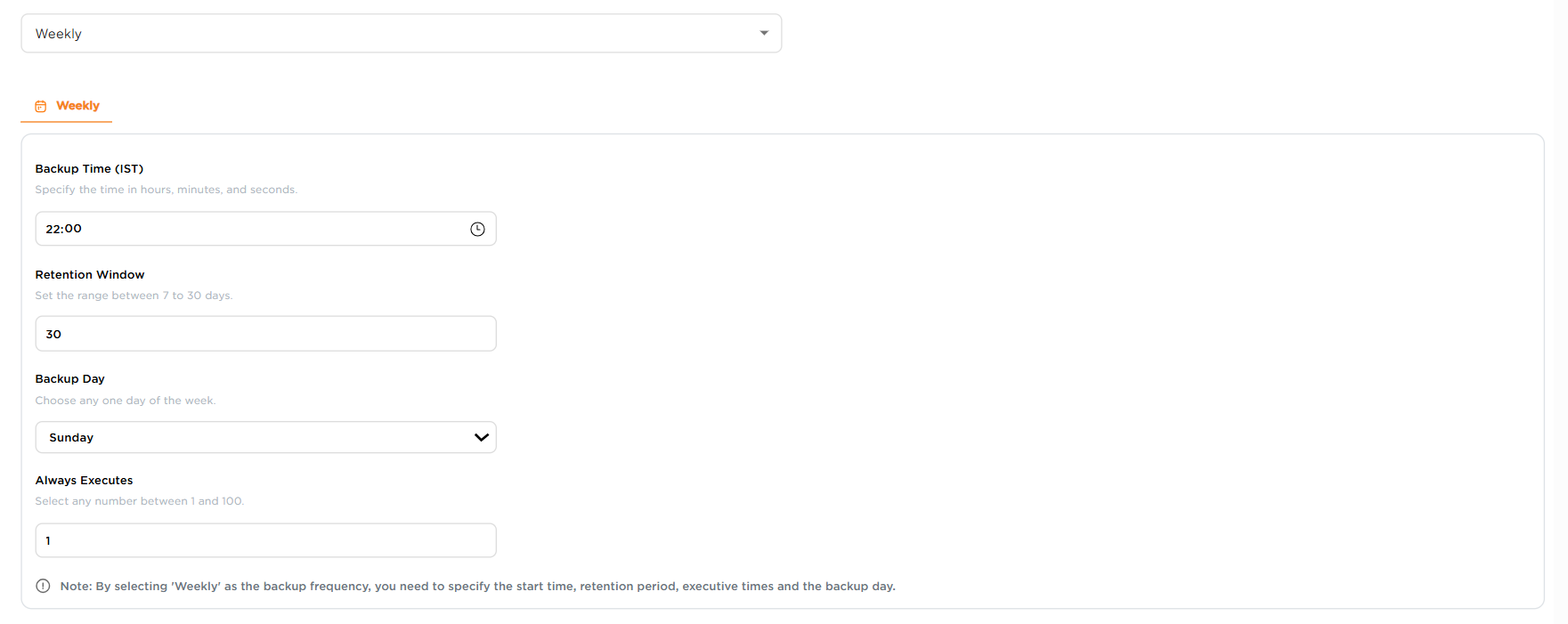
Select Monthly to configure monthly backup settings.
-
Monthly Backup Configuration
- Backup Time: Set the time to start the backup job (e.g., 22:00 IST).
- Retention Window: Define how many days the backup should be retained (e.g., 90 days).
- Backup Date: Select the date of the month when the backup should run (e.g., 28).
- Always Executes: Choose the interval in months for the backup to repeat (e.g., every 1 month).
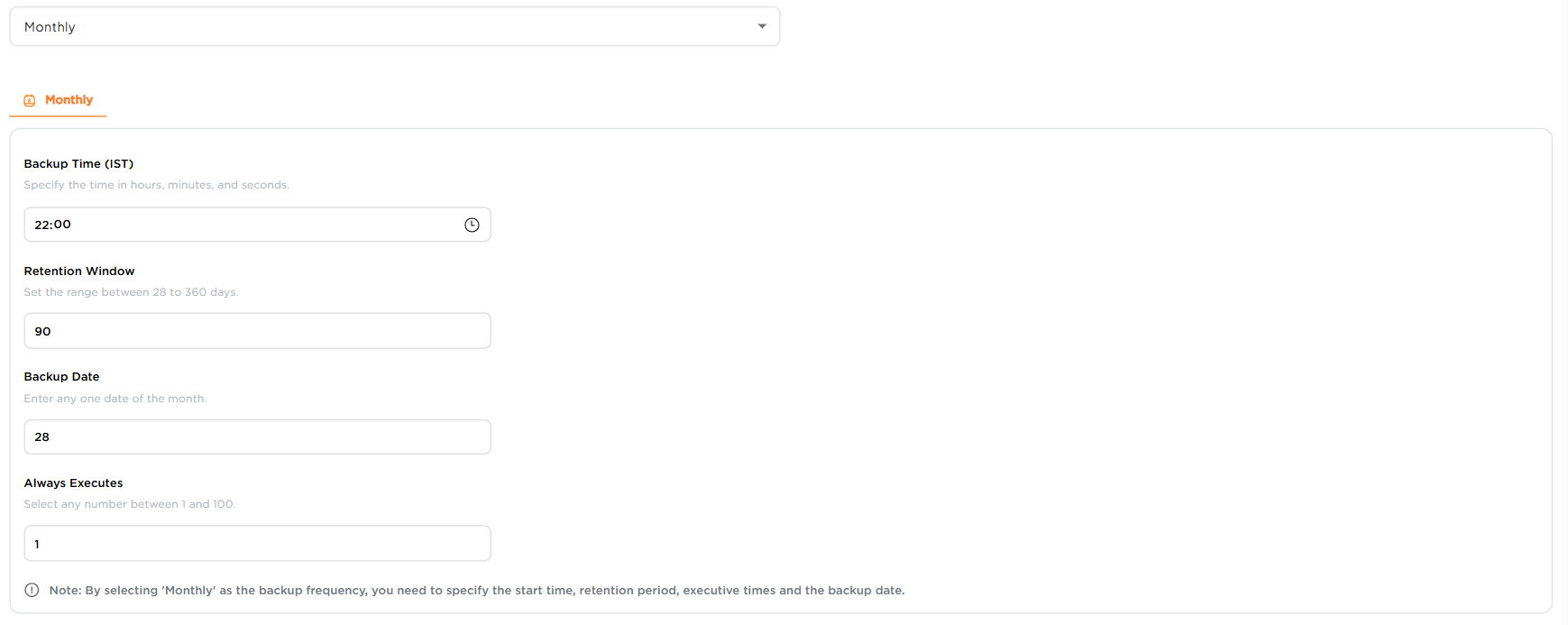
Select Yearly to configure yearly backup settings.
-
Yearly Backup Configuration
- Backup Time: Set the time to start the backup job (e.g., 22:00 IST).
- Retention Window: Define how many days the backup should be retained (e.g., 730 days).
- Backup Month: Select the month when the backup should run (e.g., July, December etc).
- Backup Date: Select the date of the month when the backup should run (e.g., 31).
- Always Executes: Choose the interval in months for the backup to repeat (e.g., every 1 year).
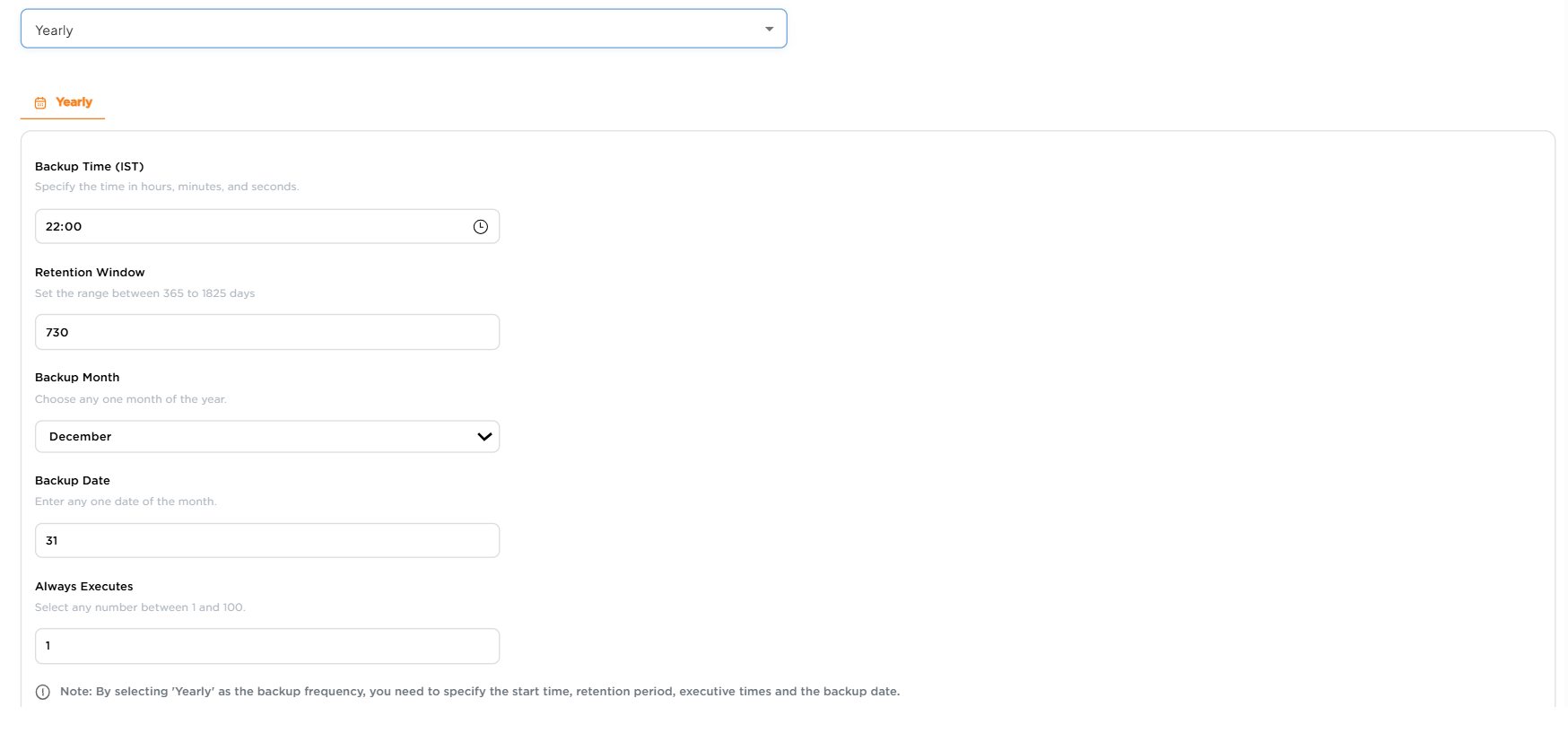
Note
- Backup is optional and can be configured later if not selected during cluster creation.
-
Select Add-Ons
- Use the Search field to find and select from the list of available add-ons. Add-ons can extend cluster capabilities such as security, monitoring, networking, and application management.
-
Observability: Observability add-ons enable you to monitor cluster health, performance, and logs, ensuring smooth day-to-day operations and quicker troubleshooting.
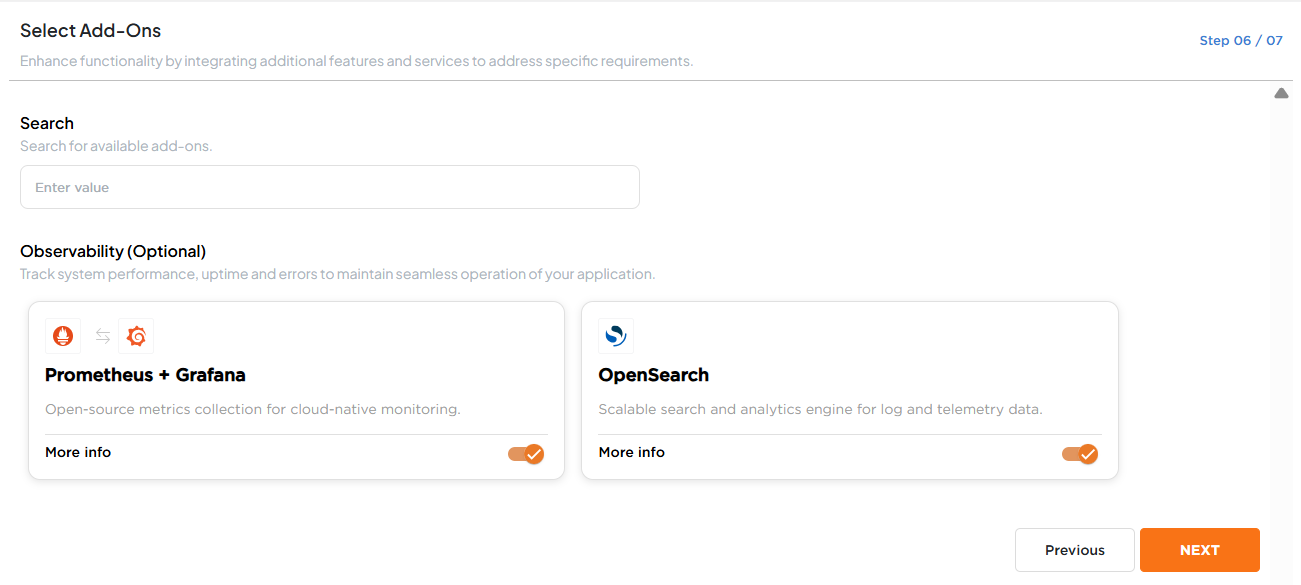 Available add-ons are mentioned below:
- Grafana: Provides dashboards for real-time monitoring and visualization of cluster metrics.
- Opensearch: Enables scalable log search and analytics for observability and troubleshooting.
- Kubernetes Dashboard: Offers a web-based UI to monitor and manage cluster resources and workloads.
Note:
Add-ons are optional and can be configured later if not selected during cluster creation.
Choose add-ons that align with your workload requirements and organizational standards for monitoring and operations.
Review
The final step in cluster creation is the Review section, where you can verify all configurations before deployment.
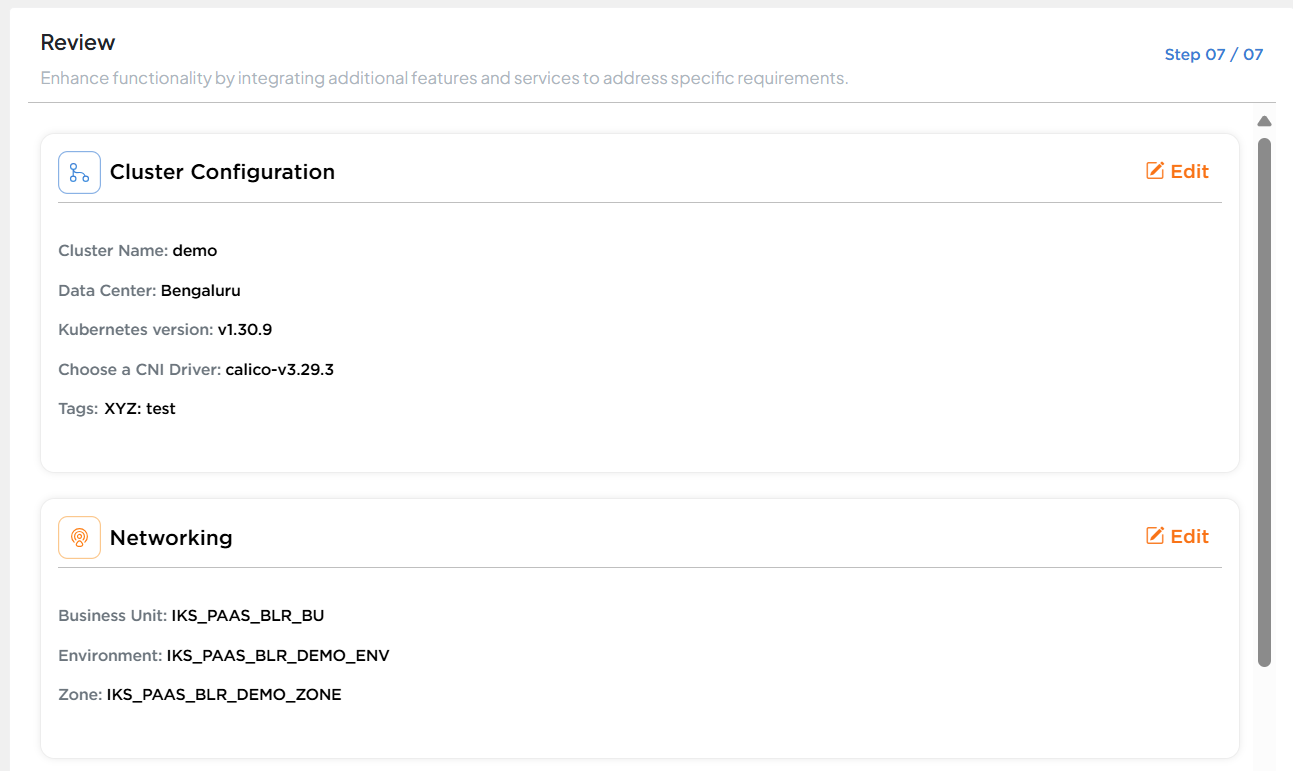
- Cluster Configuration: Displays details such as cluster name, data center, Kubernetes version, chosen CNI driver, and applied tags.
- Networking: Shows the configured business unit, environment, and zone details.
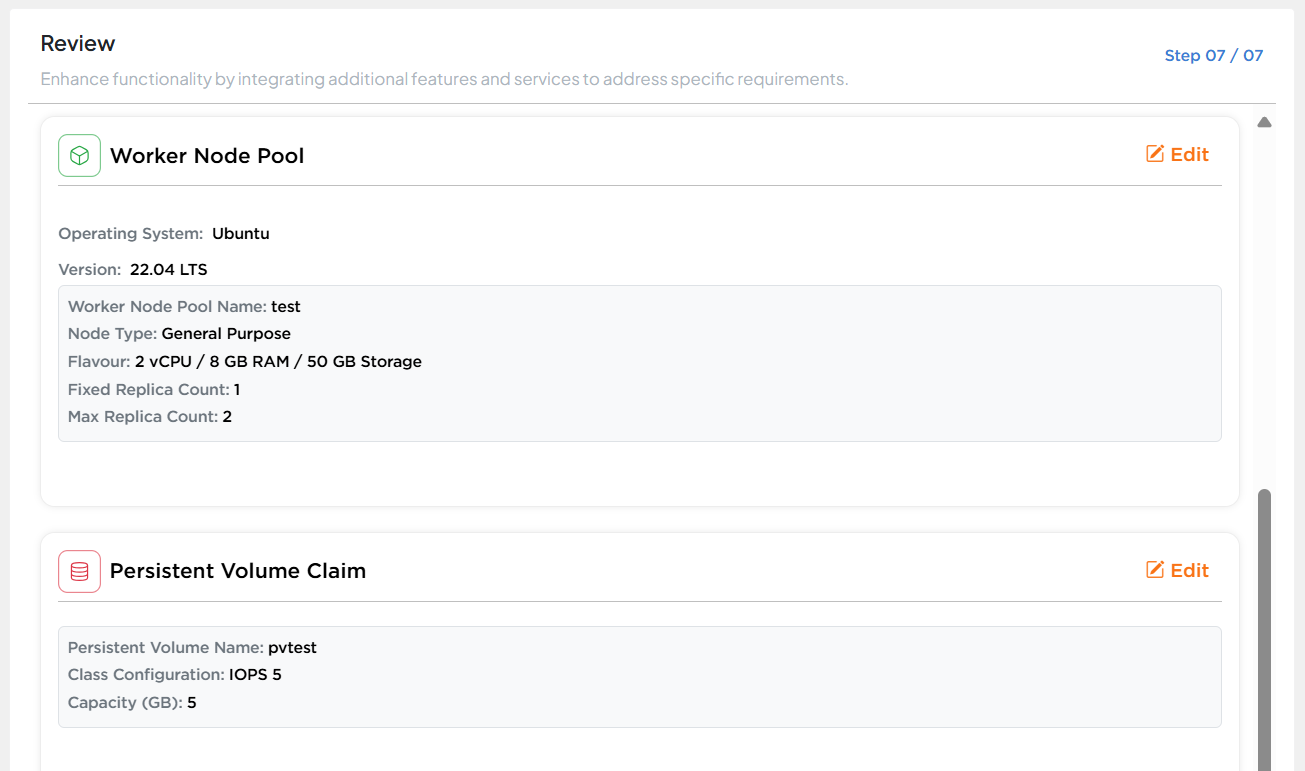
- Worker Node Pool: Displays details such as Operating System, Worker Node Pool Name, Node Type, Flavour, replica counts and scaled replica counts.
- Persistent Volume Claim: Displays details like Persistent Volume Name, Class Configuration and Capacity.
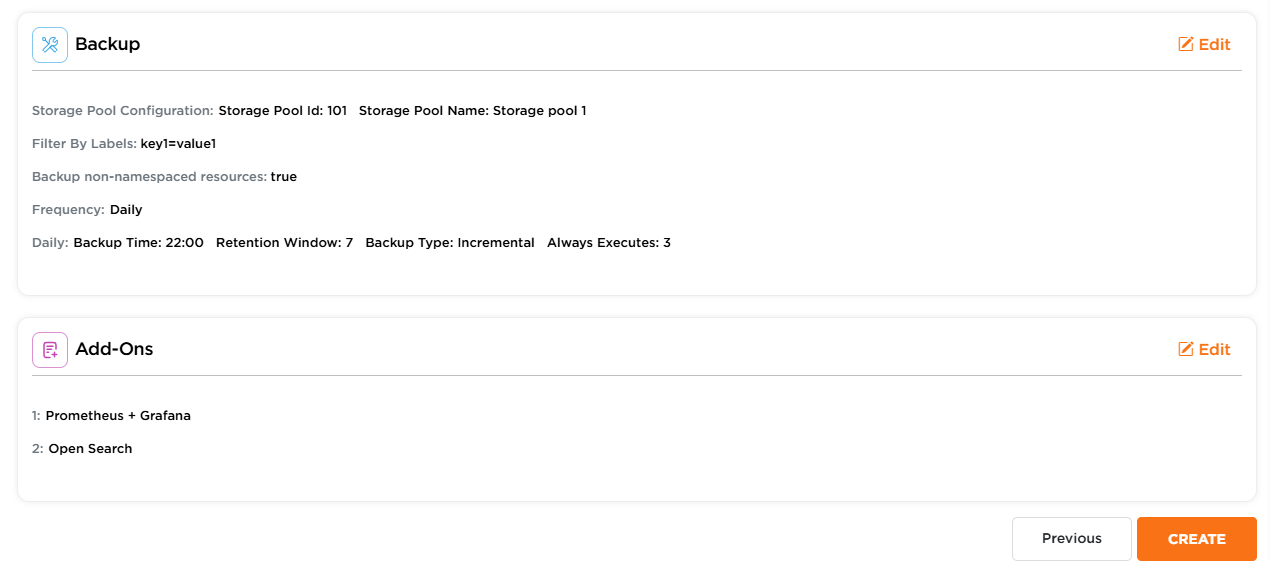
- Backup: Displays storage pool configuration, filter-by labels/names, backup non-namespaced resources and the details of the frequency of backup selected and configured.
- Add-ons: Displays the selected Add-ons for the cluster.
Edit Option: Allows you to go back and modify any step configuration settings before finalizing the creation process.
- After verifying all the configuration details, click Create button to proceed with the creation of the cluster.